![New_Centercode_Logo.png]](https://help.centercode.com/hs-fs/hubfs/New_Centercode_Logo.png?height=35&name=New_Centercode_Logo.png)
This article applies to Pro, Team, and Legacy editions.
Table of Contents
- How do I create a report in Centercode?
- What is a Macro Report?
- What is a Custom Report?
- How do I distribute reports to other members of my team?
- How do I export survey or feedback data via spreadsheet?
- How do I see files in my report?
- How do I bulk export files attached to forms?
- How do I create a filter for my report?
- How do I configure a report-level filter?
- Can I copy a report element into another report?
- Why is my cloned report element empty?
- Why isn't my report listed when I clone an element?
- Can I integrate my reports with other software like Tableau?
- Can I report across projects?
- Can I create a custom report for API logs?
- How can I embed Centercode reports in other tools?
- How can I share reports with participants or outside of the platform?
- Can I report on invite or opportunity pool data in a custom report?
- What should I expect from report performance?
- How long should reports take to complete?
- Why is my report missing data?
- My Macro Report shows it was refreshed, but it's still loading. What should I do?
- My Spreadsheet Report shows it was refreshed, but it's still loading. What should I do?
How Do I Create a Report in Centercode?
Centercode offers simple methods for getting your collected data out of the platform. From their respective management pages, you can create high-level overviews as PDF graphs and charts via Macro Reports, or build more targeted Custom Reports. Read more about creating reports.
What Is a Macro Report?
Macro Reports quickly output an entire form's worth of processed results. They let you build a report containing many related elements by instructing the Reporting system to create a full report on the form of your choice from surveys, tasks, and feedback types. Read more about Macro Reports.
What Is a Custom Report?
Custom Reports (also called Element Reports) let you select individual criteria for each chart, spreadsheet, or export. Elements can span multiple forms and data sets, giving you precise control over what you see.
How Do I Distribute Reports to Other Members of My Team?
Distributing a report sends a complete package in your choice of formats — PDF, XLSX, and HTML — via email. You can send a one-off distribution to specific email addresses, or set up an automatic, scheduled distribution to entire project teams or a custom list of recipients. Read more about distributing reports.
How Do I Export Survey or Feedback Data via Spreadsheet?
Use Quick Form Export to export raw data from surveys and feedback into a spreadsheet without needing in-depth knowledge of the Reporting engine. Read more about Quick Form Export.
How Do I See Files in My Report?
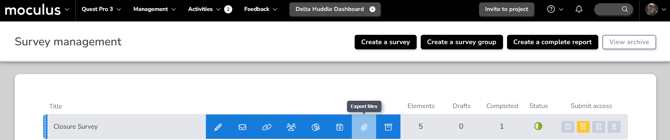
User Profiles, Test Platforms, Surveys, and Feedback Types include a hover-over Export Files (paperclip) icon for exporting any files attached to the form.
How Do I Bulk Export Files Attached to Forms?
File attachments in Centercode can be uploaded in two places: File Attachment elements on any form type (User Profiles, Test Platforms, Surveys, and Feedback Types), and Feedback Replies.
To export files, hover over the form in its management page and click the Export Files (paperclip) icon. The platform displays a progress dialog — you can wait or come back later to retrieve the ZIP.

When ready, the ZIP is organized by form type: user-based forms (surveys, profiles, platforms) are organized by Project Name / Form Name / Username; feedback-based forms are organized by Project Name / Feedback Form Name / Ticket ID.
How Do I Create a Filter for My Report?
Filters narrow your report results to specific criteria, such as "Active users." Reports support two filtering methods: per-element filters set individually on each report element, and report-level filters that apply across all elements using a given data source. Read more about building filters and views.
How Do I Configure a Report-Level Filter?
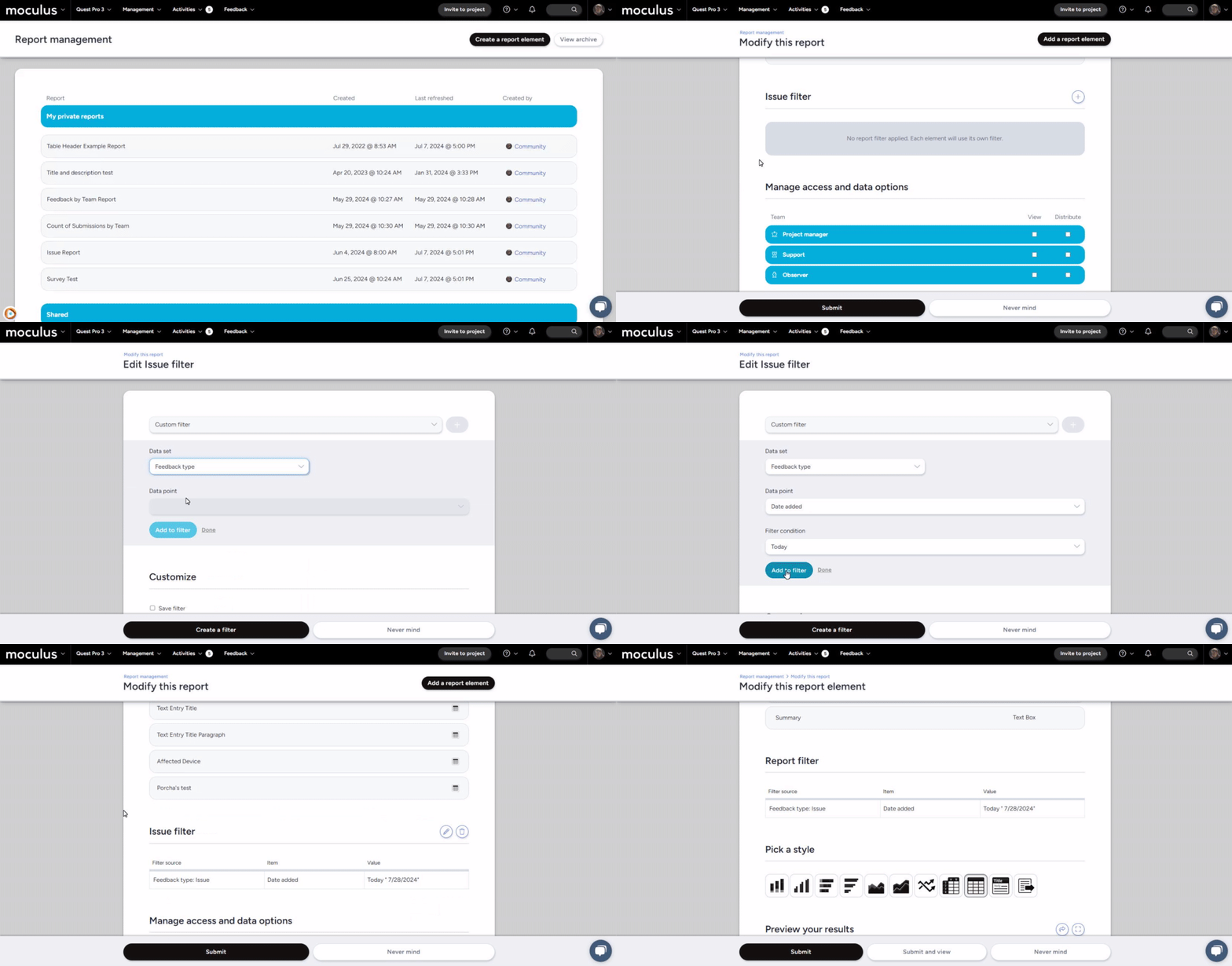
1. Navigate to the Modify this report section of the report.
2. Scroll down to the Filter section.
3. Click the New icon to create a report-level filter for a data source.
4. Set your filter parameters and click Create filter.
Once a report-level filter is applied, all report elements using that data source will use it. You can't mix and match — elements using that source will all follow the same filter.
Can I copy a report element into another report?
Yes, as long as both reports are in the same project, or both are community reports. When you create a new element, click Clone from another report to load a copy of an existing element for review before you save it. To copy an element within the same report, hover over it on the Modify this report page and click the clone icon.
You can't clone elements between projects, or between project and community reports. To copy every element in a report at once, use Clone on the Report management page. For step-by-step instructions, see Guide to cloning report elements.
Why is my cloned report element empty?
Cloning copies an element's settings, not its results. A new copy has no data until the report runs again, so refresh the report and the results appear.
If the element still looks wrong after a refresh, check its filter. When the destination report has a report-level filter for that kind of data, the copy uses that filter in place of the one it had. An element can also arrive with no filter at all and show more records than the original. See Guide to cloning report elements for how filters carry over.
A cloned data package or record lookup element also needs API access granted before an outside system can reach it. The copy doesn't inherit the original's access.
Why isn't my report listed when I clone an element?
The Source report list leaves out any report you can't clone from, without explaining why. A report won't be listed if it:
- Belongs to a different project, or is a project report while you're building a community report (or the reverse).
- Is a different kind of report. Standard reports clone from standard reports, and API reports from API reports.
- Is archived.
- Is one you can view but can't edit.
- Has no elements.
AI response elements are also hidden from the Element to clone list when your community doesn't have an active AI data analysis license.
Can I Integrate My Reports with Other Software Like Tableau?
Yes, through Enhanced Integrations. Centercode's Data Packages let you create and share custom data sets for consumption by third-party systems like Tableau, Domo, or Google Sheets. This capability requires Centercode's Enhanced Integrations package. Read more about integrating reports with third-party tools.
Can I report across projects?
Yes, using Cross Project Labels. These are unifying labels created by Community Admins to identify similar resources across projects, and once applied you can filter and report on the labeled resources together.
There is one limit worth knowing before you design the report. Reporting works across two parameters at a time, typically a project and a feedback dimension. A third parameter, most often a time window, is where reports stop being able to answer the question. If you need feedback totals across a set of projects and confined to a specific date range, that is three parameters, and you'll need one of these instead:
- Apply Cross Project Labels to the project-level feedback filters, then report on the labeled set.
- Export the data and complete the analysis in a BI tool.
The second option is usually the better fit when the date window matters as much as the grouping, or when you expect to rerun the same analysis over changing periods.
When a report needs to combine projects, a feedback dimension, and a date range at the same time, plan on an export rather than a report. Looking for the export path? See the Guide to Exporting Survey and Feedback Spreadsheet Data.
Can I Report On or Filter API Logs?
No. API logs aren't a reporting data source, so you can't build a report element or apply a report filter against them. To review API activity, go to API key management and click View API key log for the key you want. The log shows that key's access history and status codes. To see where a key is used, click its API key endpoints log.
How Can I Embed Centercode Reports in Other Tools?
After defining and submitting your report, look for the Enable script embedding option on the following page. This generates an embed code for each report element that can be placed in any system capable of converting HTML. The embedded report element stays as current as the report's refresh interval.
To embed a report element:
1. Configure and submit a custom or Macro Report.
2. On the Create Report page, scroll down and click Create embed code.
3. Click Submit to load and complete the report.
4. Click the interactive mode pencil on the report.
5. Click the modify pencil on the report element you want to embed.
6. Click the </> icon.
7. Copy the embed code and add it to your external system.
How Can I Share Reports with Participants or Outside of the Platform?
In the settings for an individual report, use the Create embed code option. This generates an embed code for each report element that can be placed outside the platform or embedded within Centercode content available to your participants.
What Should I Expect from Report Performance?
Running a report involves two steps. First, data collection — the system scours your data to pull back everything you've requested. This is particularly intensive for community-level reports or projects with large user bases or long histories, and can take seconds to several minutes. Second, visualization — the system arranges the data, generates charts, graphs, and word clouds, and builds PDF and Excel versions. This step is usually faster, but takes longer with many report elements or users.
How Long Should Reports Take to Complete?
Most reports take a few seconds to several minutes for data collection, then up to several minutes for visualization. If your report is taking too long, reach out to support via the in-site chat and the team will investigate.
Why Is My Report Missing Data?
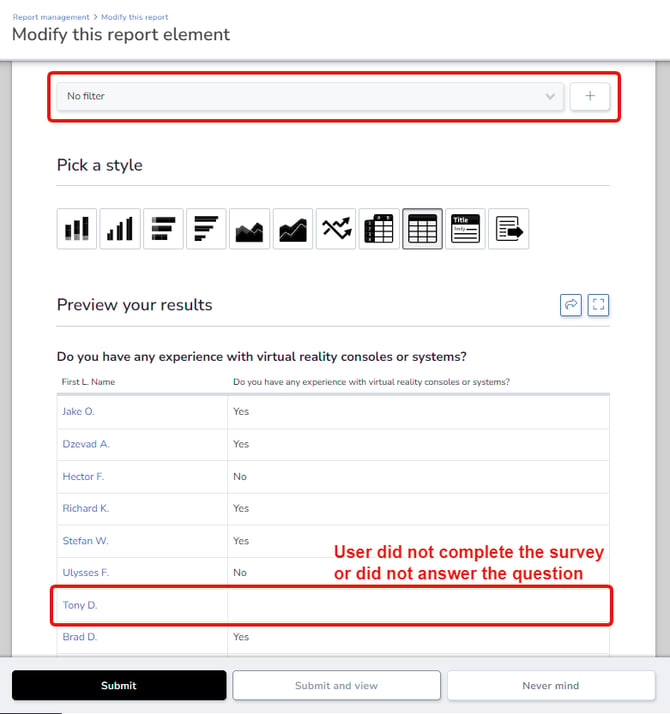
Your data most likely isn't missing — your filter or view criteria just doesn't match any results yet. A filter narrows the scope of data you want to see. If you'd like to see all results, try No filter. Make sure your View items are relevant to your filter; otherwise, you'll see blank results even with data present.
When I report on a stack rank, is the top item the highest or the lowest number?
The lowest. A stack rank stores position as a number starting at 1, and 1 is the item your tester dragged to the top of the list. Reading down the list, the numbers climb: 1 is the highest-priority item, and the largest number is the one ranked last.
So when you sort a stack rank column ascending in a report, you get your testers' ordering back exactly as they built it, most important first. Sorting descending inverts it.
If you are averaging stack rank values across testers to find a group priority, remember that a lower average means a stronger result. It is worth labeling that column in your report so the people reading it don't read a low score as weak.
Stack rank values are stored as positions, not scores. A lower number always means a higher placement.
My Macro Report Shows It Was Refreshed, but It's Still Loading. What Should I Do?

If your Macro Report is over 30 days old and Report Management shows a recent refresh but the report still shows Loading, you may need to re-create the report.
My Spreadsheet Report Shows It Was Refreshed, but It's Still Loading. What Should I Do?
Spreadsheet reports display results within your browser. If the report shows as refreshed but stays on Loading, it may have too many results to render on screen. Switch the report style to File Export to generate only the report files rather than the in-site visualization.
To change the report style from Report Management:
1. Hover over the report and click the modify (pencil) icon.
2. Click the report element under Single report elements.
3. Scroll down to Pick a style and select File export.
4. Click Submit and view to save.