![New_Centercode_Logo.png]](https://help.centercode.com/hs-fs/hubfs/New_Centercode_Logo.png?height=35&name=New_Centercode_Logo.png)
Table of Contents
- How can users opt out of projects?
- What happens when a user opts out of a project or the community?
- How does "Not Interested" work?
- Can a user undo "Not Interested"?
- Can I see who clicked "Not Interested"?
- A user reports they didn't click "Not Interested" but are being treated as if they did
How Can Users Opt Out of Projects?
The Can leave project role in Project Roles lets members of any enabled team leave a project without needing to contact a Project Manager. This role is off by default.
To enable it:
1. Go to the Community (Community management > Roles) or Project (Management > Users > Roles) level Roles menu.
2. Use the User role drop-down to select the team.
3. Check the Can leave project box.
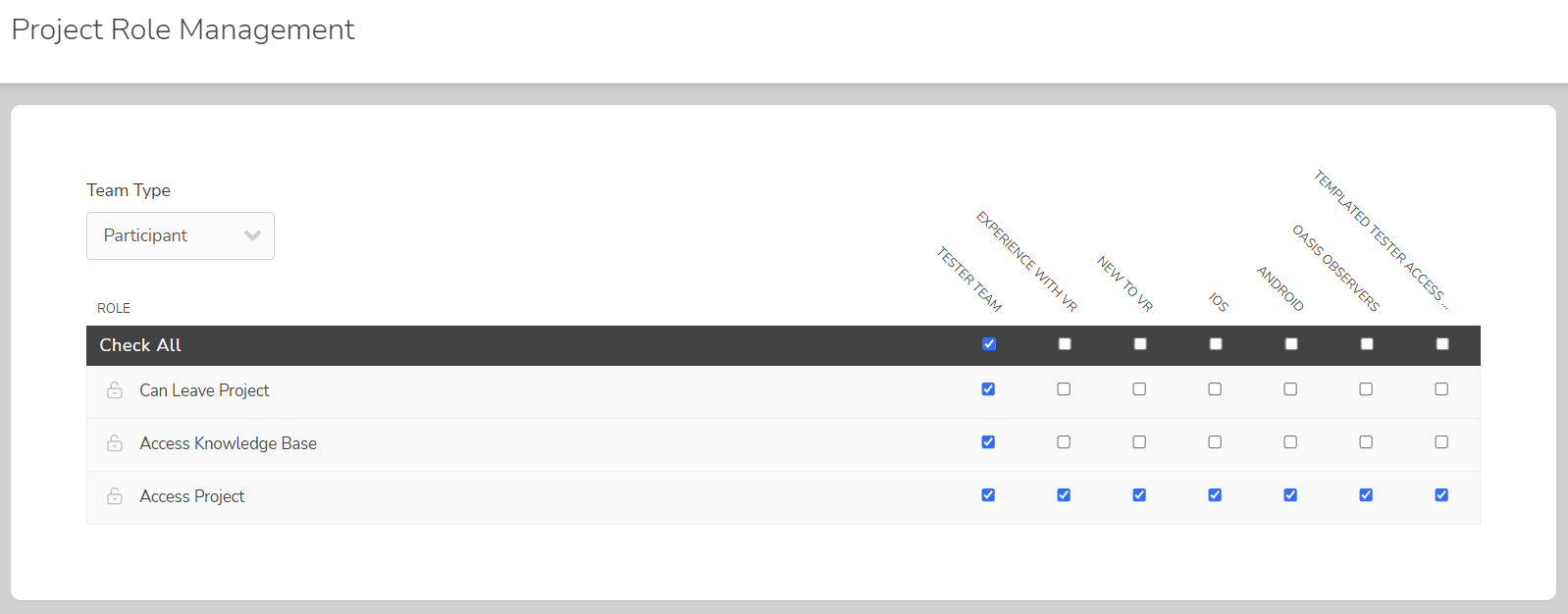
Important notes:
- Don't enable this role for hardware tests. Allowing participants to opt out may result in lost or unreturned hardware.
- Users who leave a project remain in your community as available participants for future tests.
- The Leave Project link doesn't appear when assuming another user. A Project Manager with the Manage Users role can use the Remove User link in the User Actions menu instead.
What Happens When a User Opts Out of the Community or Project?
Manual removal (Remove) and self-removal (Opt-Out) are handled similarly, with a few key differences.
Both Remove and Opt-Out:
- All form data (surveys, feedback, profiles, etc.) not marked as personal data is retained.
- The user record is obscured and account data is removed, allowing their unique identifiers to be reused by other users later.
- Report distributions no longer go to the user.
- Outstanding password reset requests from before the removal no longer allow site access. The user is redirected to the sign-in page.
Opt-Out only:
- Onboarding opportunity user limits are removed, allowing another user to follow the same onboarding path.
- The username is displayed as "Removed User" in tasks, forums, and wikis.
Notes:
- When user records are obscured, they're marked as removed or opted-out and hidden from front-end reporting. Back-end account data is automatically purged after 7 days. To reinstate a user account, this must be done before the purge.
- Survey and profile data is retained in the system but is excluded from standard reports, since responses from removed users are flagged as inactive.
How Does "Not Interested" Work?
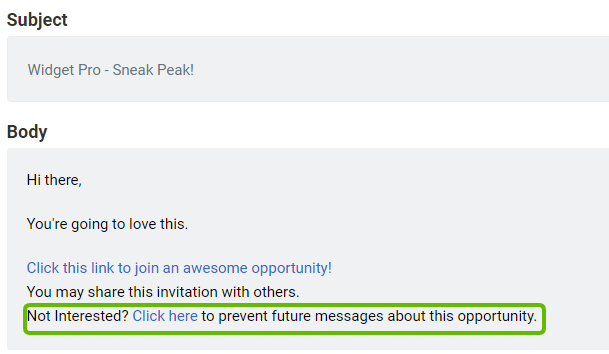
"Not Interested" refers to users who clicked the "Not Interested?" link in the footer of an onboarding email or on a recruitment's landing page. Clicking it mutes them from future email invitations for that Project Recruitment.
Can a User Undo "Not Interested"?
Yes, in most cases. When a user clicks "Not Interested," they land on a page with an "I've changed my mind" option to undo the selection. If they closed the window without undoing it, they can click the original "Not Interested" link again to get back to that page.
If the user deleted the invitation email, retrieve it using the Email Log tool (Project Tools > Emails > Create email log filter). From there, forward the email to the user or copy the invitation URL to send directly.
Can I See Who Has Clicked "Not Interested"?
No. Centercode doesn't expose this information, as the decision to re-engage should belong to the candidates themselves.
A User Reports They Didn't Click "Not Interested" but Are Being Treated as If They Did
This typically occurs for one of three reasons:
1. The user's company email security system previewed or scanned the recruiting email and inadvertently triggered "Not Interested." Ask the user to access the original invitation email, click the recruitment link, and then click "I've changed my mind."
2. Recruiting emails are being sent from an email address that hasn't been configured for Centercode in your SPF settings. This can cause email security systems to scan and interact with links in the email. Review SPF configuration guidance and work with your IT team to update your settings.
3. Even with correct SPF configuration, the user's email security may be particularly sensitive, which is more common with company email addresses.