![New_Centercode_Logo.png]](https://help.centercode.com/hs-fs/hubfs/New_Centercode_Logo.png?height=35&name=New_Centercode_Logo.png)
A good report element takes real setup. You pick the data source, build the view and the filter, choose a style, and sometimes write an AI prompt that took a few tries to get right. Cloning lets you reuse all of that instead of rebuilding it from memory.
There are two ways to clone a report element:
- Clone from another report: start a new element from a copy of one in any eligible report.
- Duplicate in place: add a copy of an element directly below the original, in the same report.
These are different from two other cloning tools in Reporting. Clone on the Report management page copies every element of a report into a new report (see Report management overview). Clone from existing view, in the element builder, copies a saved view (your columns) and nothing else.
Before you start
- You need access to Custom reports in the project, or to Community reports at the community level.
- You need edit access to the report you're copying from. If you can only edit reports you created, those are the only reports you can clone from.
- To clone an AI response element, your community needs an active AI data analysis license.
Choosing a method
- Clone from another report loads the copy into the element editor so you can review and adjust it before anything saves. Use it to bring an element into a different report, or when you want to change the copy before it exists.
- Duplicate in place takes one click and saves immediately. Use it to build variations of an element inside the same report.
Cloning an element from another report
- From Report management, click Create a report element, or click New element on the report you want to add to.
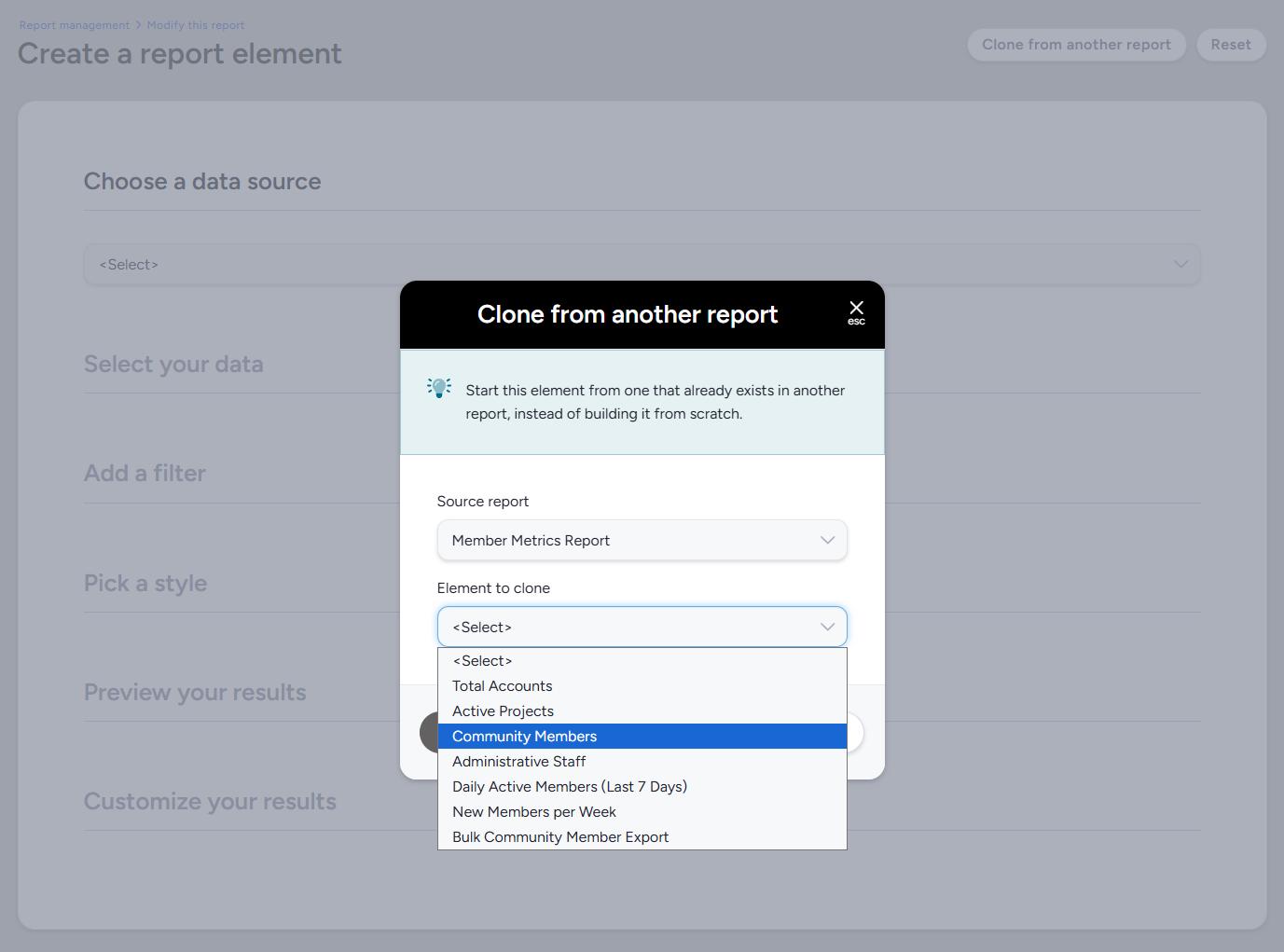
- Click Clone from another report at the top of the page.
- Select a Source report.
- Select the Element to clone.
- Click Clone this element.
- Review the loaded settings and make any changes you need, such as a new element name.
- Choose the report to save the element to, then click Submit.
After step 5, a message confirms which element was loaded. Everything about the element comes across:
- Data: the same data source and data points.
- View: the same columns, as a separate copy you can change.
- Filter: the element's own filter, as a separate copy. Report-level filters work differently, as described in How filters carry over below.
- Style and customization: chart type, data counts, percentages, sort order, and size.
- AI settings: the objective and custom prompt of an AI response element.
Nothing saves until you click Submit. If you leave the page instead, the report you were adding to stays exactly as it was.
The source list includes the report you're building, so you can also use this method to start a variation of an element in the same report.
Why a report isn't in the list
The Source report list only shows reports you can clone from. Reports that don't qualify are left out without an explanation. A report won't appear if it:
- Belongs to a different project, or sits at the other level (a project report when you're working on a community report, or the reverse).
- Is a different kind of report. Standard reports clone from standard reports, and API reports clone from API reports.
- Is archived.
- Is one you can view but can't edit.
- Has no elements.
AI response elements don't appear in the Element to clone list without an active AI data analysis license. If no report qualifies at all, the Clone from another report button doesn't appear. The button also only appears when you create a new element, not when you modify an existing one.
Duplicating an element in place
- From Report management, hover over the report and click Modify.
- Save any other changes you've made on the page.
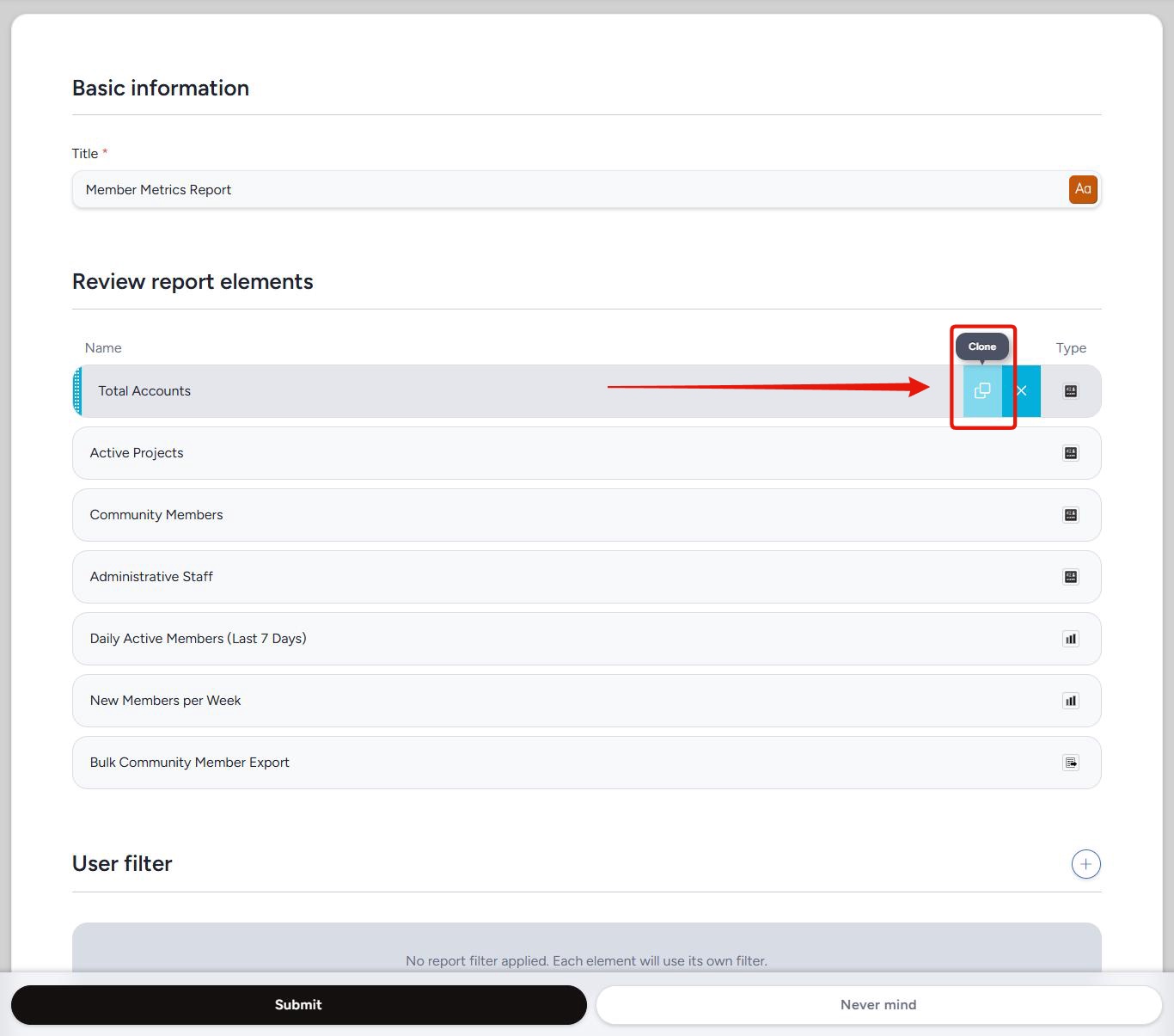
- Under Review report elements, hover over the element you want to copy and click the clone icon.
- Wait for the page to reload. The copy appears directly below the original.
- (optional) Click the copy's name to rename or adjust it.
The copy keeps the original's name exactly, with no number or "copy of" added, so rename it if you'll want to tell the two apart. Every element below the copy moves down one position. The copy can be reordered or removed like any other element.
Duplicating reloads the page, and the reload discards unsaved changes without a warning. That includes a half-typed report title or a filter change you haven't saved. That's why step 2 matters.
How filters carry over
An element's filter can come from two places: the element itself, or a report-level filter set on the report. Cloning treats them differently.
- The element's own filter comes with it. The copy gets its own version, so editing one filter never changes the other.
- A report-level filter stays behind. If the original element used its report's report-level filter, the copy doesn't bring that filter along.
- The destination's report-level filter wins. If the report you're cloning into has a report-level filter for that kind of data, the copy uses it.
This means an element that showed a narrow slice of data in its old report can show everything in its new one. Before you submit, check the filter on the loaded element and click Check filter to confirm the record count looks right. For more on how report-level filters work, see Create a report/Modify this report overview.
💡Ted Tip: When a cloned element comes back with more rows than the original, I look at the destination report's filters first. A report-level filter there replaces whatever filter the element arrived with, and it's the most common reason two "identical" elements disagree.
Best practices for cloning report elements
- Refresh after cloning: a copy carries its settings but no results. Refresh the report before you share it.
- Rename copies right away: a PDF with three elements named Feedback by day is hard to read. Name each one for the question it answers.
- Check the filter before you submit: report-level filters behave differently from element filters, and the difference shows up as wrong counts.
- Keep a reference report: build your best elements once in a single report and clone from it as you need them. This works within one project, or within your community reports.
Notes
- A cloned element shows its settings but no data until the report runs again.
- Copies are independent. Editing, moving, or removing a copy doesn't affect the original, and the reverse is also true.
- You can't clone elements between projects, or between project reports and community reports. To start new projects with the same reports in place, build them into a project template. See Project Template Overview.
- Elements clone one at a time. To copy every element in a report, use Clone on the Report management page instead.
- A cloned data package or record lookup element gets its own key and doesn't inherit the original's API access. Grant access to the copy before an outside system can reach it. See Simple Guide to Data Packages and Simple Guide to Record Lookups.
- Cloning or duplicating an AI response element requires an active AI data analysis license.
- For answers to other reporting questions, see the Reporting FAQ.