![New_Centercode_Logo.png]](https://help.centercode.com/hs-fs/hubfs/New_Centercode_Logo.png?height=35&name=New_Centercode_Logo.png)
Project Home gathers the things a participant acts on: content you have published to them, the feedback buttons they submit through, surveys waiting on them, activities in the current phase, saved drafts, and their assigned test platforms. The sequence those sections appear in is a project setting. If your program drives task completion, you can lead with activities. If you brief participants before anything else happens, you can lead with content.
You need project administration access to change it. The ordering page sits inside Project Configuration and is gated the same way as the rest of that area, so there is no separate permission to grant. Participants never see the page.
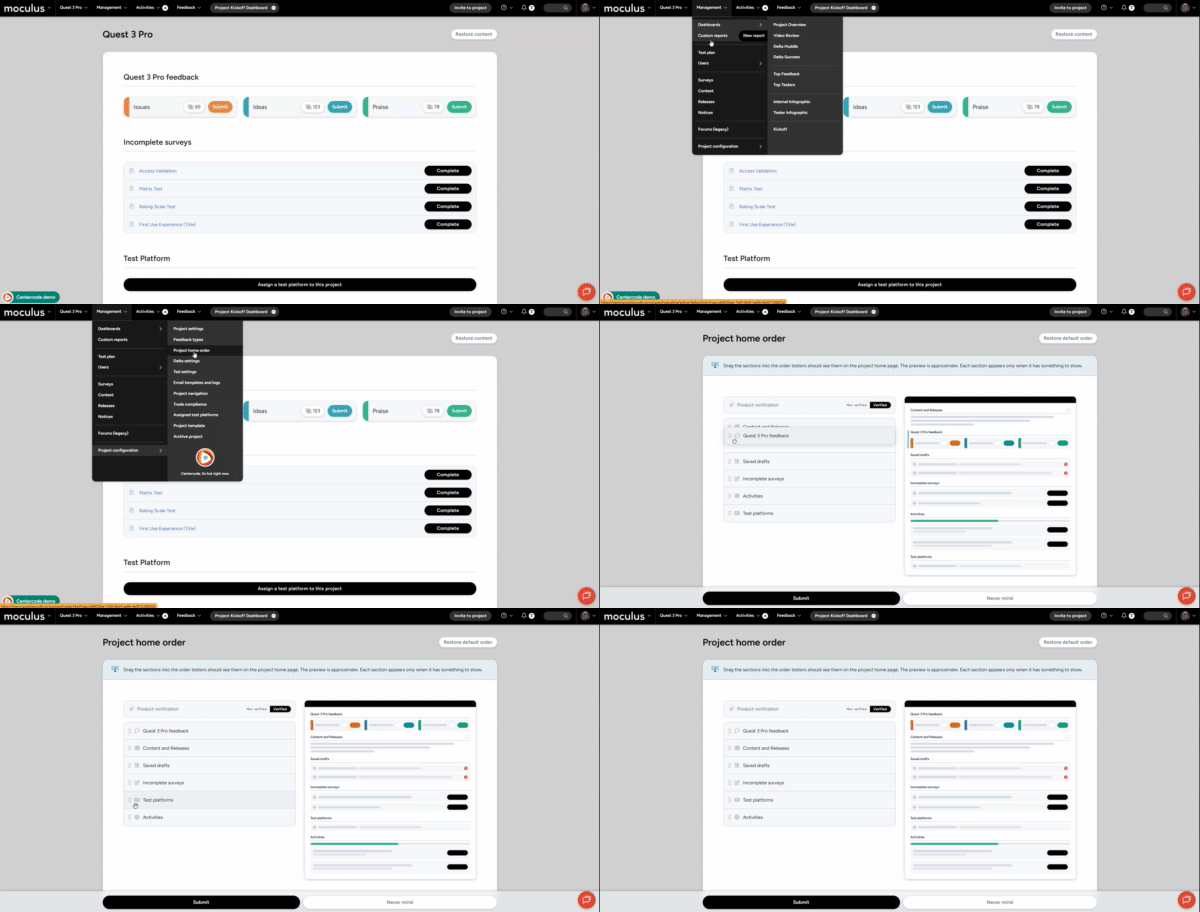
What you can reorder
Six sections can be arranged in any order:
- Content: notices, briefings, and anything set to show on Project Home.
- Feedback: the feedback buttons participants submit through.
- Drafts: saved feedback and survey drafts a participant has not submitted yet.
- Surveys: surveys the participant has not completed.
- Activities: the current phase's activities and their completion status.
- Assigned Test Platforms: the platform selection tool, when it is set to show on Project Home.
Three things sit outside that list:
- Release announcements are not a separate section. They reach participants through the Content stream, so they move wherever Content moves.
- The Content stream moves as one block. Individual content items keep their own sequence inside it.
- Product Verification is pinned and cannot be dragged. It appears in the list as a locked row so you can see where your arranged sections land relative to it. For what it does, see What is Product Verification and how is it used?
Setting your order
[Screenshot: the Project Home Order page showing the drag-and-drop list of sections, including the locked Product Verification row]
- Click Management in the navigation bar
- Select Project configuration
- Select Project Home Order
- Drag each section into the position you want
- Click Save
Dragging a section does not change anything on its own. Because the order reaches every participant in the project, it takes an explicit Save rather than applying as you drop.
Restoring the default order
Select Restore default order to return the list to the platform sequence: Content, Feedback, Drafts, Surveys, Activities, then Assigned Test Platforms, with Product Verification pinned above them. Click Save to apply it.
How the order reaches participants
- One saved order applies to every participant in the project.
- The same order drives desktop and mobile. There is no separate mobile layout.
- Each participant sees only the sections they have access to, arranged in your order.
- A section with nothing in it hides itself and holds its position for whenever it does have content. Arranging sections never produces an empty placeholder.
Carrying your order into new projects
The order is part of project configuration, so it travels on clone. A project created from a template starts with that template's order already applied, and the same holds when you clone from another project. Setting the order once on a template is how you apply one layout across every project built from it. For what else carries across, see the Project creation and cloning FAQ.
Notes
- Arranging sections changes visual sequence only. It never changes what a participant can access.
- Project administrators with dashboard access land on Dynamic Project Dashboards, which have their own configuration and are not affected by this page.
- The page does not preview Project Home. To see the result, view the project as a participant.
- A section added to the platform later takes its natural default position within your saved order rather than landing at the bottom.