![New_Centercode_Logo.png]](https://help.centercode.com/hs-fs/hubfs/New_Centercode_Logo.png?height=35&name=New_Centercode_Logo.png)
This article applies to Team and Legacy editions.
Table of Contents
- How do I create an agreement notice or NDA?
- How do I reset a notice?
- How do I remove a notice?
- Some users report not seeing notices, but not all. What's happening?
- How do I check to see if a participant signed in recently?
- I'm assuming a user. Why can't I see their notices?
- How do notice macros work?
- How do I automatically send emails based on sign-in?
- How do I deactivate or disable a notice macro?
How Do I Create an Agreement Notice or NDA?
To create an agreement notice or non-disclosure agreement in Centercode, start by creating (or modifying) content and selecting the Project notice option below the title. This displays a conditional choice for how you want the content to behave and how users will interact with it. Select Require users to sign a digital agreement from the drop-down, which requires a digital signature before users can proceed in the community or project.
Within the agreement, you can incorporate rich text, including Dynamic Tags, to personalize the document with user information. Once digitally signed, a precise copy of the agreement at the time of signing is archived in the Digital Agreement Center for record-keeping and reference.
How Do I Reset a Notice?
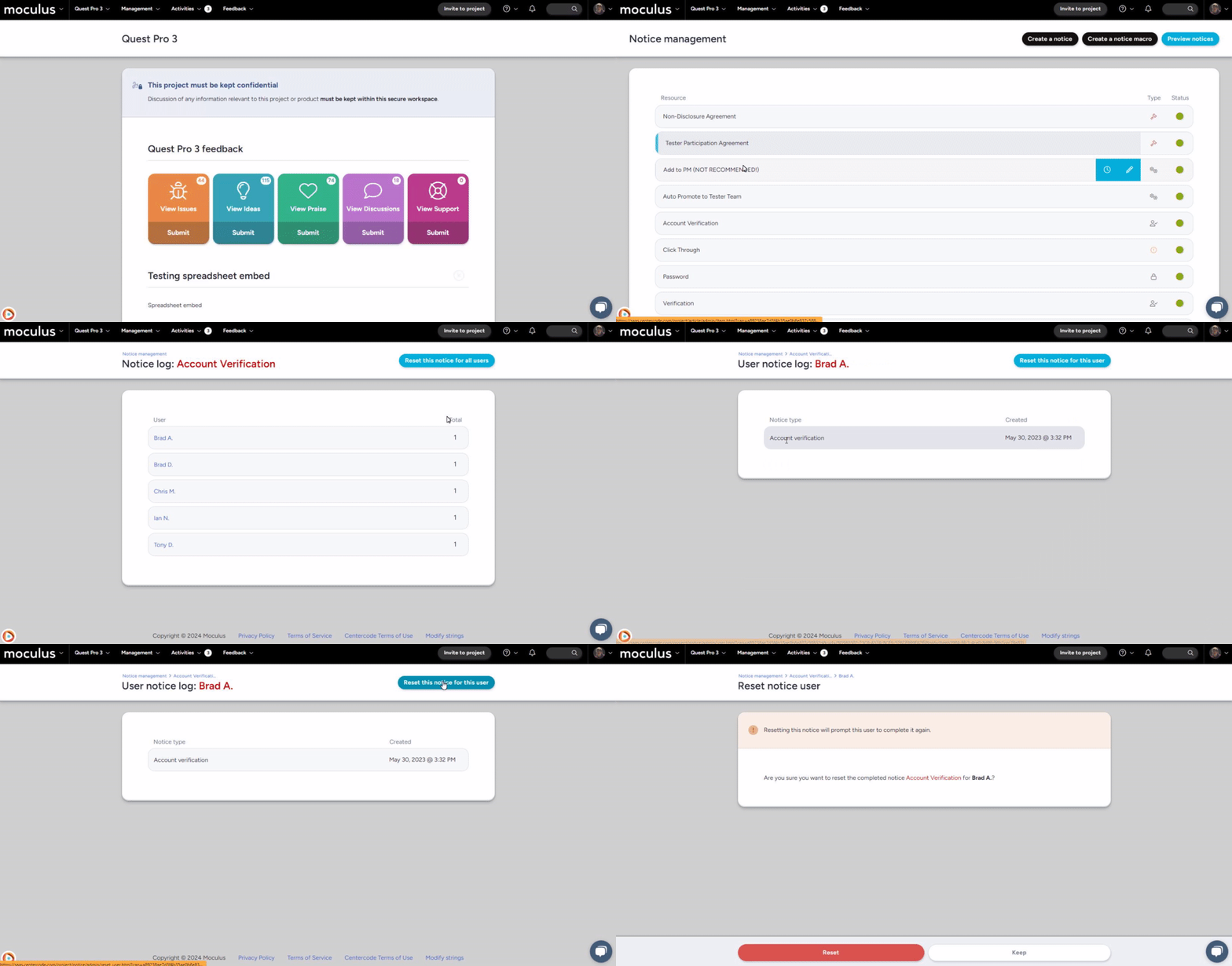
1. Access the Notice Management screen at either the project or community level.
2. Hover over the table cell of the desired notice and click the clock/log icon to the right.
3. Click Reset this notice for all users in the top right of the page.
How Do I Remove a Notice?
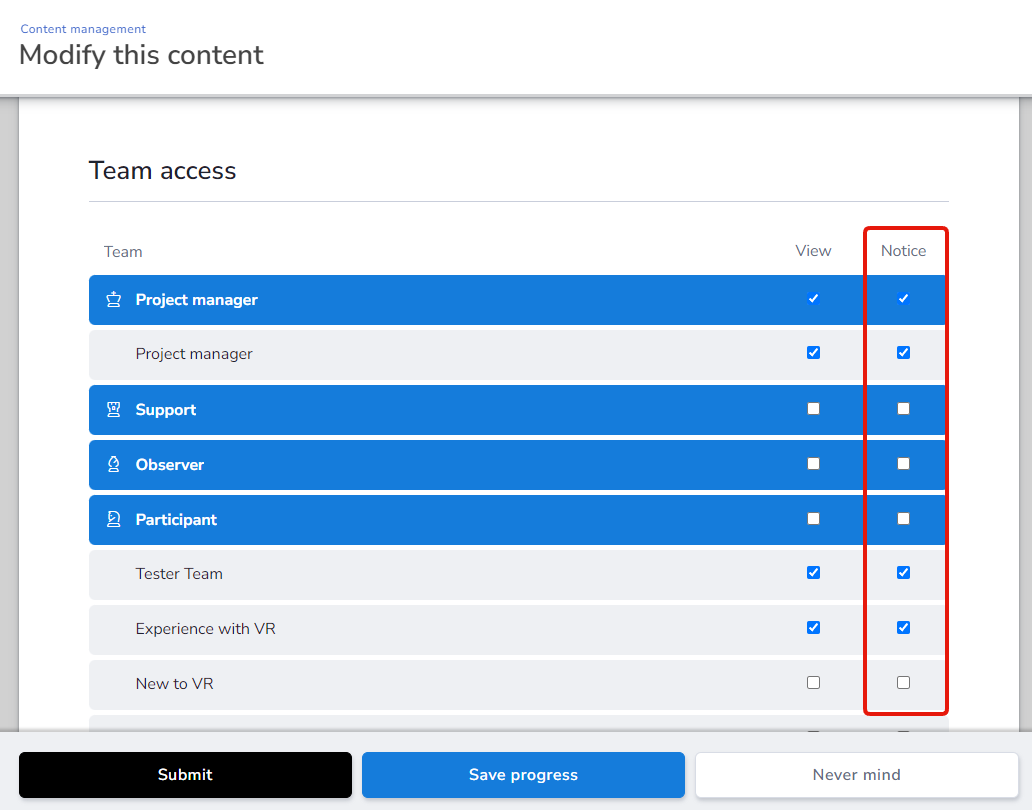
Notices are settings on each resource type that can be toggled on or off per team via the team access block. To remove a notice, uncheck the notice box on the associated resource and submit the page. For example, to stop a survey from appearing as a notice, uncheck its notice box.
Some Users Report Not Seeing Notices, but Not All. What's Happening?
If most users are completing your notices but a few report not seeing them, check two areas:
1. Check whether the participant has signed in recently. If they haven't, ask them to do so.
2. Review the notice for appropriate team access.
If a user is signing in but not completing notices, they most likely navigated away from the notice without choosing to continue. The notice will appear again the next time they access the community or project.
How Do I Check to See if a Participant Signed In Recently?
Search for the user account using the knowledge base search bar. Type their name, username, or email and select them from the results. From there, scroll down to check their last login.
I'm Assuming a User. Why Can't I See Their Notices?
When you assume a user, Centercode skips the entire notice chain at both the community and project layers. This lets you verify configuration beyond the notice chain without affecting the user's navigation path.
How Do Notice Macros Work?
Notice macros run in the background when users encounter them on the notice chain. Users aren't aware any action is being taken on their account.
Notice macros are part of the notice chain and execute in the order they're placed. For example, place a block notice after a qualification survey — not before. That way users can complete the survey before being blocked for analysis. Placing the block first would cut off their access to the survey entirely.
💡 Ted Tips:
- Test before automating: Always test on a small user group before applying to all users.
- Use filters effectively: Set conditions carefully to prevent macros from affecting unintended users or tickets.
- Use notice macros for onboarding: Automate user segmentation and access control upon sign-in.
- Remember the "Run once per user/feedback" option: This prevents the macro from running unintentionally, but it can also trip you up if you're trying to test a run-once macro repeatedly.
How Do I Automatically Send Emails Based on Sign-In?
Create a notice macro
From the Project Homepage:
1. Click Management > Notices.
2. Click Create a notice macro at the top of the page.
3. Give your notice macro a name.
4. Set the Macro Type to Conditional or Static. (For this example, select Conditional.)
5. Set Team access to designate which teams the macro and filter conditions will process.
The Conditional macro type lets you set filter criteria to target specific users. For example, you can target any user who completed their qualification survey.
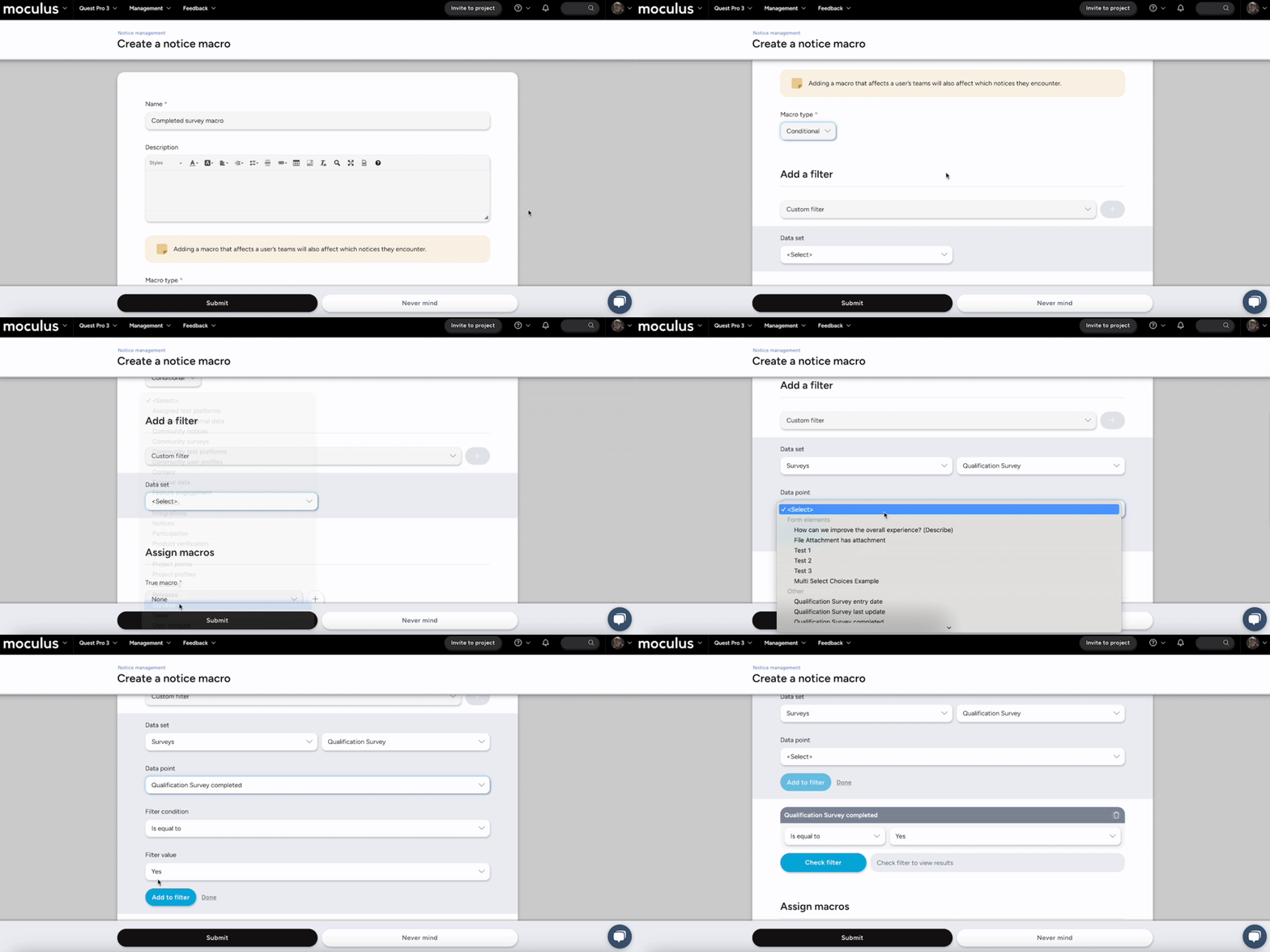
Next, create a True Macro — the instructions that execute for users who match your filter criteria. In this example, the true macro emails the internal team when a user completes the qualification survey.
You can also create a False Macro for users who don't meet the filter criteria.
To create the true macro:
1. Click the + icon next to True Macro.
2. Give the macro a descriptive name.
3. Select Send email, then Email additional users.
4. Add the email addresses of anyone who should receive one email per qualifying user.
5. Create the email template your internal team will receive.
6. Click Submit to save the email template.
7. Click Submit again on the following page to save the notice macro.
Notes
- The Static macro type executes based on selected teams in your team access block rather than a conditional filter. A common use case is notifying project managers whenever a new user is added to a participant team.
- Notice macros are part of the notice chain and execute in the order they're placed. Use the Notice Management tool to reorder notices as needed.
How Do I Deactivate or Disable a Notice Macro?
Notice macros can't be deactivated or archived the same way normal and scheduled macros can. To temporarily disable a notice macro without removing it entirely, remove all team access so the macro applies to nobody.