![New_Centercode_Logo.png]](https://help.centercode.com/hs-fs/hubfs/New_Centercode_Logo.png?height=35&name=New_Centercode_Logo.png)
Table of Contents
- What are role type access icons?
- What are resource status icons?
- What does the status "Incomplete user access" mean?
- How do I set default team access for my resources?
What Are Role Type Access Icons?
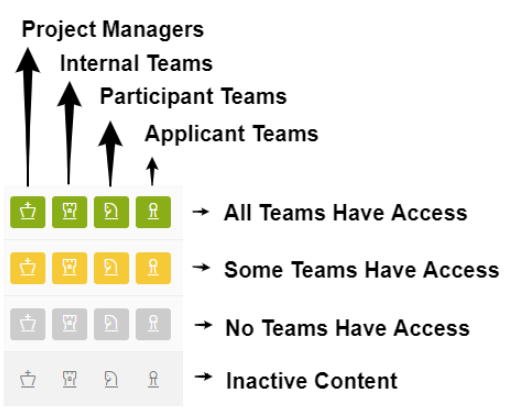
Role type access icons appear on all Centercode resource administration pages and let administrators toggle team access with a single click, without navigating to the individual resource's modify page.
Each icon represents a single role type, with broader access shown on the left. Clicking an icon toggles between two states: granting all teams of that role type access to the role (filled green) and removing access from all teams of that role type (gray).
Notes:
- Access icons appear in a column named after the role they represent — typically the primary "Submit" role for that resource type.
- Role types that are denied access to a role won't appear in that column.
What Are Resource Status Icons?
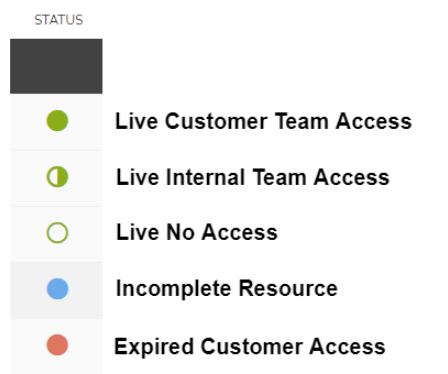
Resource status icons summarize the current state of a resource based on its team access and availability (Pending, Live, Expired, etc.).
- Live Customer Team Access: The resource is published and one or more participant teams has access.
- Live Internal Team Access: The resource is published and one or more internal (support or admin-level) teams has access, but no participant teams do.
- Live No Access: The resource is published but no teams have access.
- Incomplete Resource: The resource hasn't been published yet.
- Expired Customer Access: The resource is published and one or more participant teams had access, but the availability date has expired.
What does the status "Incomplete user access" mean?
It means nobody can reach the resource yet. Two different gaps produce the same status, so check both:
- The resource isn't published. Until you publish it, it stays unavailable no matter who has been granted access.
- No teams have been given access. A published resource with no team access still reaches nobody.
Clearing one gap is not enough on its own. A resource becomes available to your testers only once it is published and at least one team has access to it. If the status persists after you publish, open the resource's Team Access settings and confirm a team is actually selected
How do I set default team access for my resources?
You don't have to set access on each release one at a time. The team you choose in a release type's Default View is applied automatically to every new release of that type.
For example, select your Tester team in the Default View and each new release in that type grants the Tester team access the moment it's created. To change which teams get access automatically, update the Default View on the release type.
Notes:
- Status icons exist for all relevant resource types (content, tasks, etc.).
- A full bulb icon indicates public access — one or more participants or applicants have access.
- A half-full bulb indicates internal access — one or more admins or internal team members have access.
- An empty bulb means no one has access outside the administrative interface.