![New_Centercode_Logo.png]](https://help.centercode.com/hs-fs/hubfs/New_Centercode_Logo.png?height=35&name=New_Centercode_Logo.png)
The quality of feedback a participant writes varies widely. One participant submits a clear, well-titled issue. The next submits a useful description under the title "bug report." Your triage team ends up rewriting titles, summarizing descriptions, and reformatting content before the feedback can be useful in reports or shared with stakeholders.
AI Element Enhancement applies field-level automation to fix this at submission time. Any form element can be configured to populate automatically after the participant submits, either by refining what the participant entered or by generating content based on the rest of the submission.
Common Use Cases
- Polishing rough participant-written titles into consistent, scannable summaries before feedback hits the triage queue.
- Auto-generating a stakeholder-ready summary field from the participant's full description and the feature they selected.
- Filling internally valuable fields that participants don't need to see, like categorization tags or report groupings.
- Standardizing format across participant submissions so reports and exports don't need post-processing.
Two Methods of Enhancement
Each AI-generated element runs in one of two modes, depending on whether the participant provides input to the field.
Enhancement Mode: improving submitter input
The participant fills in the field, and AI improves what they wrote. Use this when you want participant voice preserved but cleaned up. A common example: taking a rough title and producing a clearer one without changing the meaning.
Enable Enhancement Mode by checking the Include this answer in AI prompt option on the element. The participant's answer becomes part of the input the AI works from.
Generative Mode: generating field response data
The participant doesn't fill in the field at all. AI generates content based on other fields on the form. Use this when the field can be derived from context. A common example: a summary that pulls from the participant's description, selected feature, and severity.
To run an element in Generative Mode, turn off submitter access to the form element, and leave the Include this answer in AI prompt option unchecked. The element is hidden from the participant and populates automatically post-submission.
Configuring an AI-Generated Element
AI Element Enhancement is configured on individual form elements through the form editor. The setting is available on supported element types in feedback forms, surveys, and other form-engine resources.
- From within your project or community, view the form of the resource you want to configure.
- Hover over the element you'd like to make AI-generated and click Modify.
- In the element settings, enable Generate AI response after submission.
- Write the Custom prompt that tells the AI what to produce in this field.
- (Optional) Insert Dynamic tags into the prompt to reference content from other fields on the same form.
- Check or uncheck Include this answer in AI prompt based on which mode you want the element to run in.
- Save your changes.
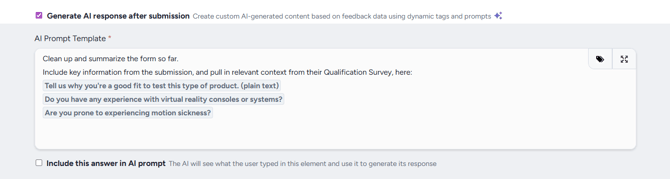
Writing the custom prompt
The custom prompt is the instruction the AI uses to populate the field. Treat it as a directive, not a sentence the participant will see. Keep it focused on a single outcome, name the field type explicitly, and reference the other fields you want the AI to draw from using dynamic tags.
A custom prompt for an enhanced title field might read: Rewrite the participant's title as a clear, specific summary of the issue under 80 characters. Use the description and selected feature for context.
A custom prompt for a generative summary field might read: Write a two-sentence stakeholder summary of this feedback based on the description, selected feature, and severity. Lead with what's happening; follow with where it happens.
Using dynamic tags
Dynamic tags pull content from other elements on the same form into the AI prompt. They let the AI reference the participant's description, the feature they selected, or any other field whose content should inform the output. Insert tags from the dynamic tag picker available in the prompt editor.
What Admins See
Feedback that uses AI Element Enhancement displays both the original participant input and the AI-enhanced version side by side in the admin view. This makes it easy to verify that the AI output matches the participant's intent, and to spot patterns where the prompt may need adjustment.
If an admin edits an AI-enhanced field manually, the edit is preserved on any future regeneration of that field. Manual corrections aren't overwritten by later AI processing.
Best Practices
- Start with one field. Pick a single field where AI enhancement would have the highest payoff (ex: the title or a form summary) and configure it first. Review the output across a batch of real submissions before adding more AI-generated fields to the same form.
- Be explicit in the prompt. The AI follows the prompt literally. Specify the length, tone, format, and what to draw from. A prompt that says "summarize this" produces inconsistent results; a prompt that says "write a two-sentence summary in plain language" produces consistent ones.
- Use Generative Mode for internal-only fields. Fields like categorization tags or report groupings are good candidates for full generation because participants don't need to fill them in and the AI can derive the value from context.
- Use Enhancement Mode when participant voice matters. Quotes for marketing, journal entries, and feature praise lose value if rewritten too heavily. Enhancement Mode preserves what the participant said while cleaning up format.
- Check the side-by-side view after launch. The original vs. enhanced display surfaces prompt issues fast. If the AI consistently misses the mark, the prompt needs tightening or a missing dynamic tag added.
Notes
- AI Element Enhancement runs after the participant submits. Participants don't see loading states or AI processing during their submission flow.
- Manual edits to an AI-enhanced field by an admin are preserved on regeneration. Newer AI runs respect prior corrections.
- Version gating protects against race conditions: if a slower prior AI run finishes after a newer one, the newer output is kept.
- Notifications that include AI-enhanced content are deferred until processing completes. Recipients see the final enhanced version rather than a placeholder.
- On surveys, access to AI-generated content is gated by team permissions. Users with Results or Moderate access on a survey can view the AI output; others cannot.
- For changing the entire feedback submission flow to a single AI-driven plain-text input rather than per-field automation, see the Guide to AI Feedback Submission.