![New_Centercode_Logo.png]](https://help.centercode.com/hs-fs/hubfs/New_Centercode_Logo.png?height=35&name=New_Centercode_Logo.png)
Participants don't think in feedback categories. They think in terms of what just happened: the app crashed, the screen looks wrong, the setup instructions were confusing. The traditional submission flow asks them to pick a feedback type up front, find the right form, and fill out the right fields in the right order. Friction at any of those steps might mean lost feedback: wrong categorizations, abandoned forms, or participants who give up entirely.
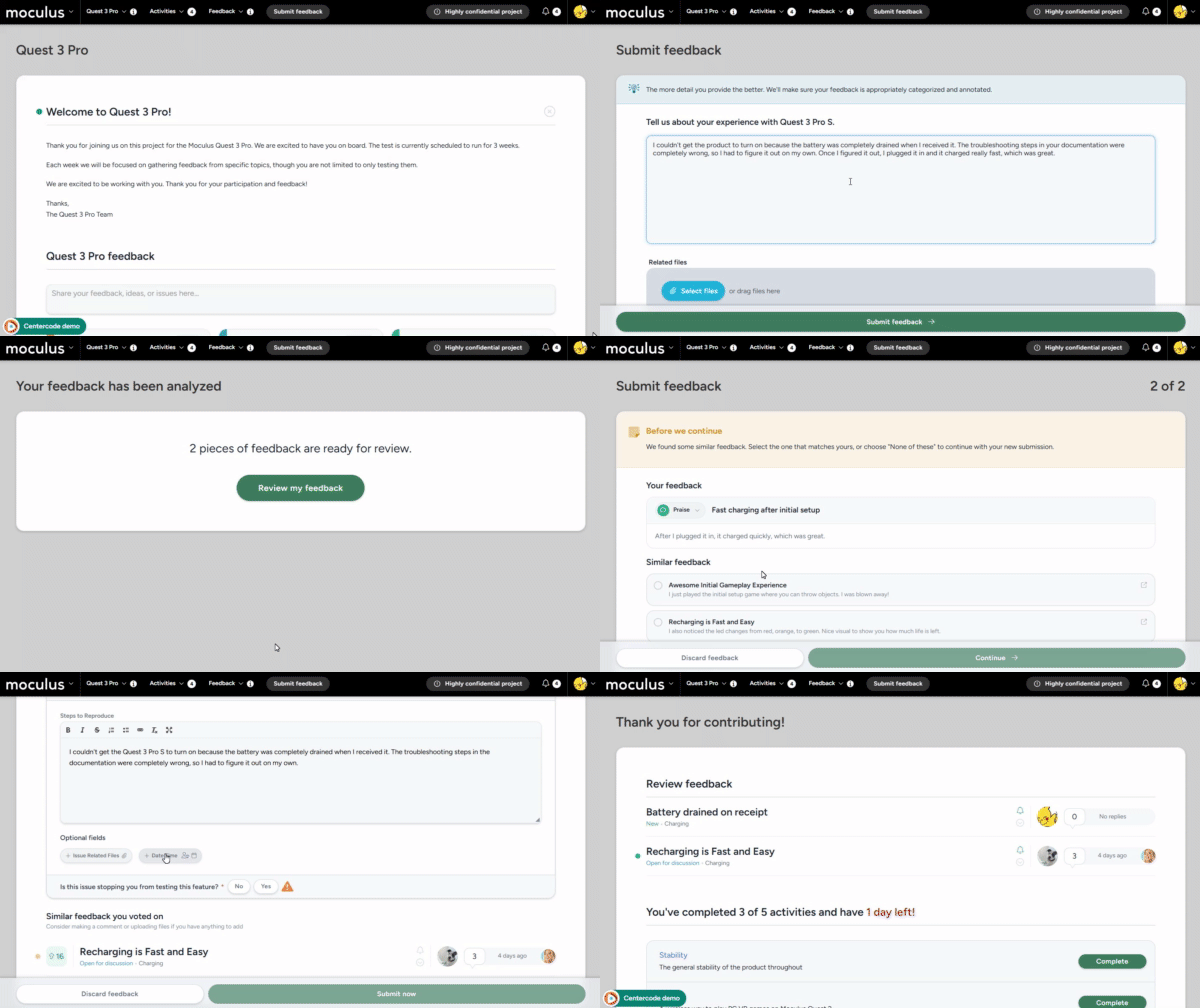
AI Feedback Submission removes the up-front structure. Participants describe their experience in plain text. The platform interprets the input, picks the right feedback type, checks for duplicates, populates the form fields, and presents the structured result back to the participant for review before submission.
Common Use Cases
- You're running a project where participants struggle to choose between Issues, Ideas, and Praise, and miscategorized submissions are creating triage overhead
- You want to reduce drop-off on the submission flow without dropping the structure your team needs for triage and reporting
- You're running a mobile-heavy test and the multi-field form is too cumbersome for the way participants actually submit feedback
- Your team has well-defined feedback types and forms but needs participants to give richer, more usable input without longer instructions
How AI Feedback Submission Works
When AI Feedback Submission is enabled on a project, the standard feedback button opens a single free-text input rather than the feedback type picker. Participants describe their experience in 50 to 5,000 characters.
The platform then:
- Interprets the description and determines whether it's an Issue, an Idea, Praise, or another configured feedback type based on each type's Feedback Intent.
- Searches existing public feedback for duplicates. If a match is found, the participant is shown the existing feedback and can vote on it instead of creating a new submission.
- Populates the relevant feedback form fields from the participant's description.
- Presents a review card showing the populated fields. The participant can edit any field before finalizing.
If the participant doesn't act on the review card, the submission auto-submits after five minutes. The timer pauses any time the participant is actively editing.
Enabling AI Feedback Submission
AI Feedback Submission is a project-level setting. Each project chooses between the traditional flow and the AI-assisted flow independently.
- From within your project, click Management and select Project configuration.
- Click Project settings.
- Locate the Feedback collection style dropdown.
- Select AI-assisted.
- Click Submit on the bottom of the page to save your changes.
The change applies to all new submissions from the point of activation forward. Submissions already in progress complete using the flow they started in.
Community-level AI controls
Before AI Feedback Submission can be enabled on any project, AI features must be turned on at the community level. The Centercode AI page lives under Community configuration and controls which AI capabilities are available to administrators and participants across your implementation. The page also surfaces what data is transmitted to the underlying language model. Review this with your team before enabling.
What Admins See
Submissions made through AI Feedback Submission arrive in the feedback list pre-categorized and structured, identical to traditionally submitted feedback. A few differences are worth knowing:
- Show Original
Each AI-assisted submission includes a Show Original link that reveals the participant's unmodified plain-text input alongside the structured result. Use this to verify the AI's categorization or to recover detail that didn't make it into a specific field. - Personal data indicators
Fields the system flagged as containing personal data are marked with a shield icon. These follow the same handling rules as any personal-data-flagged field elsewhere in the platform. - Historical AI analysis
Access to the underlying AI categorization history is gated by feedback role and visible to teams with the appropriate permissions.
Supported and Unsupported Form Elements
AI Feedback Submission populates most standard form elements automatically. A few element types fall outside its scope and require participant input through the review card.
Supported
- Text and multiline text entry
- Choices (checkbox, radio, select)
- File upload
- Date and time
- Feature
Not supported
- Matrix
- Stack rank
- Label (not a data-collecting element)
If a form contains a matrix or stack rank element, the participant is prompted to complete it on the review card before the submission can finalize.
Best Practices
- Set clear Feedback Intent on every feedback type. The AI relies on each feedback type's configured intent to categorize submissions correctly. A feedback type with vague or missing intent will be picked less reliably. See the Feedback Intent article for setup.
- Keep your feedback forms concise. The AI works best when populating a focused set of fields. Forms with dozens of optional fields produce noisier results and more cleanup work on the review card.
- Review the "Show Original" view during early submissions. Spot-checking the first batch of AI-assisted submissions catches categorization patterns you may want to adjust, usually by tightening feedback intent or rephrasing field labels.
- Decide on AI Feedback Submission before launch. Switching mid-project means part of your dataset uses one collection style and part uses the other, which can complicate reporting comparisons.
Notes
- AI Feedback Submission and predictive match both surface duplicate feedback during submission. When AI Feedback Submission is active, duplicate detection runs as part of the AI flow rather than through the predictive match interface. Predictive match settings still apply to feedback types where AI Feedback Submission isn't in use.
- Unfinalized AI-assisted submissions auto-cancel after 24 hours.
- If AI analysis fails for any reason, the platform falls back to the traditional submission flow for that participant on that submission. No feedback is lost.
- Conditional fields are filtered automatically during finalization. Fields whose parent conditions weren't met do not appear on the review card until the parent field is completed and the required condition is met.
- Uploaded files are auto-allocated to the appropriate submission when a participant uploads files across multiple feedback items in close succession. Files that can't be allocated are highlighted on the review card until the participant assigns them.
- For configuring individual form fields to be populated by AI even on traditional submissions, see the Guide to AI Element Enhancement.