![New_Centercode_Logo.png]](https://help.centercode.com/hs-fs/hubfs/New_Centercode_Logo.png?height=35&name=New_Centercode_Logo.png)
The Email Management page is the central hub for creating and organizing the email templates used throughout your community or project. Templates are grouped by the context in which they're used — such as feedback actions, macro executions, or recruiting invitations — keeping your email library organized and ensuring the right templates are available in the right places. The page also provides access to saved email log filters, which allow you to search through previously sent emails for auditing and troubleshooting purposes.
Email Management exists at both the community and project levels of Centercode. The community-level version is accessed via Community menu > Community configuration > Email templates and logs, and contains templates used in community-wide contexts.
The project-level version is accessed via Management > Project configuration > Email templates and logs, and is scoped to that project only. Resources at one level are not available at the other.
For more general email information and troubleshooting view the Email FAQ.
Email Templates
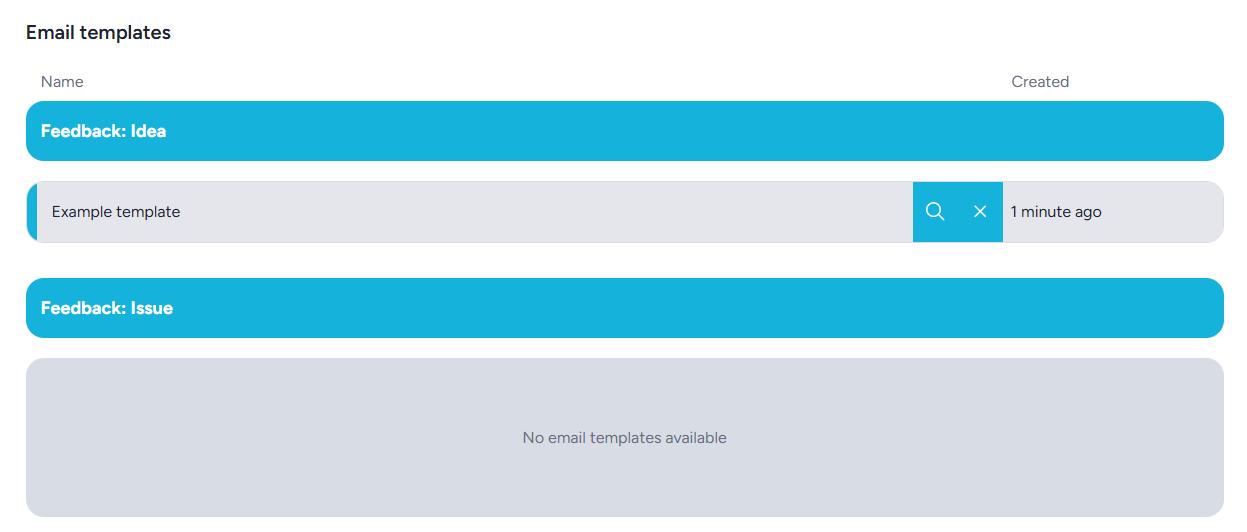
The Email Templates section organizes all saved templates into groups based on their intended use. Each group corresponds to a specific area of the platform — such as user management actions, macro executions, feedback types, or recruiting invitations — and only displays templates that were created within that group.
It's important to note that email templates are exclusive to the type they are created in. A template created under a Feedback: Issue type, for example, will only be available when composing emails in that context. It cannot be selected when configuring a user management action email or a user macro. When creating a new template, always create it within the appropriate group for where it will be used.
Each template row displays the template's Name and when it was Created.
Hovering over a template row reveals two options:
View: Opens the template so you can review or edit its contents.
Remove: Permanently deletes the template. This action cannot be reversed.
💡 Ted Tip: I recommend naming your templates clearly and consistently — include the context and purpose in the name, like "Acceptance — Move to Participant" or "Issue Closed — Thank You." When templates start accumulating across multiple types, vague names like "Follow-up email" become impossible to distinguish at a glance.
Note:
Recruiting email templates are a special case — they include additional formatting options not available in other template types. In the template's advanced options, you can check Do Not Include Standard Footer to unlock a set of body tags (such as %%OPPORTUNITYLINK%% and %%NOTINTERESTEDLINK%%) that give you precise control over the placement of key links within your invitation email. For more detail, see How do I control the links in my invite emails?
Email Logs

The Email Logs section lists your saved email log filters, which you can use to search through the history of emails sent from this community or project. This is particularly useful for verifying that specific emails were sent, troubleshooting delivery issues, or locating invitation emails you need to resend.
Each email log filter row displays its Name.
Hovering over a log filter row reveals two options:
Modify: Opens the log filter so you can adjust its search criteria.
Remove: Permanently deletes the log filter. This action cannot be reversed.
💡 Ted Tip: I recommend keeping a shared log filter for your most common troubleshooting queries — like filtering by email type and date range to find recent invitation sends. Having these ready to go saves a lot of time when a tester reaches out saying they never received their invite.
Notes
- The Manage Email role is required to create, modify, or remove email templates and log filters.
- To view the full email history for a specific individual user, navigate to their User Summary and click the Email tab — this is faster than running a log filter when you already know who you're looking for.
- Templates saved while composing an email from elsewhere in the platform (such as from a user management action) will automatically appear in the appropriate group within Email Management.