![New_Centercode_Logo.png]](https://help.centercode.com/hs-fs/hubfs/New_Centercode_Logo.png?height=35&name=New_Centercode_Logo.png)
Many email issues can be investigated and resolved within the Email Management tool. Found at both community and project levels, Email Management contains all email templates separated by type, lets you create new templates, and includes a log for filtering specific sends and recipients.
Table of Contents
- Basic community and project email information
- How do I create an email template?
- How do I use Centercode's email log tool?
- How do I email specific users in my community or project?
- How do I email more than one team at once?
- How can I get email notifications for newly submitted feedback?
- A user isn't receiving follow notification emails
- How do I email invitees who haven't joined yet?
- How do I automate emails to users?
- Why are users not receiving my emails?
- Can I add CC addresses to Centercode emails?
- How do I customize the text in my email footer?
Basic Community and Project Email Information
Centercode uses email addresses configured at both the community and project level to control where system emails come from and go to.
Community
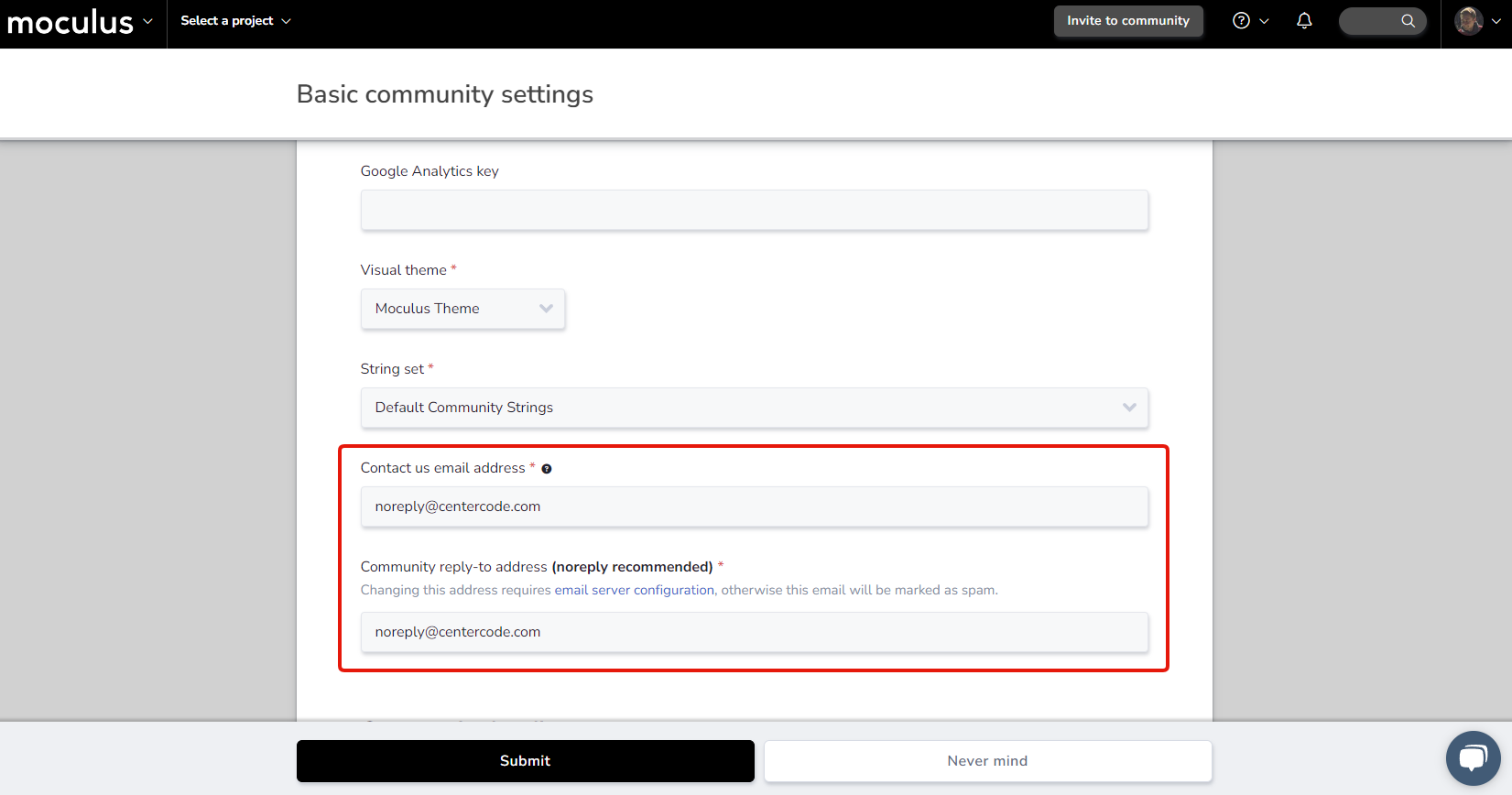
From the Community Homepage, click Community logo > Community configuration > Basic settings. Under Basic community settings, there are fields for a Contact us email address and a Community reply-to address.
The Contact us email address is used for the "Contact Us" community help email. The Community reply-to address is used for user invite emails, user action/macro emails, workflow notification emails, and project recruitment emails.
Project
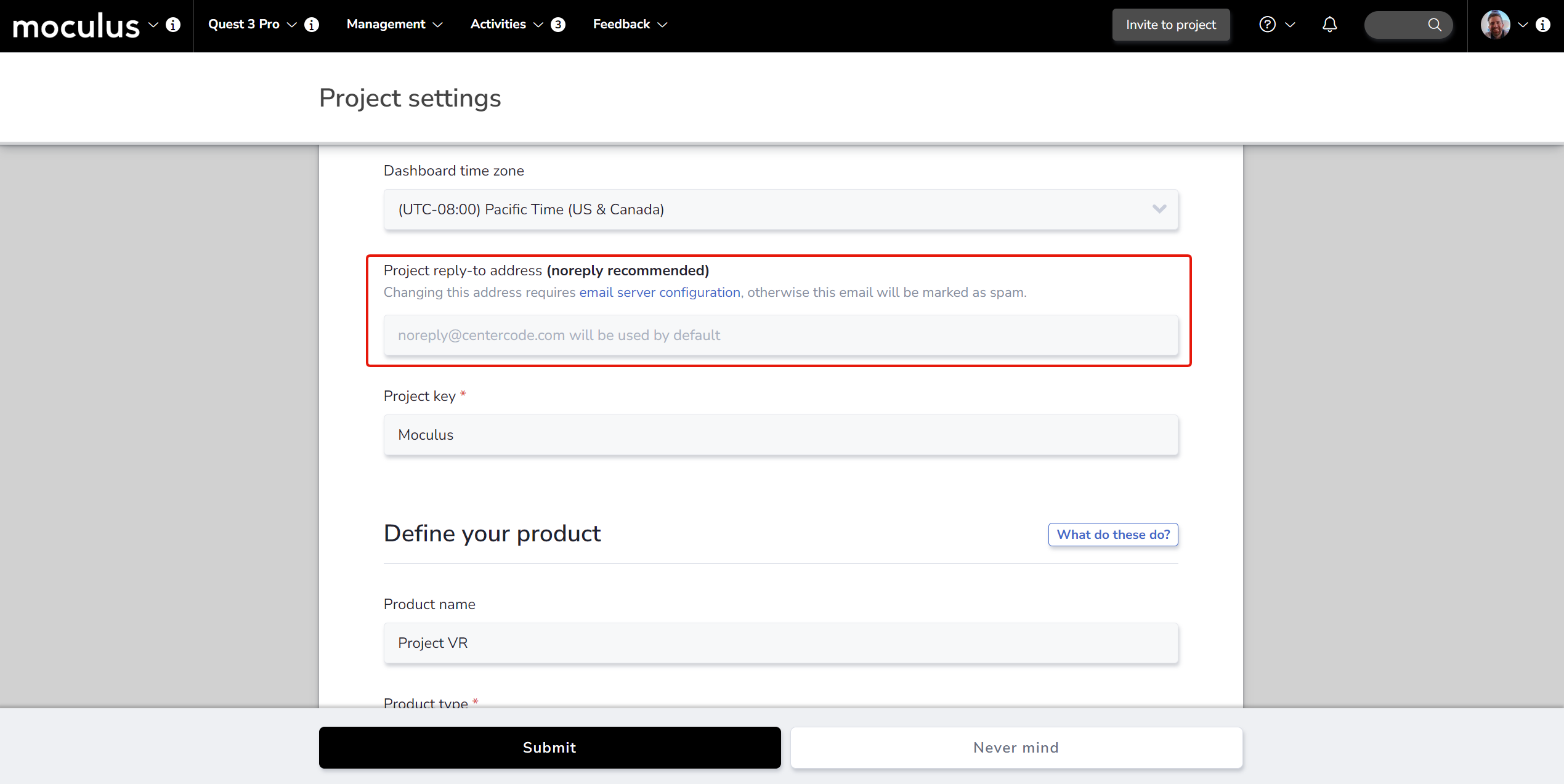
From the Project Homepage, click Management > Project configuration > Project settings. Under Fill in your project details, there is an optional email address field. Filling it in tells Centercode to use that address in place of the community reply-to for that specific project.
The following emails are sent from noreply@centercode.com by default: community support email, lost password email, personal account change email, contact an administrator email, forum subscription email, sign-up verification email, and feedback comment email.
Notes:
- Email templates have an Advanced option to insert a "From address" that overrides the above settings for that specific template.
- Any "From" address you use must follow SPF rules to avoid being marked as spam.
How Do I Create an Email Template?
For community email templates, click Community logo > Community configuration > Email templates and logs. For project email templates, click Management > Project configuration > Email templates and logs.
1. Hover over the desired email category and click New template.
2. Complete the template, including a Template name and Email subject/body.
3. Click Submit to confirm.
How Do I Use Centercode's Email Log Tool?
The email log lets you filter through previously sent emails at the community or project level. Common uses include: checking whether a verification email was sent, confirming Jira notification emails are going out, tracking a specific send, and auditing email activity for a user.
From Community Tools:
1. Click Email.
2. In the top right, click Create an email log filter.
3. Set filter criteria based on your needs.
4. Click Next to see results.
Notes:
- Use Date sent with After or Between to narrow results. These filters are exclusive — "After 4/21" returns results from 4/22 onward.
- Open Advanced options to adjust results per page (default is 50).
How Do I Email Specific Users in My Community or Project?
Use Filters and Views in User Management to target and email specific users.
1. Click the Users section of the Community or Project Management menu.
2. Select the desired filter and view, then select the Show user list action.
3. Click Perform action.
4. Check the box next to each user you want to include.
5. Select Email users at the bottom of the page and click Submit.
6. Select an email template from the drop-down or build a custom email with at least a subject and body.
7. Click Submit to preview, then Submit again to send.
How do I email more than one team at once?
Build a filter in User Management that includes every team you want to reach, then email the results. One send covers all of them, and you don't need a macro for a one-time message.
From the Community or Project homepage:
- Open Users from the Community or Project Management menu.
- Select or build a filter that includes the teams you want to email. A single filter can match several teams at once.
- Choose the Email users action and click Perform action.
- Pick an existing template or write your message, preview it, and send.
Everyone across the selected teams gets the message in one send.
How Can I Get Email Notifications for Newly Submitted Feedback?
Configure email notifications in the feedback type's Workflow settings.
1. Hover over the desired feedback type and click the modify (pencil) icon.
2. Click Workflow.
3. Click the pencil icon to the right of the desired status change.
4. Check Send to individual, Notify submitter, or Notify new owner as desired.
5. Click the Email template link next to the checkbox.
6. Select an existing template or click Add an email template to create one.
7. Fill out the template and click Submit.
8. Repeat steps 4 through 7 for any additional notifications.
9. Click Submit on the main Workflow page to save all changes.
A User Isn't Receiving Follow Notification Emails
Original feedback submitters don't receive follow notification emails for their own comments on their own tickets. They will receive notifications when other users leave comments.
How Do I Email Invitees Who Haven't Joined Yet?
Manage unconverted candidates in the Onboarding tool via the Moderate candidates icon on the relevant Opportunity or Invitation Type. From there you can email all candidates or filter for specific ones.
How Do I Automate Emails to Users?
Use a Centercode Macro to automatically send emails based on user actions or on a daily, weekly, or monthly schedule.
Why Are Users Not Receiving My Emails?
If users aren't receiving emails, check these areas in order:
1. Improperly configured SPF record
2. Acceptable email domains
3. Email logs (check whether the email was sent at all)
4. Possible user error
5. The recipient's spam folder
6. Email content (use a tool like BenchmarkEmail.com to review the email's contents)
7. Email size — sent emails can't exceed 20 MB, including attached files, images, text, and formatting data
Can I Add CC Addresses to Centercode Emails?
No. Centercode doesn't support CC or BCC functionality when sending emails from within the platform.
How Do I Customize the Text in My Email Footer?
Email footer text is controlled by custom strings. The following strings control the text that appears in your email footers:
em_EssentialEmailem_UnsubscribeLinkNewem_OptOutLinkNewgw_FooterSentFromgw_FooterAddress