![New_Centercode_Logo.png]](https://help.centercode.com/hs-fs/hubfs/New_Centercode_Logo.png?height=35&name=New_Centercode_Logo.png)
This article applies to Pro, Team, and Legacy editions.
Feedback in Centercode is submitted through Feedback Types. By default you're provided with Issues, Ideas, Praise, and Discussions — all fully customizable to fit your feedback goals.
Table of Contents
- What do I need to understand about access control?
- What is Workflow?
- What's the recommended Workflow?
- What do I do when users can't submit feedback?
- How do I edit feedback?
- How do I remove feedback?
- Why are teams missing in Workflow?
- How do I edit feedback and change statuses?
- Why can't I select a certain status?
- I'm not on the Ownership Team. What do I do?
- How do I unduplicate feedback?
- What if a user is missing the Submit button?
- Can a participant edit or add to feedback once submitted?
- Can participants edit or remove their own replies?
- What if only some participants report they're unable to view feedback?
- How do I change feedback statuses in bulk?
- What are Feedback Roles and what do they do?
- How does Predictive Match work?
- What do the "impact velocity" and "reply velocity" sort options measure?
- Should my feedback type be private?
- Why can't users submit or triage feedback?
- Why am I missing the Submit button for a feedback type?
- Why are some participants unable to view feedback?
- Can I remove the "Is this issue stopping you from testing?" element?
- Some tickets show a title, and some show a ticket number. Why?
- Why does my Workflow row show "Locked" instead of an Owner Destination?
- The comments on a feedback ticket are locked. How did that happen, and how do I unlock them?
- What does "Don't include this element in results" do?
- Can participants post feedback anonymously?
- How do I view resolved or excluded tickets?
What Do I Need to Understand About Access Control?
Access control is a core concept for administrating Centercode. Access to resources — surveys, downloads, feedback, notices — is controlled by the combination of Teams and Roles. Teams organize users into groups. Feedback Roles control the access each team has when submitting or handling feedback. Together, they set access on a broad level affecting multiple users.
What Is Workflow?
Workflow dictates how each team can modify and submit feedback. Statuses identify where feedback is in its lifecycle. Ownership Destination refers to the team responsible for feedback at each status stage. Read more about Workflow.
What's the Recommended Workflow?
A typical configuration has your primary Participants team able to submit only New feedback, with Beta Support (Internal Members) as the ownership destination for that feedback. Beta Support can then move tickets through all statuses available to them (In Progress, Closed, etc.). See an example configuration.
What Do I Do When Users Can't Submit Feedback?
Check these three areas for appropriate configuration — it's often a combination of all three:
1. Feedback Roles — grant access to submit feedback.
2. Workflow — controls the feedback lifecycle and ownership.
3. Element Level Access — optional setting controlling which teams can view and modify specific form elements.
How Do I Edit Feedback?
You need to be on the Ownership Team for the ticket. Find the Ownership Team by viewing the feedback and checking the right-hand panel below the submitter's information. If you're on that team, you can edit freely.
Some feedback types require checkout before editing. If so, click Check out in the feedback title bar, or click the Check in/check out link at the bottom of the current owner panel.
If you're not on the Ownership Team but your team should be responsible for the feedback, check your Workflow configuration. From within a project:
1. Click Management > Project configuration > Feedback types.
2. Hover over your feedback type and click the modify (pencil) icon.
3. Click Workflow.
4. At the "New" row for the relevant team, confirm the Ownership destination is set correctly.
If Workflow is correct but you're still not on the ownership team, add yourself to that team to gain the appropriate access.
How Do I Remove Feedback?
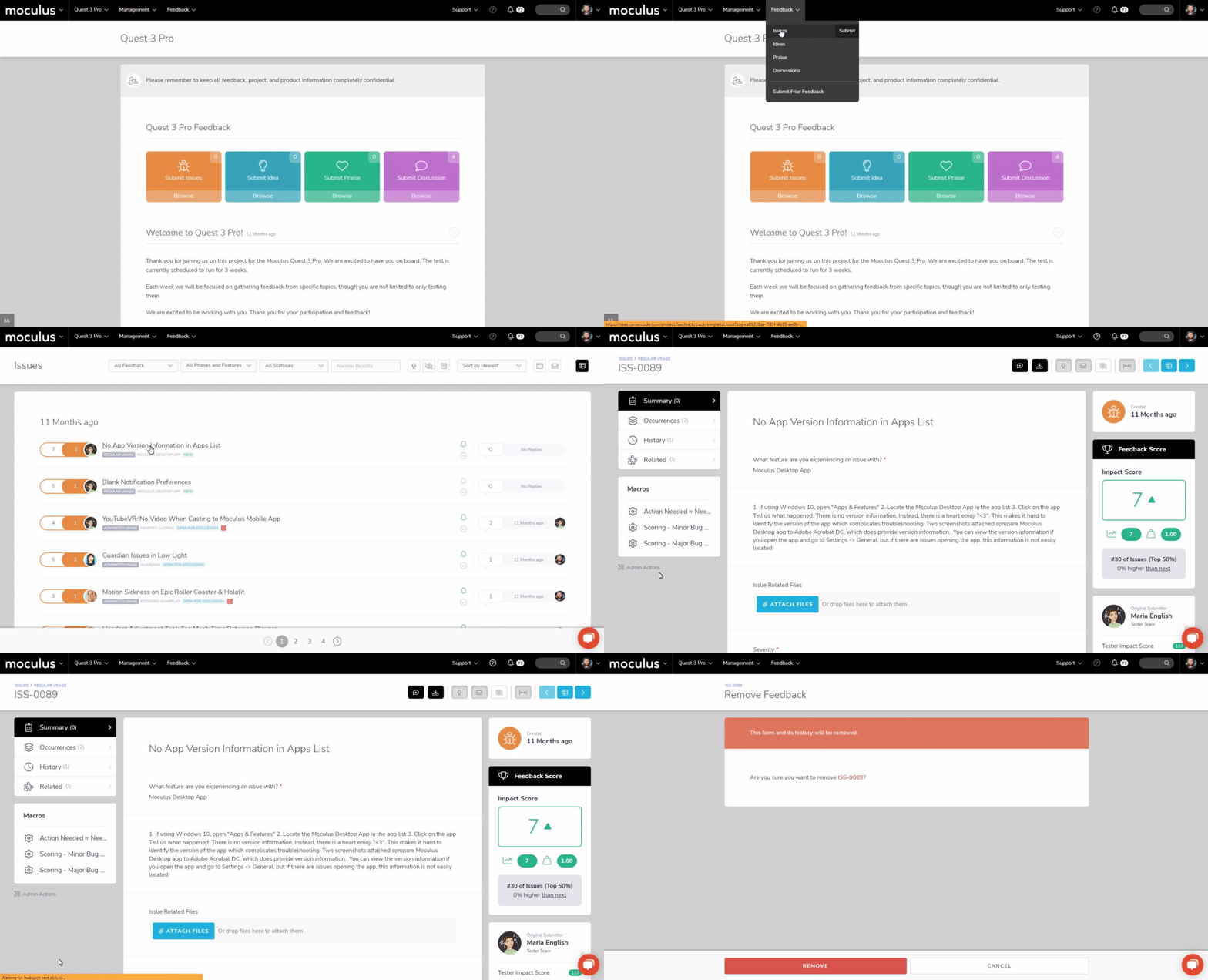
1. Navigate to the feedback ticket. You can enter the feedback ID in the knowledge base search bar in the upper right corner.
2. Click Admin actions in the left-hand menu, then click Remove.
3. Click the Remove button to confirm.
This option is only available if you're on a team with the "Administrate feedback" feedback role.
Why Are Teams Missing in Workflow?
Teams appear in Workflow when they have access to submit feedback. If your desired team isn't showing up, grant them Submit Feedback access via Feedback Roles.
From the Project Homepage:
1. Click Management > Project configuration > Feedback types.
2. Hover over the feedback type and click the modify (pencil) icon.
3. Click Feedback roles.
4. Select the team type and team you need to adjust.
5. Check Submit feedback.
6. Click Submit.
How Do I Edit Feedback and Change Statuses?
You need to be on the team that owns the ticket. Find the Ownership Team in the right-hand menu when viewing feedback, below the Feedback Score and Submitter Information sections. Some feedback types require checkout before editing — click Check out in the title bar or use the Check in/check out link in the owner panel.
Why Can't I Select a Certain Status?
The ownership team must also have access to the specific status in the Feedback Workflow. If statuses are missing, confirm the ownership team has access to them.
I'm not on the Ownership Team. What do I do?
This typically affects Project Managers, who are usually only on the Project Manager team. Feedback triage is usually assigned to a separate team such as Test Support. To edit feedback, add yourself to the team designated as the Ownership Team in Workflow, or adjust the Workflow to route ownership to your team.
How Do I Unduplicate Feedback?
Start from the parent ticket. Access the parent feedback, then open the child ticket via the Occurrences tab. From the child ticket, use the Unduplicate option in the left-hand menu.
What If a User Is Missing the Submit Button?
If a team has no access to any statuses, the Submit button won't appear. The team must have access to submit at least the "New" status in Workflow and at least one "Access" role in the Feedback Type's Role tool.
Can a Participant Edit or Add to Feedback Once Submitted?
Once feedback is submitted, ownership passes to the triage team. Participants who want to update their submission can leave a comment. The Ownership Team can modify the feedback on their behalf.
Can Participants Edit or Remove Their Own Replies?
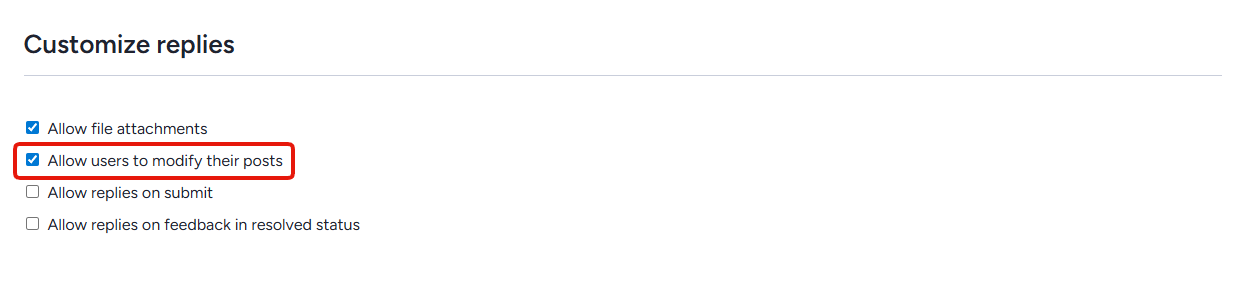
Yes, with the right setting enabled. In the Feedback collaboration section of a given feedback type, enable Allow users to modify their posts.
What If Only Some Participants Report They're Unable to View Feedback?
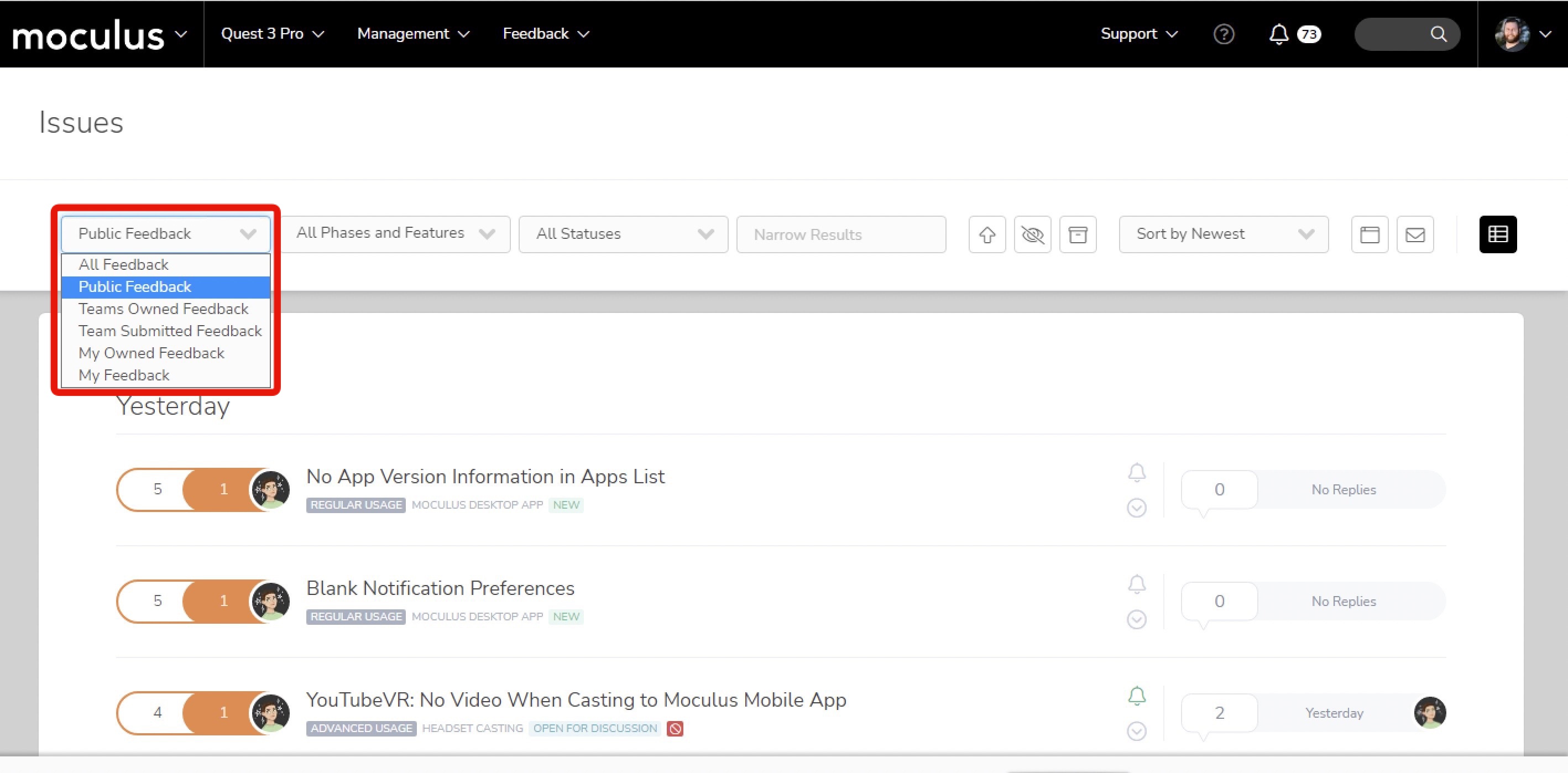
This typically means the affected participant's Simple View filter is set to an unwanted selection — for example, "My Feedback" when they haven't submitted any. Instruct them to change their filter to "Public Feedback" to see the feedback you've made available for collaboration.
How Do I Change Feedback Statuses in Bulk?
Use the Mass Feedback Modify function. It acts as an on-the-fly feedback macro, letting you change the status or other custom fields on a filtered list of feedback. A common use case is closing multiple tickets at once rather than individually.
What Are Feedback Roles and What Do They Do?
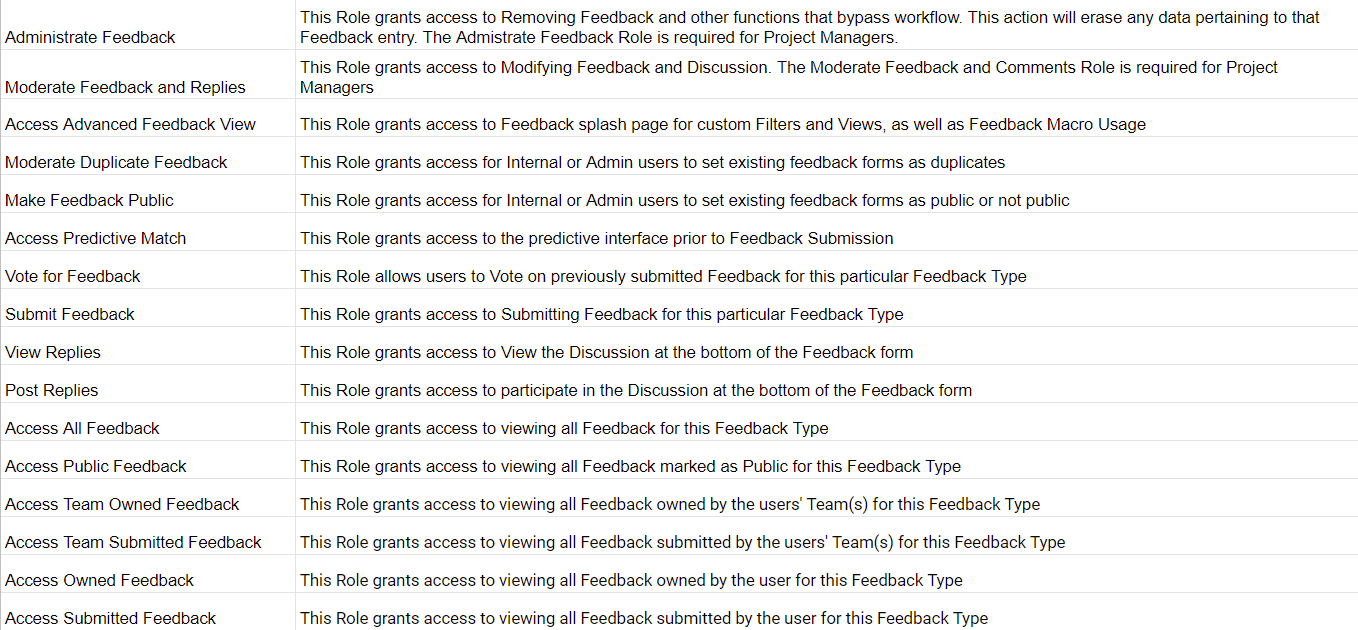
Feedback Roles are a static set of named access roles available per feedback type. They give Project Managers granular control over who can submit, view, and manage feedback for each type (Issues, Ideas, Praise, Discussions, or custom types).
How Does Predictive Match Work?
Predictive Match shows participants feedback that matches keywords in their title and description as they're typing. When a match appears, they can select "This matches," "Not a match," or "Create new feedback." Selecting "This matches" increases the parent ticket's Feedback Score. Read more about Predictive Match.
What do the "impact velocity" and "reply velocity" sort options measure?
Both measure change over the last 7 days rather than a running total.
- Impact velocity is how much a feedback item's Impact Score has risen in the past 7 days.
- Reply velocity is how many replies a feedback item has gained in the past 7 days.
That distinction is what makes them useful. Sorting by Impact Score alone surfaces the items that have accumulated the most signal overall, which tends to favor older feedback. Sorting by velocity surfaces what is moving right now, so a recent item with a modest total can rank above an established one that has gone quiet.
Use impact velocity to catch issues rapidly gaining corroboration, through duplicates, matches, and votes, before they become widely reported. Use reply velocity to catch the items drawing active discussion, which is often where a conversation needs a response from your team.
An item with no change in the window sorts as zero, so a quiet backlog item will not surface on either sort no matter how high its total.
Should My Feedback Type Be Private?
Whether feedback should be public depends on your test's needs. Centercode's Personal Data Fields toggle lets you mark fields that collect personal data. Fields marked as personal data are only visible to project admins and the original submitter, so feedback can remain public without exposing personal information to other participants.
Why Can't Users Submit or Triage Feedback?
Check these three areas:
1. Workflow — controls the feedback lifecycle, ownership, and how it's addressed.
2. Element Level Access — optional setting on the Basic Feedback Properties page controlling which teams can view and modify form elements.
3. Feedback Roles — grant access to submit and/or view feedback.
Why Am I Missing the Submit Button for a Feedback Type?
If a team has no access to any statuses, the Submit button won't appear on the project homepage or in the menu. The team must have access to at least the "New" status in Workflow and at least one "Access" role in the Feedback Type's Role tool.
From the Project Homepage:
1. Click Management > Project configuration > Feedback types.
2. Hover over the feedback type and click the modify (pencil) icon.
3. Click Workflow and grant access to the "New" status for any teams that are missing it.
4. Click Submit, then click Feedback roles.
5. Confirm an "Access" role is enabled for your teams.
Why Are Some Participants Unable to View Feedback?
This usually means their Simple View filter is set to an unwanted selection, such as "Show my feedback" when they haven't submitted any. Instruct them to change the filter — for example, to "Show public feedback" or "Show team submitted feedback" — to see the views available for collaboration.
Can I Remove the "Is This Issue Stopping You from Testing This Feature?" Element?
No. This element is tied to the feedback type being set as Issues/Bugs in the feedback's basic settings. It can't be removed because it feeds into several Delta metrics.
Some Tickets Show a Title, and Some Show a Ticket Number. Why?
This happens when some teams have access to the field set as the ticket summary and others don't. If a participant can't fill in the summary field, the ticket will display only the ticket ID.
Why does my Workflow row show "Locked" instead of an Owner Destination?
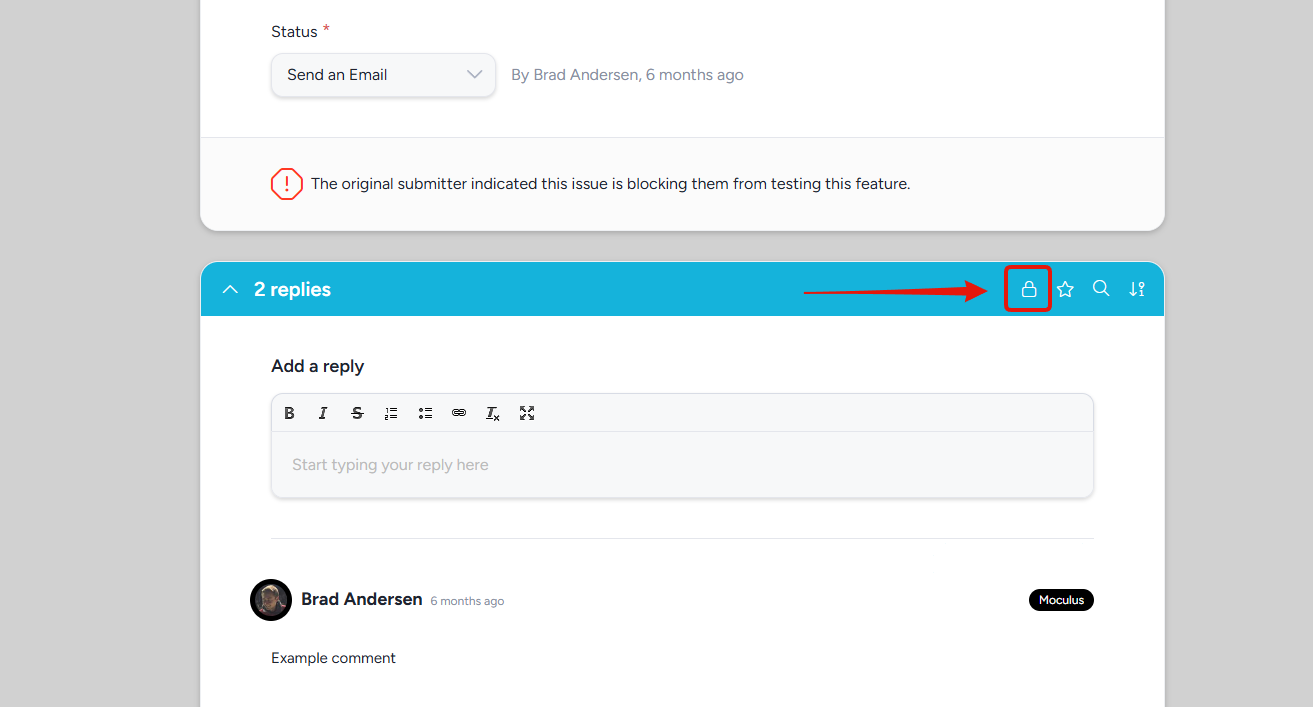
Locked means collaboration on a ticket has closed. Participants can't post new replies, and the discussion stays on the ticket exactly as it was. The ticket is still readable, and your internal team keeps working it: status changes, ownership, and edits all continue to follow Workflow.
Locking is driven by the status intent, not by the status name. Move feedback into a status carrying a Resolved intent (Resolved - Verified, Resolved - Exclude, or Resolved - Other) and the ticket locks. Statuses carrying an Open intent (Open - New, Open - Awaiting Discussion, Open - Needs More Info, Open - Team Review) leave it unlocked. It's the platform's way of saying you're finished collecting data on this one.
Because the behavior follows the intent, renaming a status doesn't change it. A status you've labeled "Closed," "Shipped," or "Won't Fix" locks tickets if its intent is Resolved, and a status you've labeled "Locked" won't lock anything unless its intent says so. If the locking behavior surprises you, check the Intent drop-down in your feedback type's Statuses settings. For the full list of intents and what each one signals, see Declaring Intent behind your Feedback Status.
Changing the behavior
- For a whole feedback type: turn on Allow replies on feedback in resolved status in the feedback type's Feedback collaboration settings. Replies stay open even after a ticket resolves. See the Feedback Collaboration Overview.
- For a single ticket: click Prevent new replies in the ticket's comment section to toggle the lock off or back on.
The Comments on a Feedback Ticket Are Locked. How Did That Happen, and How Do I Unlock Them?
By default, comments lock automatically when a ticket is moved to a status marked as resolved. This behavior can be changed in the Feedback Collaboration settings for the feedback type.
To unlock comments, click the Prevent new replies button at the top of the comment section.
What Does "Don't Include This Element in Results" Do?
This option hides the form element (usually a label) when viewing a completed ticket as an admin or in any reporting. The element still appears while the user is filling out the ticket.
Can Participants Post Feedback Anonymously?
No. Feedback is always attached to the participant who submitted it. However, you have two options to reduce visibility of the poster's identity. First, set the Identify by option to Display name in your project's basic settings to prevent full names from being shown to other participants. Second, configure Feedback Roles so participants can only see feedback they submitted themselves.
How Do I View Resolved or Excluded Tickets?
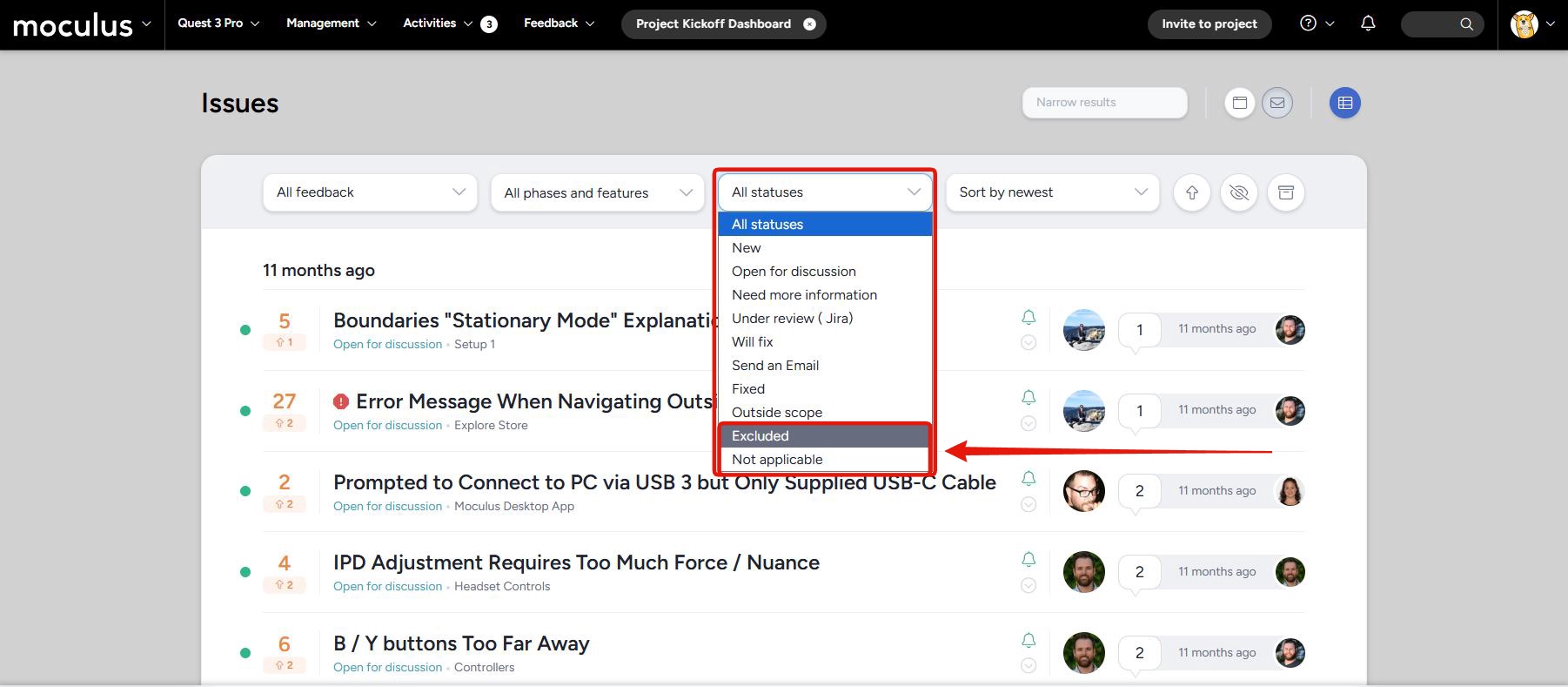
Tickets set to a status with the Resolved or Excluded feedback intent don't appear in the default feedback list. To view resolved tickets, use the Show resolved option in the feedback list menu bar.
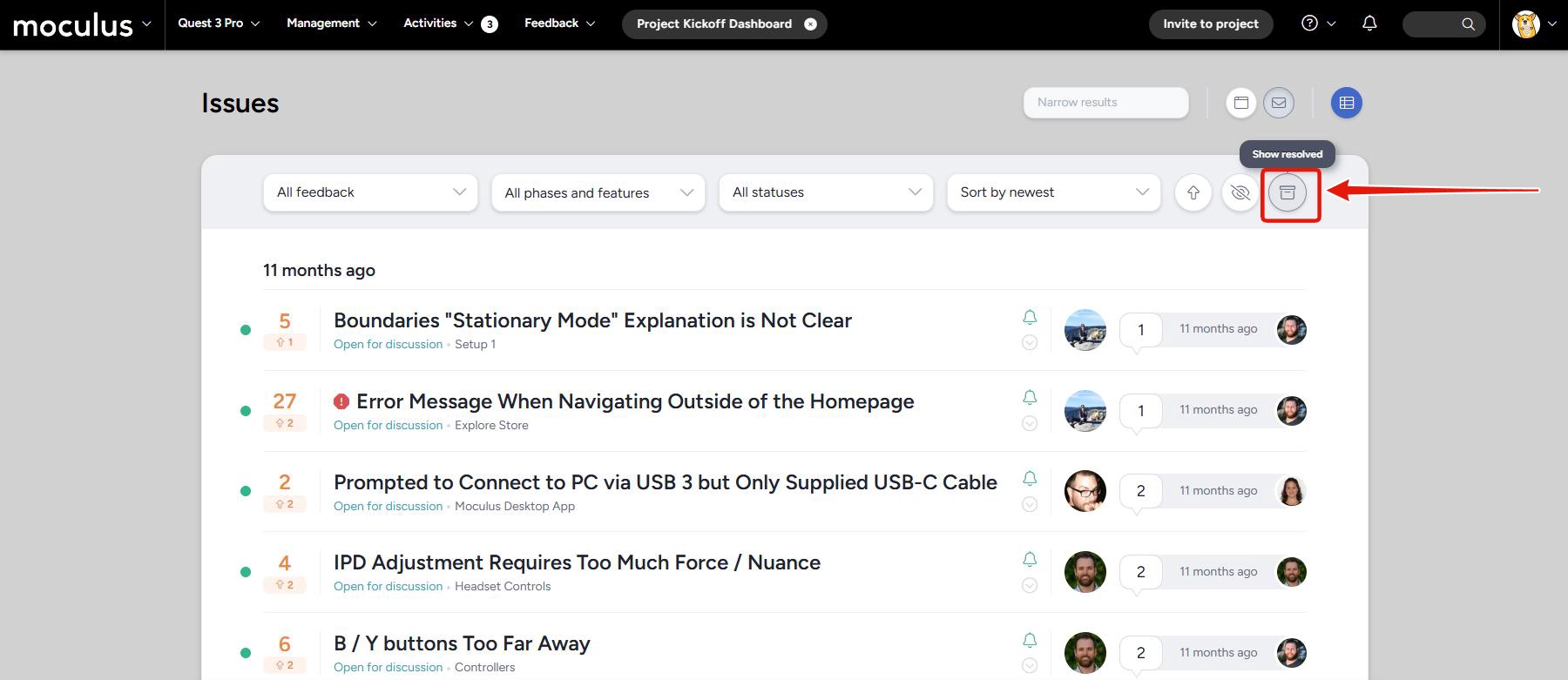
To view excluded tickets, switch the status view drop-down to show excluded tickets specifically.