---
title: Surveys FAQ
description: Survey basics and troubleshooting
---
[Skip to content](https://help.centercode.com/en/surveys-faq#main-content)
[![New\_Centercode\_Logo.png\]](https://help.centercode.com/hs-fs/hubfs/New_Centercode_Logo.png?height=35&name=New_Centercode_Logo.png)](https://centercode.com/)
- [Help Center Home](https://help.centercode.com/)
- [Starter & Delta Edition Help](https://learn.centercode.com/)
Open main navigation
Close main navigation
- [Help Center Home](https://help.centercode.com/)
- [Starter & Delta Edition Help](https://learn.centercode.com/)
- [Report an Issue](https://centercode.com/issue)
[Report an Issue](https://centercode.com/issue)
How can we help?
- There are no suggestions because the search field is empty.
1. [Help Center](https://help.centercode.com/en?hsLang=en)
2. [Resources & Surveys](https://help.centercode.com/en/resources-surveys?hsLang=en)
3. [FAQs](https://help.centercode.com/en/resources-surveys?hsLang=en#faqs)
# Surveys FAQ
## Survey basics and troubleshooting
This article applies to **Pro, Team,** and **Legacy** editions.
Surveys are a great way to gather information about your product via direct questions posed to your Users. It is important to keep Surveys shorter rather than longer as you want your Users to answer truthfully and not rush through them. If you're not sure what each form element can do, please refer to this article: [Form Engine Overview](https://help.centercode.com/en/feedback-form-overview?hsLang=en)
### Table of Contents
- [How do I create a survey?](https://help.centercode.com/en/surveys-faq#how-to-create)
- [How do I modify a survey's submission access?](https://help.centercode.com/en/surveys-faq#modify-submit-access)
- [How do I modify a survey's form elements (questions)?](https://help.centercode.com/en/surveys-faq#how-to-modify-elements)
- [How do I test my survey before activating it?](https://help.centercode.com/en/surveys-faq#survey-preview)
- [How do I archive a survey?](https://help.centercode.com/en/surveys-faq#archive-survey)
- [How can I require users to complete my survey?](https://help.centercode.com/en/surveys-faq#required-complete-notice)
- [How do I send a survey to a specific group of existing testers?](https://help.centercode.com/en/surveys-faq#specific-users)
- [How do I email users about completing a survey?](https://help.centercode.com/en/surveys-faq#how-to-prompt)
- [Where can I find the submission link to my survey?](https://help.centercode.com/en/surveys-faq#submission-link)
- [How can I copy a survey from one project to another?](https://help.centercode.com/en/surveys-faq#copy-a-survey)
- [Why are users missing or losing their survey drafts?](https://help.centercode.com/en/surveys-faq#missing-drafts)
- [How do I reset a user's survey response?](https://help.centercode.com/en/surveys-faq#reset-results)
- [Why can't I see the survey results, Modify answers, Reset survey response, or Remove response buttons when viewing a users completed survey?](https://help.centercode.com/en/surveys-faq#manage-results)
- [If I add new questions, will users be required to complete the survey again?](https://help.centercode.com/en/surveys-faq#add-new-questions)
- [Why is my survey empty when viewed through Survey Management?](https://help.centercode.com/en/surveys-faq#empty-view)
- [When assuming a user, why don't I see their survey notice?](https://help.centercode.com/en/surveys-faq#assuming)
- [Why isn't a survey shown in the Activities navigation menu?](https://help.centercode.com/en/surveys-faq#menu-access)
- [What does "Link user's survey responses to feedback" do?](https://help.centercode.com/en/surveys-faq#link-responses)
- [Can I configure a survey to email me every time it's completed?](https://help.centercode.com/en/surveys-faq#email-completed)
- [How do I add an "Other" option with a write-in answer?](https://help.centercode.com/en/surveys-faq#conditional-other)
- [Can a child question be conditional to multiple parent questions?](https://help.centercode.com/en/surveys-faq?hsLang=en#multiple-parent)
- [What does it mean if my survey is "expired"?](https://help.centercode.com/en/surveys-faq#survey-expired)
- [Why are my users being directed back to a survey after submitting it?](https://help.centercode.com/en/surveys-faq#submit-growl)
- [Why are elements missing from my survey when I use the "Export" button?](https://help.centercode.com/en/surveys-faq#export-missing-elements)
- [How do I test out my survey?](https://help.centercode.com/en/surveys-faq#test-survey)
- [Do the drafts and completed counts on a survey add up to my participant total?](https://help.centercode.com/en/surveys-faq#drafts-and-completed)
- [Can I see a history of changes made to a survey?](https://help.centercode.com/en/surveys-faq#can-i-see)
- [How do I let users select more than one choice?](https://help.centercode.com/en/surveys-faq#how-do-i-let)
### How Do I Create a Survey?
From the Survey Management tool:
1. Click **Create a survey** at the bottom of the table.
2. Choose a template or enter your own **Title**, **Menu label**, **Team access**, and **Advanced options**.
3. Click **Next**.
4. Click **Add a form element** at the top of the form.
5. Select the desired element type and fill in any required data.
6. Click **Submit** to confirm.
7. Repeat steps 4 and 5 until you've added all desired elements.
8. Click **Return** when satisfied to return to the survey form.
9. Click **Activate survey** at the bottom of the form to make the survey available to users.
### How Do I Modify a Survey's Submission Access?
From the Survey Management tool:
1. Hover over the desired survey.
2. Click the modify (pencil) icon.
3. Make changes to **Basic options**, **Advanced options**, and **Team access**.
4. Click **Submit** to confirm.
### How Do I Modify a Survey's Form Elements (Questions)?
From the Survey Management tool:
1. Click the survey name.
2. Hover over the form element you'd like to modify.
3. Click the modify (pencil) icon.
4. Make your changes to the element.
5. Click **Submit** to confirm.
### How do I test my survey before activating it?
Use the *Preview experience* tool. It creates a temporary tester account so you can fill out and submit your survey exactly as a tester would, then removes everything you entered when you leave. The preview creates its own temporary account and acts as the test run, so there's no separate "review" button to look for.
For the full tool, see the [User experience preview overview](https://help.centercode.com/en/user-experience-preview-overview?hsLang=en).
### How Do I Archive a Survey?
From the Survey Management tool:
1. Hover over the desired survey.
2. Click the Archive icon and confirm.
You can access archived surveys and reactivate them from the Archive section of Survey Management.
### How Can I Require Users to Complete My Survey?
Set the survey as a **Notice**. Notices are resources users must view before reaching the community or project homepage. To set your survey as a notice, refer to step 3 in the "Modify a survey's submission access" section above.
### **How do I send a survey to a specific group of existing testers?**
Your testers already have access to the survey, so there's no need to recruit them again. Reach the group you want in one of two ways:
1. **Notify/Remind on the survey.** From Survey Management, hover over the survey and use *Notify/Remind* to email the testers who have access but haven't completed it yet. This is the quickest nudge for an existing audience.
2. **Email Users from User Management.** Open *Users*, filter to the team or subset you want, choose *Email users*, and send them the survey link or a custom message. Use this when you want to target a specific team or a hand-picked selection.
An *Email List Invitation* under Recruiting is a different tool: it brings **new** candidates into the project. It isn't the way to reach people who are already testers.
### How Do I Email Users About Completing a Survey?
The quickest method is the [Notify/Remind feature](https://help.centercode.com/en/notify-and-remind-overview?hsLang=en), available as a hover-over action on surveys in Survey Management. It sends a quick email to users who have access but haven't yet completed the survey. The initiating admin is not included.

For a more customized approach, you can email users directly from User Management using a custom email template. This lets you target specific teams with tailored messaging.
### Where Can I Find the Submission Link to My Survey?
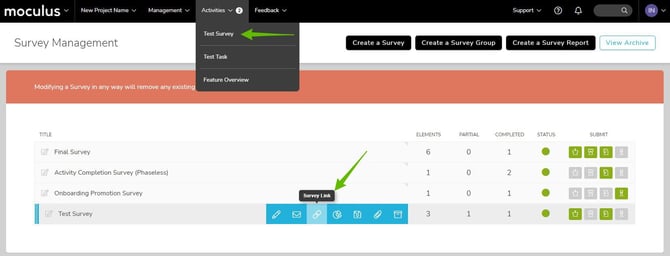
Copy the survey link's URL from the Activities menu in the navigation bar, or click **Survey link** within Survey Management to get a shortlink.
### How Can I Copy a Survey from One Project to Another?
Refer to [this article](https://help.centercode.com/en/resources-faq?hsLang=en) for instructions on globally cloning surveys, content, and releases across projects.
### Why Are Users Missing or Losing Their Survey Drafts?
This happens when a user saves a draft, leaves the survey, returns, and starts filling it out again without loading their previous draft before saving a new one. The Load Previous Draft button only loads the most recent draft, so the earlier one is replaced.
The sequence looks like this:
1. User fills out the survey and saves a draft.
2. User leaves the survey.
3. User returns and begins filling out the survey again without loading the draft.
4. User manually saves another draft, replacing the previous one.
### How Do I Reset a User's Survey Response?
From within the user's **User Summary**:
1. Under **User data snapshot**, locate and click the survey you'd like to reset.
2. Click **Reset survey response**.
3. Choose **Maintain results** or **Discard results**.
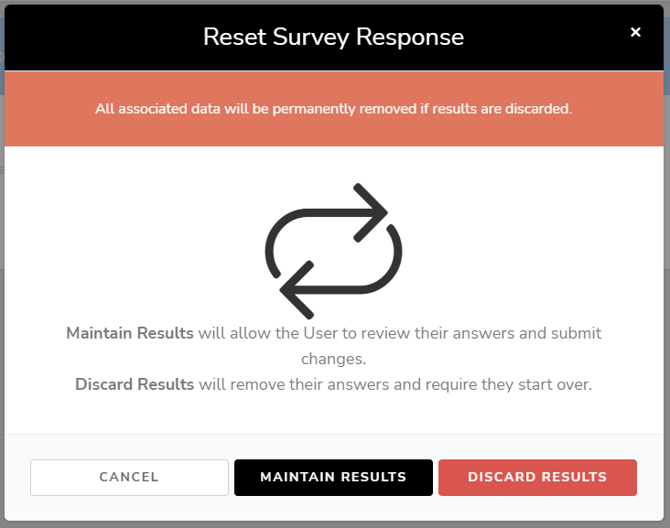
**Maintain results** resets the survey but keeps the user's previous answers so they can review and resubmit. **Discard results** removes all previous answers and requires the user to start from scratch.
**Notes:**
- Resetting a survey that was set as a notice also resets the notice for that user, requiring them to resubmit on their next sign-in.
- To reset a survey, access it from the **Profile** tab of the user's summary, not the Summary tab.
### Why can't I see results, the Modify answers, Reset survey response, or Remove response buttons when viewing a users completed survey?
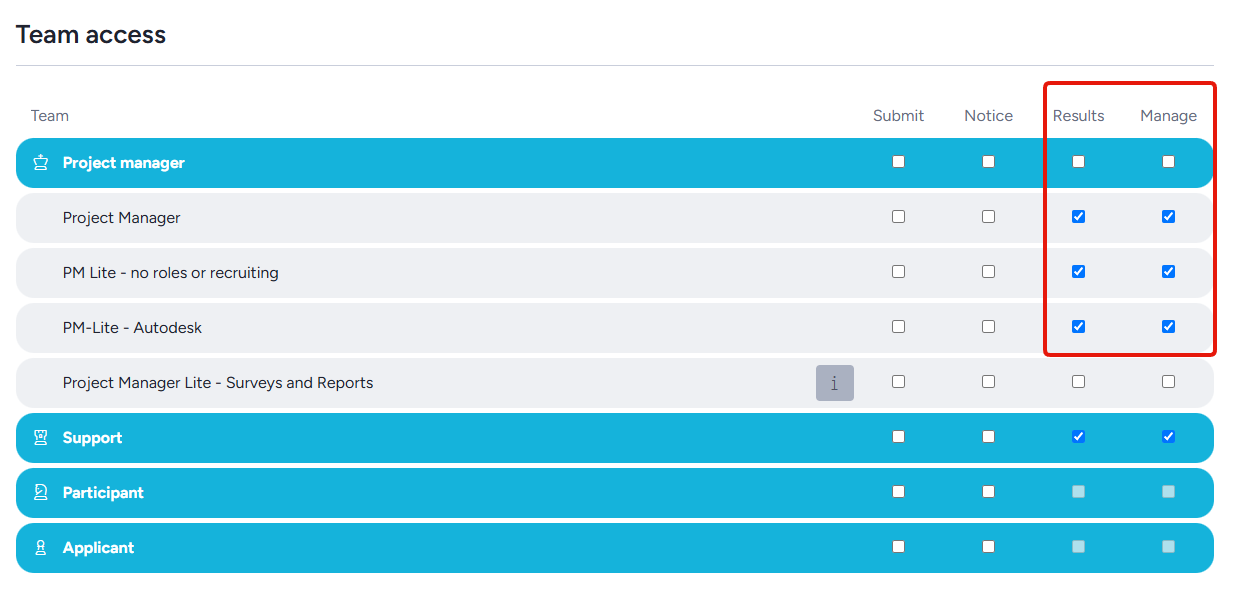
Each survey has seperate "Results" and "Manage" permissions. You'll want to verify that you are on a team that has these permissions enabled for the particular survey you're trying to reset.
To verify you have "Manage" permission for a survey:
1. Navigate to the Survey management screen
2. Hover over the survey in question and hit the "modify" button
3. Verify you are on a team with the "Results" and "Manage" permission enabled for that survey
### If I Add New Questions, Will Users Be Required to Complete the Survey Again?
No. Users who already completed the survey won't be prompted to take it again. You can manually reset their response if needed.
If the survey was set as a notice, you can also reset the notice so users are presented with it again on their next sign-in. From the Notice Management tool:
1. Hover over your survey.
2. Click the log icon.
3. Click on a user to reset their notice individually, or click **Reset this notice for all users**.

### Why Is My Survey Empty When Viewed Through Survey Management?
This is an admin-only issue. If a survey isn't showing its questions, the account you're using has likely had its survey results removed.
To resolve this from the Project Homepage:
1. Search for your account in the knowledge base search bar.
2. Click the account.
3. Click the **Profile** tab.
4. Scroll down and click the survey name marked in red as "Removed."
5. Click **Reset access** and confirm
### When Assuming a User, Why Don't I See Their Survey Notice?
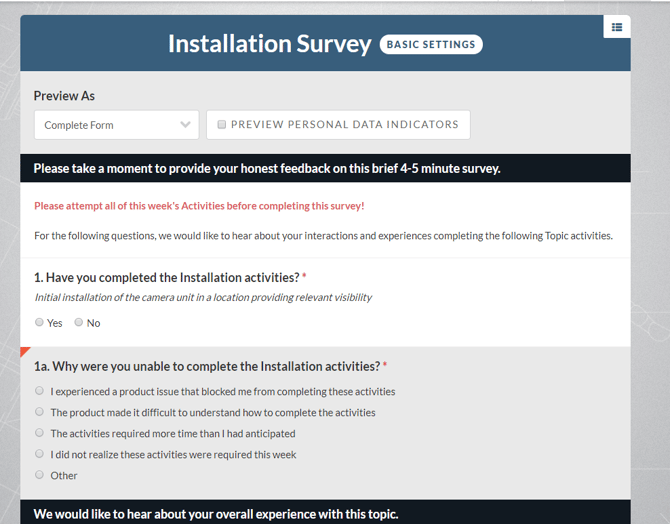
Assuming a user bypasses their entire notice chain by design. This lets you verify configuration without affecting the user's experience, since notices are typically set to be completed only once.
### Why Isn't a Survey Shown in the Activities Navigation Menu?
If users aren't seeing your survey on the Community or Project's left-hand menu, check these:
1. Make sure access is set appropriately in the survey's settings. Only teams with access to the survey see it in the menu.
2. Check whether the user has already completed the survey. Once a user completes it, the survey drops off their menu. You can confirm this from the user's Summary.
### What Does "Link User's Survey Responses to Feedback" Do?
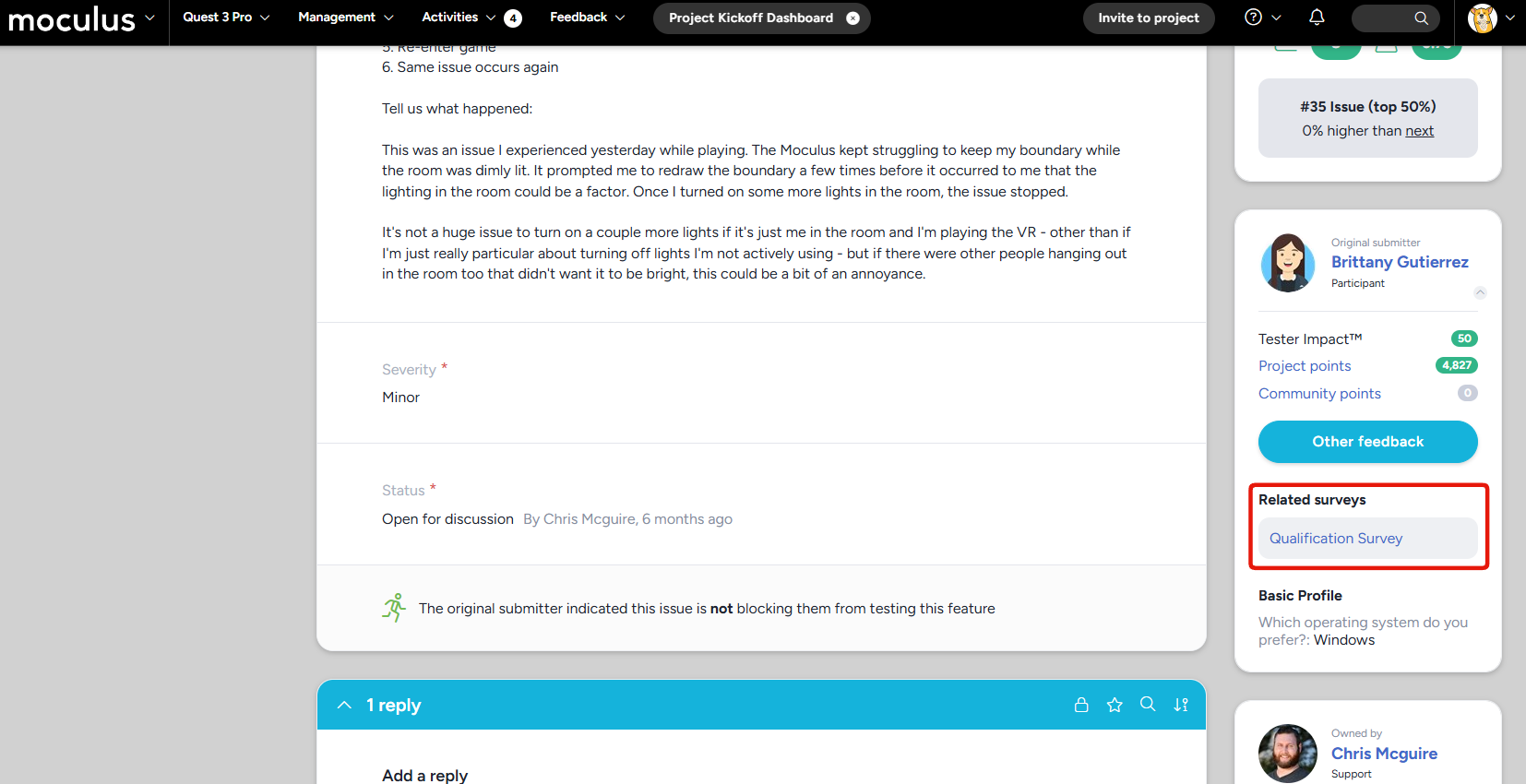
This option adds a link to a user's survey responses when viewing their feedback ticket, making it easy for admins to see the submitter's survey answers in context.
### Can I Configure a Survey to Email Me Every Time It's Completed?
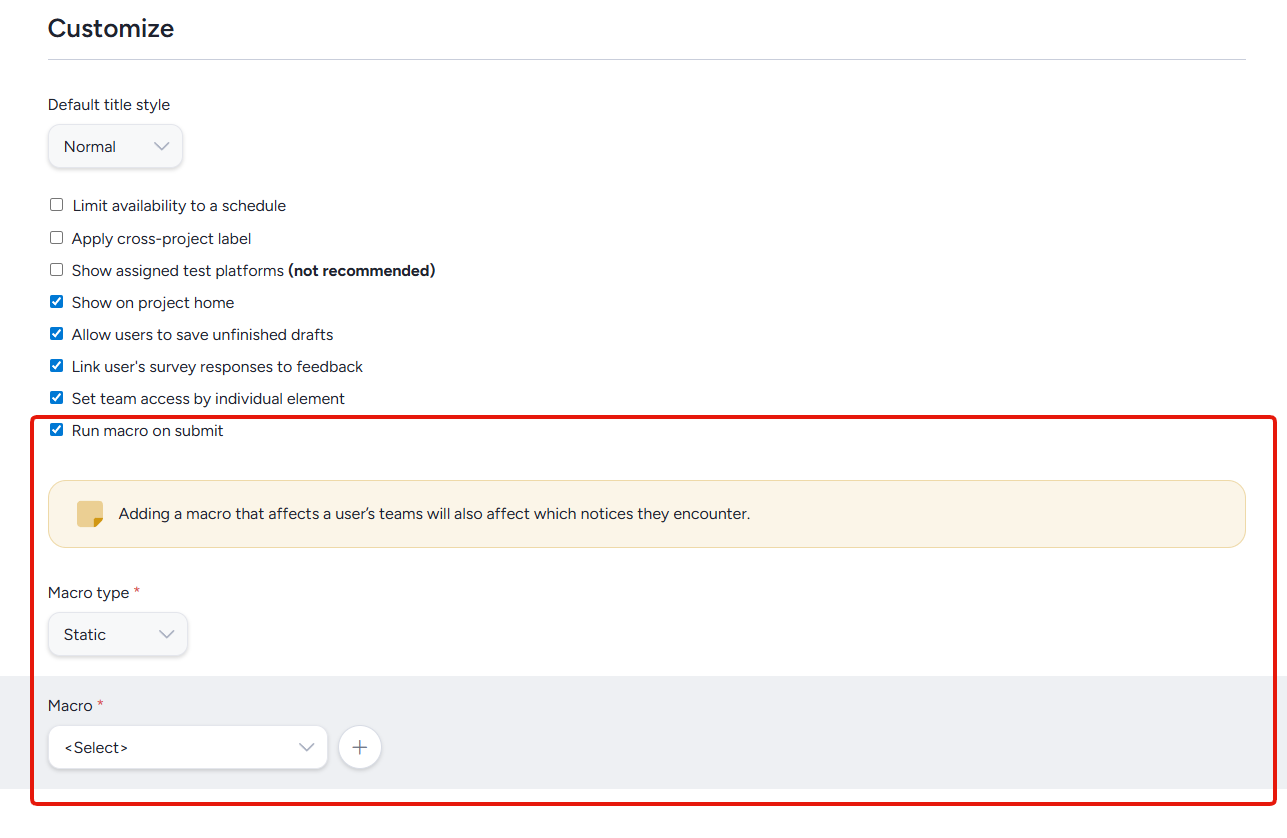
Yes. Use the **Run macro on submit** option in the survey's basic settings to configure a macro that sends an email on each completion. Set the macro to **Static** to trigger for any user who submits, or **Conditional** to trigger only when specific criteria are met.
### How do I add an "Other" option with a write-in answer?
A *Choices* element gives users a fixed set of options, but a choice can't also become a text box on its own. To let them write in their own answer, pair it with a separate *Text entry* element that appears only when they pick "Other."
From the Survey Management tool:
1. Click your survey to modify the form.
2. Scroll to find the "parent"choice question, hover over it, and click the **Modify** pencil.
3. Add **Other** as one of its choices if it isn't there already.
4. Click Submit to save the edit to the parent element, then **Return to form**.
5. Click **Add a form element** and select **Text entry** as the element type.
6. Give it a title (for example, *If you selected Other, please specify*).
7. Set the element to be **conditional** on your chosen "parent" question, with **Other** as the triggering selection.
8. Click **Submit** to save.
The write-in field now stays hidden until a user selects "Other," then appears for them to type their answer. To check it, use *Preview as* in the form view and select the "Other" choice. The conditional field shows only once its triggering answer is picked.
**Note:** A conditional element can be based on a single parent question. If "Other" appears in more than one question, add a write-in field for each.
### Can a Child Question Be Conditional to Multiple Parent Questions?
No. A conditional question can only be based on a single parent question.
### What Does It Mean If My Survey Is "Expired"?
Surveys can be configured to only be available for a set period using the [Limit availability to schedule](https://help.centercode.com/en/create-a-survey-overview?hsLang=en) option. An expired survey is simply outside its availability window. You can change or remove this setting at any time to restore access.
### Why Are My Users Being Directed Back to a Survey After Submitting It?
After submitting, users are taken to a confirmation page showing all their selected answers and given one last chance to make corrections. Some users mistake this for a failed submission if they don't notice the "Thank you!" success message at the top of the screen.
### Why Are Elements Missing from My Survey When I Use the "Export" Button?
The survey export button produces a CSV or XLS version of your survey data designed to be easily ingested by outside systems. Text answer elements are intentionally excluded from this export, since text responses can contain characters and formatting — such as code examples or HTML — that may cause issues when importing the data into other systems.
Once the export report has been generated, you can manually add text elements back in. If your survey is heavy on text elements, building a custom report from scratch may be the more practical option.
### How Do I Test Out My Survey?
The easiest way to see what your survey looks like from a participant's perspective is to use the [User Experience Preview](https://help.centercode.com/en/user-experience-preview-overview?hsLang=en) tool. It creates a temporary test account you can use to fully complete the survey. The account and any submitted survey data are automatically removed when you're done.
### Notes
- You'll need to activate a survey before your audience can see it. Do this from the main survey list using the **Activate** checkbox, or from the elements page using the **Activate survey** button.
- Changes to an active survey are not retroactive. Users who already completed the survey won't see new elements. Make sure your survey is ready before activating to avoid mixed or inconsistent data.
- Enabling **Element level access** under Advanced Options lets you set access rights for individual form elements based on team type.
- If you need to share a survey with a stakeholder who doesn't have a Centercode account, you can use your browser to print the survey page as a PDF.
### Do the Drafts and Completed counts on a Survey add up to my participant total?
No, and adding them together will overcount. **Drafts** is the number of incomplete Survey drafts. **Completed** is the number of users who submitted. One person can appear in both, because a user who saves a draft and later submits is counted in each. So 17 Drafts and 15 Completed means at most 32 entries, not 32 unique participants.
The two counts are summary figures, not links. Clicking the numbers does nothing.
##### **Finding out who is in each group**
To reach the people behind the counts, use the User List with a filter on Survey state rather than the counts themselves.
1. Go to **Management** \> **Users**.
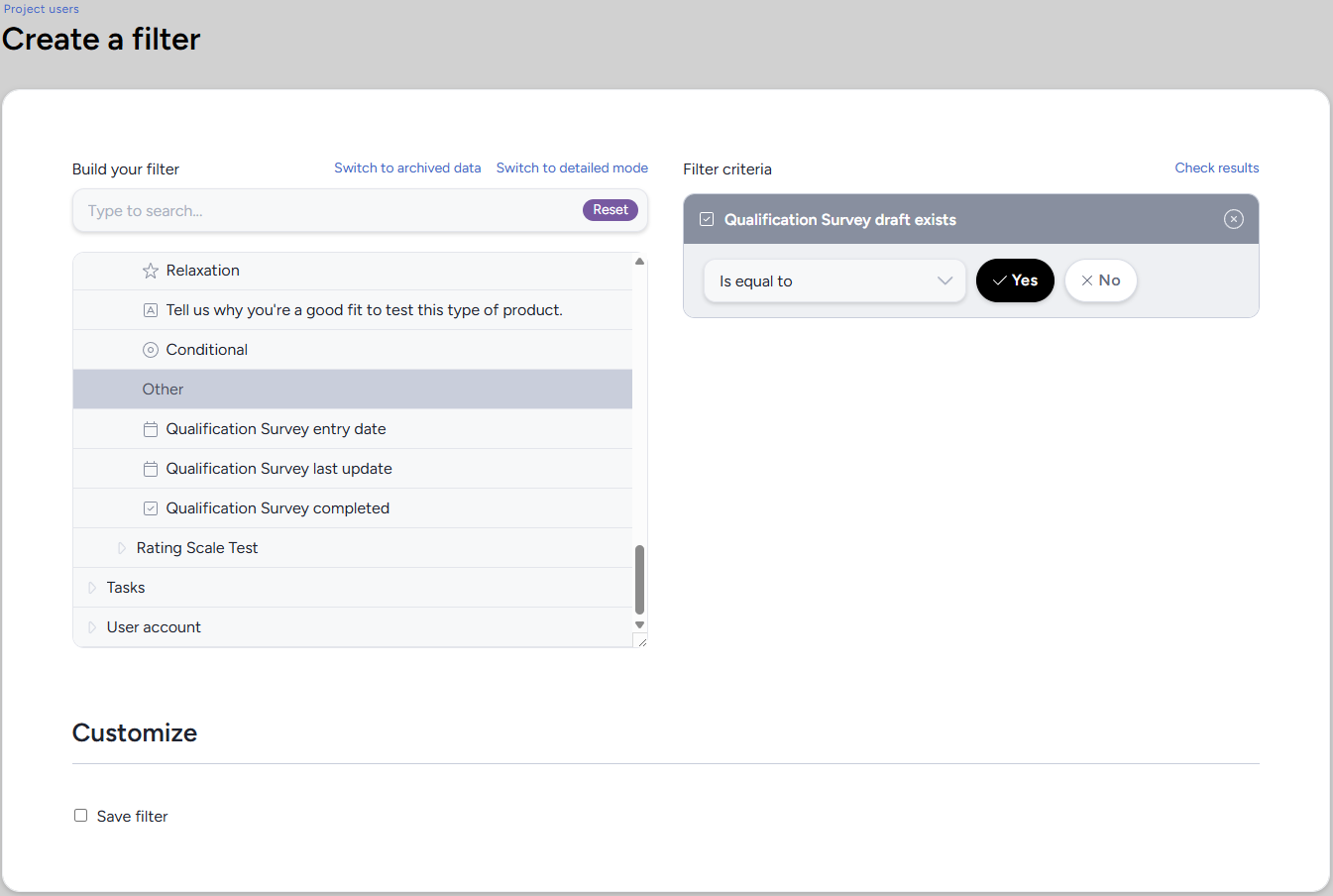
2. Add a filter for the relevant Survey and set it to the draft exists state to list users holding an incomplete draft.
3. Set the same filter to the completed state for users who submitted. The Survey's **Completed user list** action produces this list as well.
4. Compare the two lists. Anyone in both saved a draft and then submitted, so count them once.
**
If your goal is to reach the people who have not finished rather than count them, hover the Survey and use **Notify/Remind**. That contacts users with access who have not completed it, and excludes the administrator who starts it.
### **Notes**
- A user can lose a draft by returning to a Survey and filling it out again without loading the earlier draft before saving.
### Can I see a history of changes made to a survey?
No. Centercode doesn't keep a change history or audit log for edits to a survey's configuration, so there's no record of who changed a question, setting, or access rule, or when.
If several admins work on the same survey, we recommend agreeing on who makes changes once it's active, and noting significant edits somewhere your team shares. The [Team activity log](https://help.centercode.com/en/team-activity-log-overview?hsLang=en) records team membership changes only. It doesn't cover survey edits.
### How do I let users select more than one choice?
The *Display As* setting in the Choices element's Modify options controls whether users can pick one answer or several.
- *Drop-down*, *Radio Buttons – Horizontal*, and *Radio Buttons – Vertical* allow a single answer.
- *Checkboxes* allows users to select more than one answer.
To make a Choices element multi-select:
1. Modify the Choices element on your form.
2. Set **Display As** to **Checkboxes**.
3. Optionally, turn on **Choice Limit** and enter the most answers a user can pick. This option appears only after you select *Checkboxes*.
4. Save the element.
\[Screenshot: Choices element Modify options with Display As set to Checkboxes and the Choice Limit option visible\]
**Tags:** choices, multiple choice, multi-select, select multiple, checkboxes, display as, choice limit, radio buttons, drop-down, form element
- [Centercode Basics](https://help.centercode.com/en/centercode-basics?hsLang=en#main-content)
- [Overviews](https://help.centercode.com/en/centercode-basics?hsLang=en#overviews)
- [Guides](https://help.centercode.com/en/centercode-basics?hsLang=en#guides)
- [FAQs](https://help.centercode.com/en/centercode-basics?hsLang=en#faqs)
- [Community Administration](https://help.centercode.com/en/community-administration?hsLang=en#main-content)
- [Community Administration](https://help.centercode.com/en/community-administration?hsLang=en#community-administration)
- [Overviews](https://help.centercode.com/en/community-administration?hsLang=en#overviews)
- [Guides](https://help.centercode.com/en/community-administration?hsLang=en#guides)
- [FAQs](https://help.centercode.com/en/community-administration?hsLang=en#faqs)
- [Project Administration](https://help.centercode.com/en/project-administration?hsLang=en#main-content)
- [Overviews](https://help.centercode.com/en/project-administration?hsLang=en#overviews)
- [Guides](https://help.centercode.com/en/project-administration?hsLang=en#guides)
- [FAQs](https://help.centercode.com/en/project-administration?hsLang=en#faqs)
- [Features & Test Planning](https://help.centercode.com/en/features-test-planning?hsLang=en#main-content)
- [Overviews](https://help.centercode.com/en/features-test-planning?hsLang=en#overviews)
- [Guides](https://help.centercode.com/en/features-test-planning?hsLang=en#guides)
- [FAQs](https://help.centercode.com/en/features-test-planning?hsLang=en#faqs)
- [Resources & Surveys](https://help.centercode.com/en/resources-surveys?hsLang=en#main-content)
- [Overviews](https://help.centercode.com/en/resources-surveys?hsLang=en#overviews)
- [Guides](https://help.centercode.com/en/resources-surveys?hsLang=en#guides)
- [FAQs](https://help.centercode.com/en/resources-surveys?hsLang=en#faqs)
- [Recruiting](https://help.centercode.com/en/recruiting?hsLang=en#main-content)
- [Overviews](https://help.centercode.com/en/recruiting?hsLang=en#overviews)
- [Guides](https://help.centercode.com/en/recruiting?hsLang=en#guides)
- [FAQs](https://help.centercode.com/en/recruiting?hsLang=en#faqs)
- [Feedback](https://help.centercode.com/en/feedback?hsLang=en#main-content)
- [Overviews](https://help.centercode.com/en/feedback?hsLang=en#overviews)
- [Guides](https://help.centercode.com/en/feedback?hsLang=en#guides)
- [FAQs](https://help.centercode.com/en/feedback?hsLang=en#faqs)
- [Dashboards & Reporting](https://help.centercode.com/en/dashboards-reporting?hsLang=en#main-content)
- [Overviews](https://help.centercode.com/en/dashboards-reporting?hsLang=en#overviews)
- [Guides](https://help.centercode.com/en/dashboards-reporting?hsLang=en#guides)
- [FAQs](https://help.centercode.com/en/dashboards-reporting?hsLang=en#faqs)
- [Integrations](https://help.centercode.com/en/integrations?hsLang=en#main-content)
- [Overviews](https://help.centercode.com/en/integrations?hsLang=en#overviews)
- [Guides](https://help.centercode.com/en/integrations?hsLang=en#guides)
- [FAQs](https://help.centercode.com/en/integrations?hsLang=en#faqs)
- [What's New?](https://whatsnew.centercode.com/)
- [System Status](https://status.centercode.com/)
- [Starter & Delta Edition Help Center](https://learn.centercode.com/)
- [Report an Issue](https://centercode.com/issue)
[](https://centercode.com)
Copyright © 2027, Centercode