---
title: Resources FAQ
description: This article applies to Pro, Team, and Legacy editions. Download Logs for local (uploaded) files can be drilled into to get the specific details on how many downloads failed, were successful, were aba
---
[Skip to content](https://help.centercode.com/en/resources-faq#main-content)
[![New\_Centercode\_Logo.png\]](https://help.centercode.com/hs-fs/hubfs/New_Centercode_Logo.png?height=35&name=New_Centercode_Logo.png)](https://centercode.com/)
- [Help Center Home](https://help.centercode.com/)
- [Starter & Delta Edition Help](https://learn.centercode.com/)
Open main navigation
Close main navigation
- [Help Center Home](https://help.centercode.com/)
- [Starter & Delta Edition Help](https://learn.centercode.com/)
- [Report an Issue](https://centercode.com/issue)
[Report an Issue](https://centercode.com/issue)
How can we help?
- There are no suggestions because the search field is empty.
1. [Help Center](https://help.centercode.com/en?hsLang=en)
2. [Resources & Surveys](https://help.centercode.com/en/resources-surveys?hsLang=en)
3. [FAQs](https://help.centercode.com/en/resources-surveys?hsLang=en#faqs)
# Resources FAQ
This article applies to **Pro**, **Team**, and **Legacy** editions. Note: some features described here, such as Release API and app store automation, require a **Team** or **Legacy** edition license.
### Table of Contents
- [How do I view the download log for files in content or releases?](https://help.centercode.com/en/resources-faq#download-log)
- [Why am I being told I'm over the 60k character limit?](https://help.centercode.com/en/resources-faq#character-count)
- [Why can't participants see the images in my resource?](https://help.centercode.com/en/resources-faq?hsLang=en#cant-see-images)
- [Should I use Content or Releases?](https://help.centercode.com/en/resources-faq#content-or-release)
- [Why isn't my Distributed Value displaying as a URL when I use the dynamic tag?](https://help.centercode.com/en/resources-faq#distributed-value-URL)
- [Can I move content from one Centercode implementation to another?](https://help.centercode.com/en/resources-faq#move-content-implementation)
### How Do I View the Download Log for Files in Content or Releases?
A download log in Centercode shows details on successful, failed, and abandoned file downloads for locally uploaded files. Externally linked files are not tracked in the download log.
**Community content:**
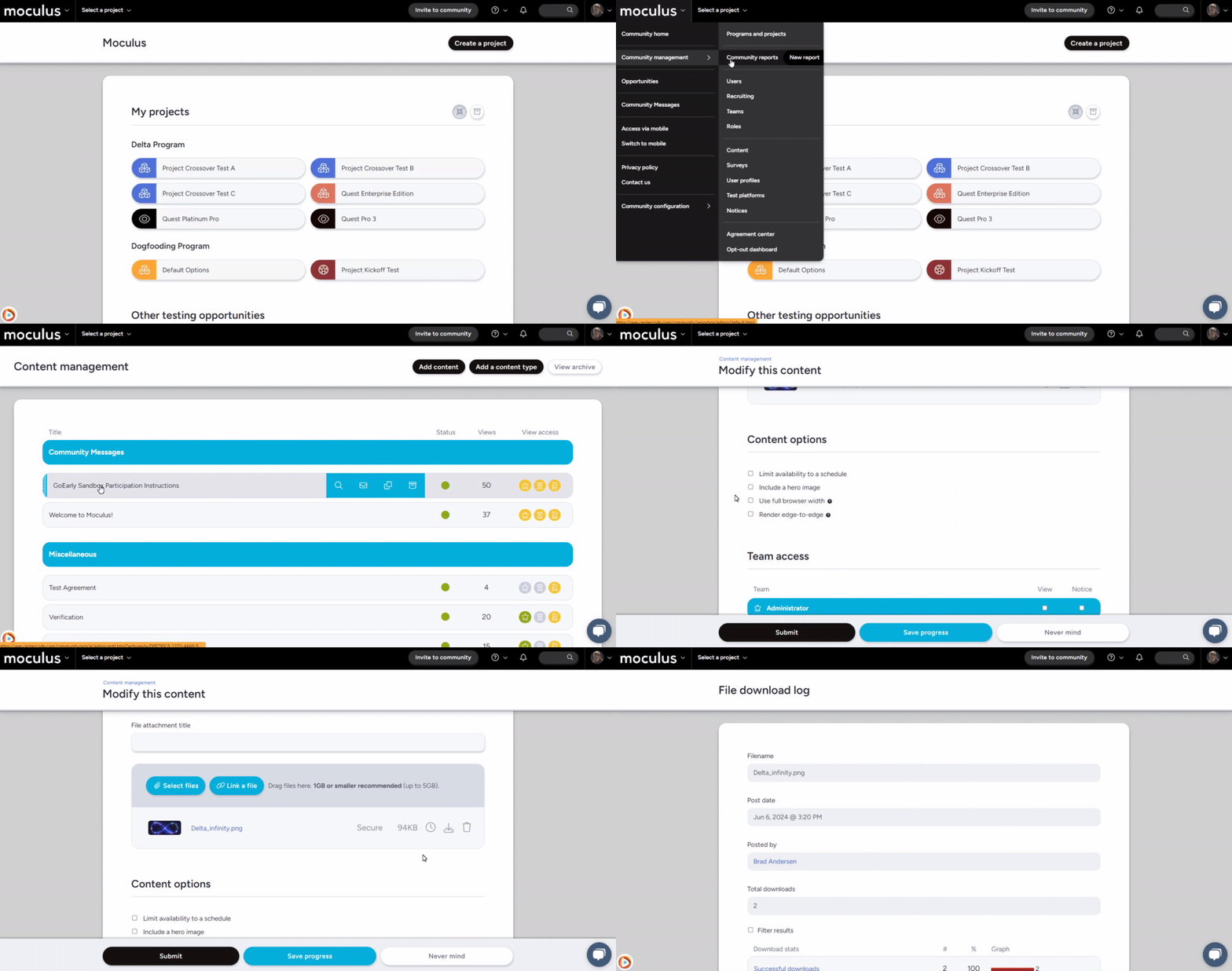
1\. Click the **Community logo** in the navigation bar.
2\. Click **Community administration \> Content**.
3\. Hover over the desired content and click the wrench icon.
4\. Hover over the desired attached file and click the clock icon.
**Project content or release:**
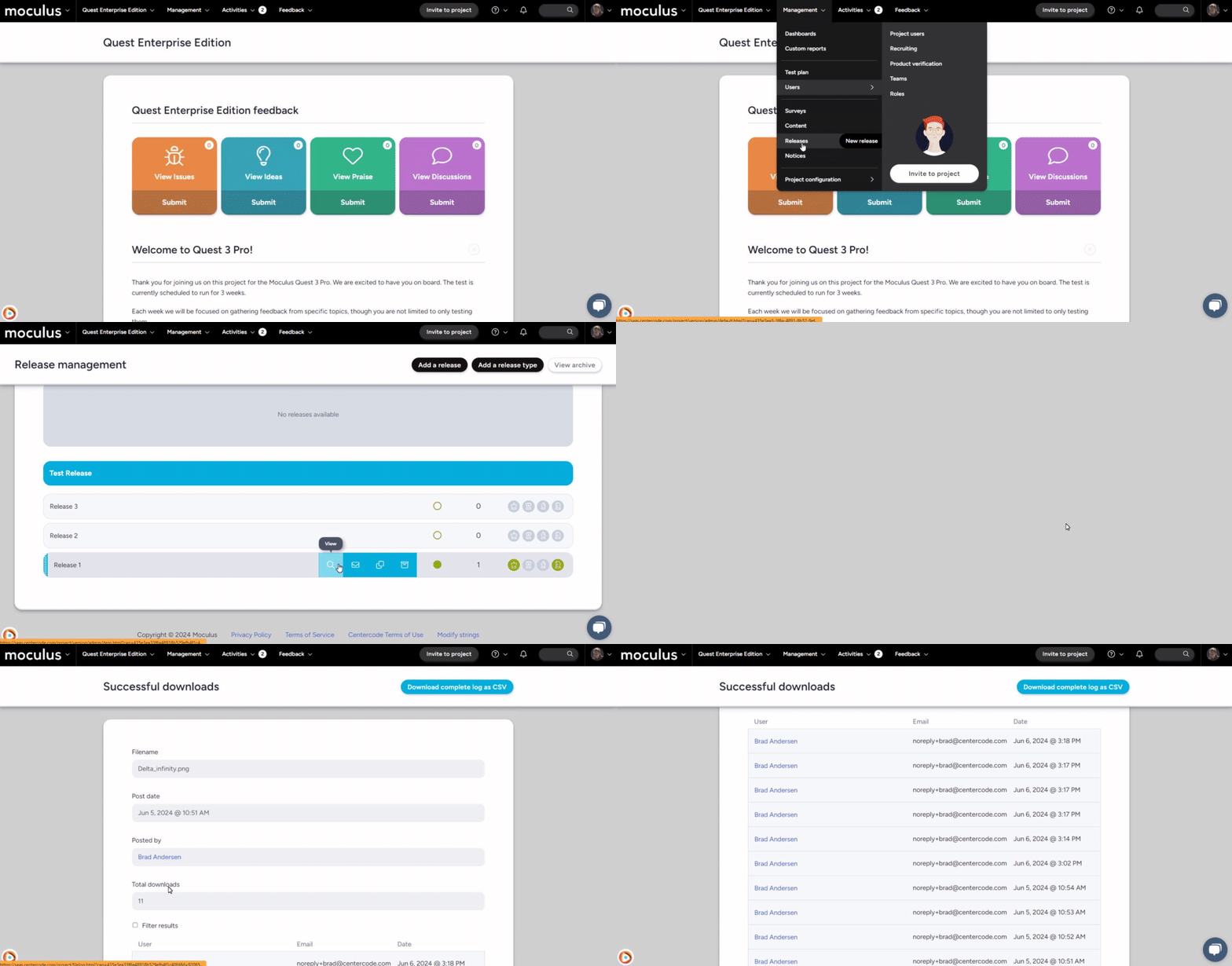
1\. Click **Management** in the navigation bar.
2\. Click **Content** or **Releases**.
3\. Hover over the desired item and click the magnifying glass icon.
4\. Hover over the desired attached file and click the clock icon.
### Why Am I Being Told I'm Over the 60k Character Limit?
Centercode resources and email templates have a 60k character limit that includes background formatting data, not just visible text. Copy/pasting from an external text or document editor often brings along a large amount of hidden formatting. If your content appears to be under 60k characters, click the **Source** button in the visual editor to inspect and remove any extra formatting data.

### Why Can't Participants See the Images in My Resource?
If participants can't see images that you can see, the images were most likely copy/pasted from another area of Centercode. Copy/pasted images retain the original view permissions from where they were copied, meaning only users in that original project can see them. The fix is to remove the pasted images and re-upload them directly to the new resource.
### Should I use Content or Releases?
Content and Releases are both resources, and day to day you manage them the same way. You create them, set resource types, control access and visibility, track engagement, send notifications, and clone or archive them with the same tools. Four things separate them.
##### Scope
Content can live at the Community level as well as inside a Project, so it suits information you want to organize or reuse across more than one Project. Releases are managed inside a Project, which suits material tied to that Project's testing.
##### Version tracking
Releases carry a *Version* field, which Content does not. It tracks iterations of a resource so participants can tell which one is current. If you're publishing successive builds, that field is the reason to choose Releases.
##### Automation and integrations
Release types can be connected to the systems that produce your builds. Content types cannot be connected to any external pipeline or app store. If your builds come from a CI/CD pipeline or an app store rather than being uploaded manually, this is the deciding factor.
- **Release API**: point your build or deployment tool at a release type's endpoint URL and send it a JSON payload. Centercode creates the release for you, with the title, body, release value, availability dates, and files attached from a connected Centercode FTP or linked from external storage. This requires the Enhanced Integrations add-on, a Community-level API key, and a Team or Legacy edition license. (The Release API is not available on the Pro edition — verify current edition availability in your account settings.) See the [**Guide to implementing release automation API**](https://help.centercode.com/en/implementing-release-automation-via-api?hsLang=en).
- **App store automation**: map a Centercode team to a TestFlight external testing group or a Google Play closed testing track. Centercode keeps that group's membership in sync with your team, watches for new builds, and creates a matching Centercode release when one appears, either as a draft you publish or fully automatically. See the [**Guide to App Testing via Centercode**](https://help.centercode.com/en/guide-to-app-testing-via-centercode?hsLang=en).
Release types carry the settings that make this work cleanly, including *Single active release*, which archives the rest of the type as each new build lands, *Single notice*, and *Default team access* for everything the integration creates.
##### What each one can do that the other can't
A few capabilities sit on one side only. Releases can be added to a feedback form as a *Release* element, so participants tag the build their ticket applies to and you can filter and report on feedback by version. Content has no equivalent. Going the other way, three notice types apply to Content only: digital agreement, block, and account verification. If you need participants to sign something or verify their account details before they can continue, that's Content.
##### A rule of thumb
- Use Content for evergreen material: participant guides, onboarding instructions, reference information, anything you want to keep or reuse.
- Use Releases for a specific build, version, or update you're putting in front of participants, along with its release notes and known issues.
- Use Releases if your builds are produced by a CI/CD pipeline, TestFlight, or Google Play, since that's the only side you can automate.
Neither choice locks you in. Because both are resources, you can copy them between Projects either way.
##### Notes
- If you want participants to see only the newest item, configure the resource type to allow one active item so a new resource replaces the previous one. On a release type this setting is *Single active release*.
- Looking for how to create either one? See [**Creating Resources in Centercode**](https://help.centercode.com/en/creating-resources?hsLang=en).
- Moving resources between Projects? See the [**Guide to copying resources between projects**](https://help.centercode.com/en/guide-to-copying-resources-between-projects?hsLang=en).
### Why isn't my Distributed Value displaying as a URL when I use the dynamic tag?
This is expected. The *URL Value* you set on a Distributed Value type applies where the Value is presented in the platform, on the Content or Release page that distributes it or where a User selects one from a self-selected list. Dynamic Tags don't carry it.
A Distributed Value Dynamic Tag resolves to the text of the Value by itself. So an email template containing one delivers the tracking number, code, or date as plain text, with no link attached, even when *URL Value* is filled in correctly. Nothing is wrong with your email template or with delivery, and re-sending won't change the result.
You have two ways forward. The straightforward one is to point Users at the Content or Release that holds their Value, where the link renders on its own. If the link really needs to be in the email, you can build it by hand in the template's HTML:
1. Insert the Distributed Value **Dynamic Tag** anywhere in the body of your email template.
2. Click the **Source** button on the Centercode Visual Editor toolbar (the \< \> symbol).
3. Find the tag's underlying value and cut it (Ctrl+X). It looks like `[[Tracking Number|CDCB5954D7204576A3903F9B40BCE23B_42]]`. Copy it exactly, brackets included.
4. Find the link you want it to feed, which looks like ``.
5. Paste the value into that address where the Value belongs, for example ``.
Send yourself a test before this goes out to Users. An ampersand or a pipe in the name of your Distributed Value will break the address, and the result still looks like a working link in the email. You only find out when someone clicks it.
For the *URL Value* field itself and where its links render, see the [**Guide to Distributed Values**](https://help.centercode.com/en/guide-to-distributed-values?hsLang=en).
### Can I move content from one Centercode implementation to another? (ie from staging \> production, etc)
No. Surveys, Content, Releases, and other resources can't be transferred between implementations, including from a staging or trial implementation to a paid one. There's no export and import path, and no process to request one.
Copying resources works *within* a single implementation. You can copy between projects there by configuring the source project as a Global or Program template, which is covered in the [Guide to copying resources between projects](https://help.centercode.com/en/guide-to-copying-resources-between-projects?hsLang=en). That mechanism doesn't reach across implementations.
If you've built something in a trial or staging implementation that you want in a paid one, plan on rebuilding it. It's worth knowing this before you invest heavily in configuration you intend to keep.
##### **Notes**
- This applies to resource configuration, not to participants. User accounts are also implementation-specific.
- Exporting survey and feedback *data* to a spreadsheet is separate and is supported. See the [Guide to Exporting Survey and Feedback Spreadsheet Data](https://help.centercode.com/en/guide-to-using-quick-form-export?hsLang=en).
- [Centercode Basics](https://help.centercode.com/en/centercode-basics?hsLang=en#main-content)
- [Overviews](https://help.centercode.com/en/centercode-basics?hsLang=en#overviews)
- [Guides](https://help.centercode.com/en/centercode-basics?hsLang=en#guides)
- [FAQs](https://help.centercode.com/en/centercode-basics?hsLang=en#faqs)
- [Community Administration](https://help.centercode.com/en/community-administration?hsLang=en#main-content)
- [Community Administration](https://help.centercode.com/en/community-administration?hsLang=en#community-administration)
- [Overviews](https://help.centercode.com/en/community-administration?hsLang=en#overviews)
- [Guides](https://help.centercode.com/en/community-administration?hsLang=en#guides)
- [FAQs](https://help.centercode.com/en/community-administration?hsLang=en#faqs)
- [Project Administration](https://help.centercode.com/en/project-administration?hsLang=en#main-content)
- [Overviews](https://help.centercode.com/en/project-administration?hsLang=en#overviews)
- [Guides](https://help.centercode.com/en/project-administration?hsLang=en#guides)
- [FAQs](https://help.centercode.com/en/project-administration?hsLang=en#faqs)
- [Features & Test Planning](https://help.centercode.com/en/features-test-planning?hsLang=en#main-content)
- [Overviews](https://help.centercode.com/en/features-test-planning?hsLang=en#overviews)
- [Guides](https://help.centercode.com/en/features-test-planning?hsLang=en#guides)
- [FAQs](https://help.centercode.com/en/features-test-planning?hsLang=en#faqs)
- [Resources & Surveys](https://help.centercode.com/en/resources-surveys?hsLang=en#main-content)
- [Overviews](https://help.centercode.com/en/resources-surveys?hsLang=en#overviews)
- [Guides](https://help.centercode.com/en/resources-surveys?hsLang=en#guides)
- [FAQs](https://help.centercode.com/en/resources-surveys?hsLang=en#faqs)
- [Recruiting](https://help.centercode.com/en/recruiting?hsLang=en#main-content)
- [Overviews](https://help.centercode.com/en/recruiting?hsLang=en#overviews)
- [Guides](https://help.centercode.com/en/recruiting?hsLang=en#guides)
- [FAQs](https://help.centercode.com/en/recruiting?hsLang=en#faqs)
- [Feedback](https://help.centercode.com/en/feedback?hsLang=en#main-content)
- [Overviews](https://help.centercode.com/en/feedback?hsLang=en#overviews)
- [Guides](https://help.centercode.com/en/feedback?hsLang=en#guides)
- [FAQs](https://help.centercode.com/en/feedback?hsLang=en#faqs)
- [Dashboards & Reporting](https://help.centercode.com/en/dashboards-reporting?hsLang=en#main-content)
- [Overviews](https://help.centercode.com/en/dashboards-reporting?hsLang=en#overviews)
- [Guides](https://help.centercode.com/en/dashboards-reporting?hsLang=en#guides)
- [FAQs](https://help.centercode.com/en/dashboards-reporting?hsLang=en#faqs)
- [Integrations](https://help.centercode.com/en/integrations?hsLang=en#main-content)
- [Overviews](https://help.centercode.com/en/integrations?hsLang=en#overviews)
- [Guides](https://help.centercode.com/en/integrations?hsLang=en#guides)
- [FAQs](https://help.centercode.com/en/integrations?hsLang=en#faqs)
- [What's New?](https://whatsnew.centercode.com/)
- [System Status](https://status.centercode.com/)
- [Starter & Delta Edition Help Center](https://learn.centercode.com/)
- [Report an Issue](https://centercode.com/issue)
[](https://centercode.com)
Copyright © 2027, Centercode