![New_Centercode_Logo.png]](https://help.centercode.com/hs-fs/hubfs/New_Centercode_Logo.png?height=35&name=New_Centercode_Logo.png)
This article applies to All editions.
When users are missing the Access Project role assigned to their team, they may receive an error when trying to access the project or not see it on their Community homepage under My Projects. Start by identifying the affected user's team, then verify that the team has the appropriate project role.
Table of Contents
- How do I verify a user's project team and roles?
- What if a single user can't see the project but has access?
How Do I Verify a User's Project Team and Roles?
Verifying the user's project team (video):
1. Type the user's email or name in the knowledge base search bar and wait for results to populate.
2. Click the user to open their User Summary.
3. Select the appropriate project in the upper-right drop-down menu.
4. All project teams the user belongs to will be listed in the upper-right Access menu.
Verifying and updating a team's Access Project role:
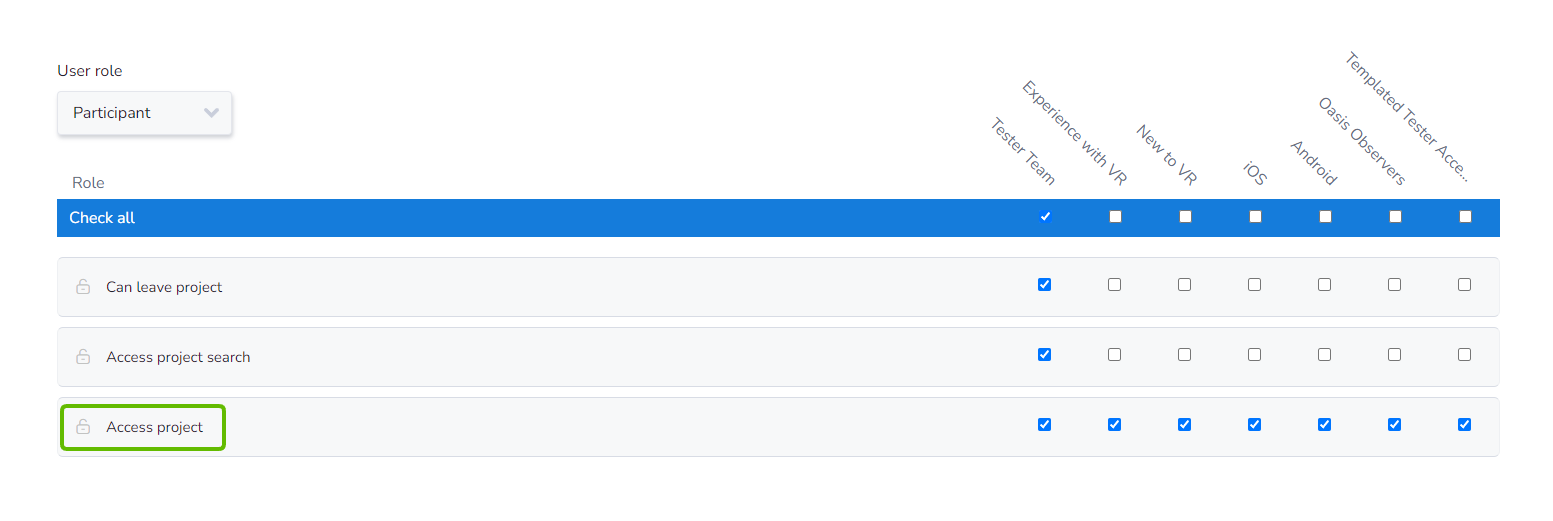
1. Navigate to Management > Users > Roles in the upper navigation bar.
2. Expand the user role for the team type affected.
3. Using the legend, find the team and locate the Access project checkbox.
4. Check the box and click Submit.
What If a Single User Can't See the Project but Has Access?
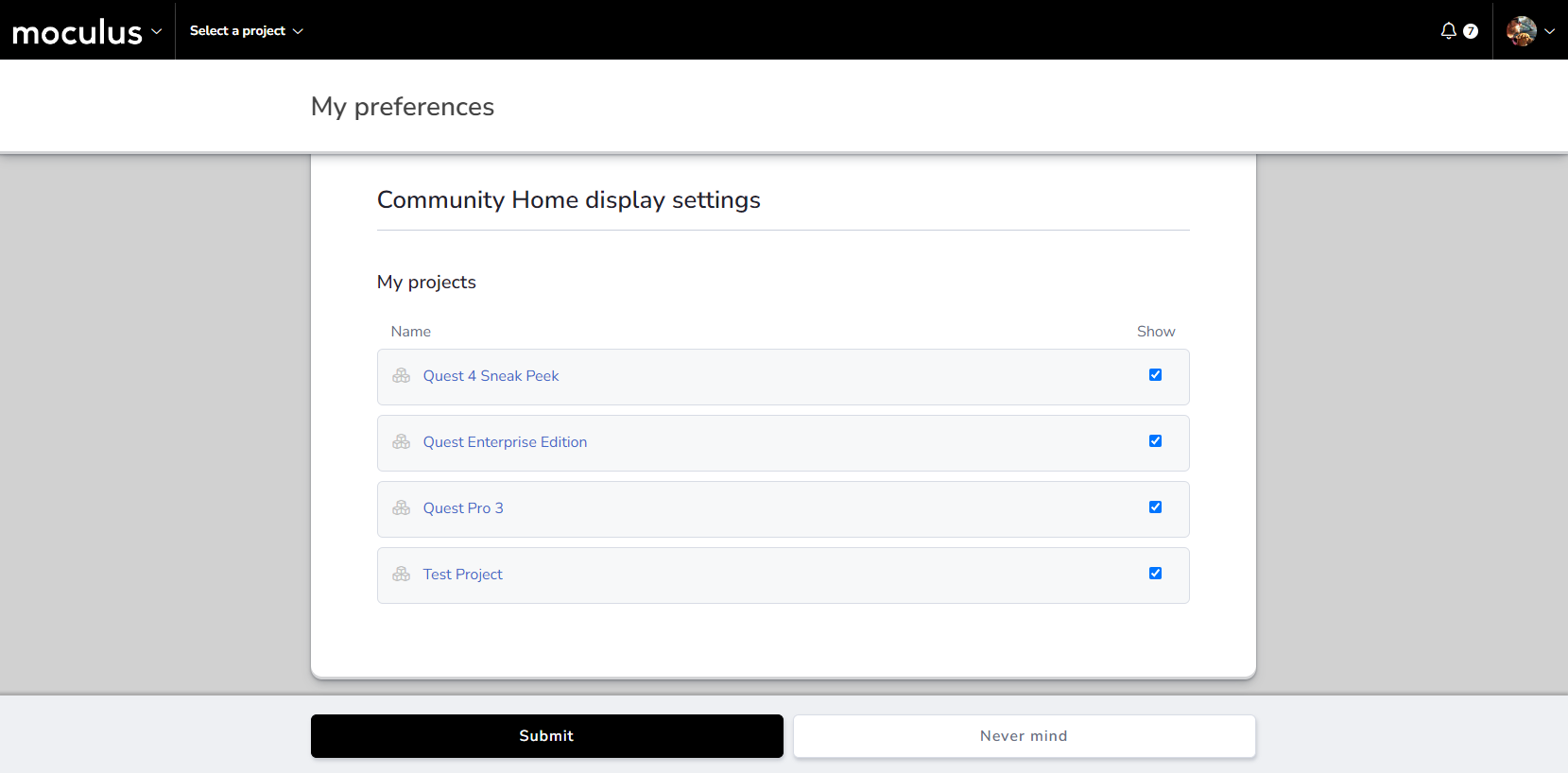
If one user on a team with correct access and roles still can't see the project, they may have hidden it in their Preferences settings on the Community homepage. Ask the user to check their Preferences, or assume their account and check on their behalf.