![New_Centercode_Logo.png]](https://help.centercode.com/hs-fs/hubfs/New_Centercode_Logo.png?height=35&name=New_Centercode_Logo.png)
This article applies to All editions.
Troubleshooting your Jira account requires your company's Jira administrator. The Centercode & Jira Integration Guide covers setup requirements.
Table of Contents
- How do I see my Jira ticket logs?
- What do the Jira tags on a feedback ticket mean?
- Initial setup issues
- Why can't I edit a community level Jira connection?
- What happens if my community admin removes a shared Jira connection?
- Jira configuration issues
- Common errors when sending feedback to Jira
- How do I retry a push to Jira after fixing the cause of a failure?
- "Field cannot be set. It is not on the appropriate screen, or unknown."
- "Gh.epic.error.not.found"
- Can Jira close tickets within Centercode?
- How do I designate Assignee and Reporter in my JSON body?
- How do I find the correct field name or custom ID?
- My Jira integration is sending HTML code in dynamic tags
- Why can't my participants see the Jira ID for linked tickets?
How Do I See My Jira Ticket Logs?
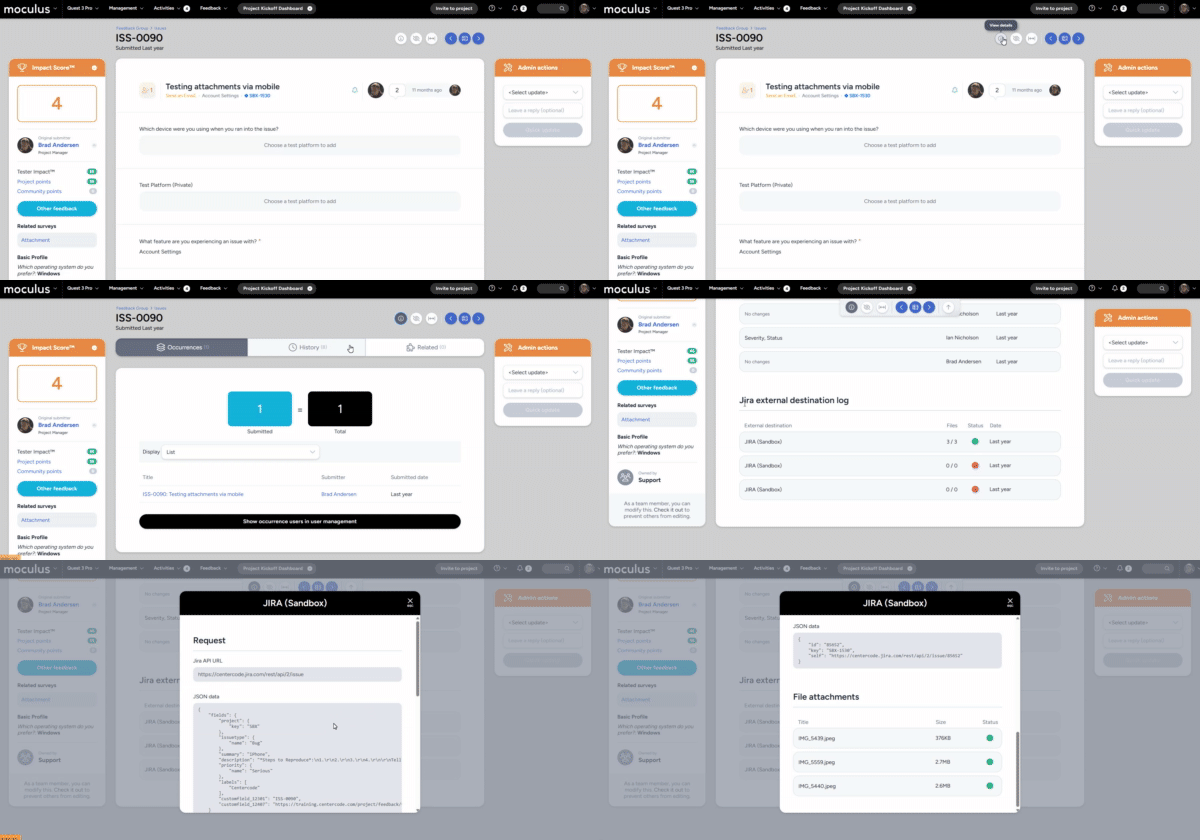
To view the logs for an individual feedback ticket - both successful and unsuccessful - navigate to the ticket you tried to send and click View Details at the top. Go to the History tab, then scroll down to the Jira external destination log. Click on any individual log entry for more detailed information.
What do the Jira tags on a feedback ticket mean?
The Jira tag on a feedback ticket reflects where that ticket's push to your Jira external destination stands. It moves through up to three states.
- Pending: a push is in progress. The tag updates on its own to the linked Jira issue once the issue is created, so a brief Pending state is normal.
- Linked issue: the push succeeded. The tag shows the Jira issue and links straight to it.
- Push failed: the push didn't go through. The tag links to the Jira external destination log so you can open it and see what went wrong. See How do I see my Jira ticket logs? and Common errors when sending feedback to Jira to diagnose the cause.
The Pending and Push failed states are visible only to internal teams. Where you display Jira tags to participants, they only ever see a resolved tag that links to the issue, never a pending or failed one. See Why can't my participants see the Jira ID for linked tickets? for who sees Jira information.
Initial Setup Issues
"The Jira could not be loaded. Review your account settings."
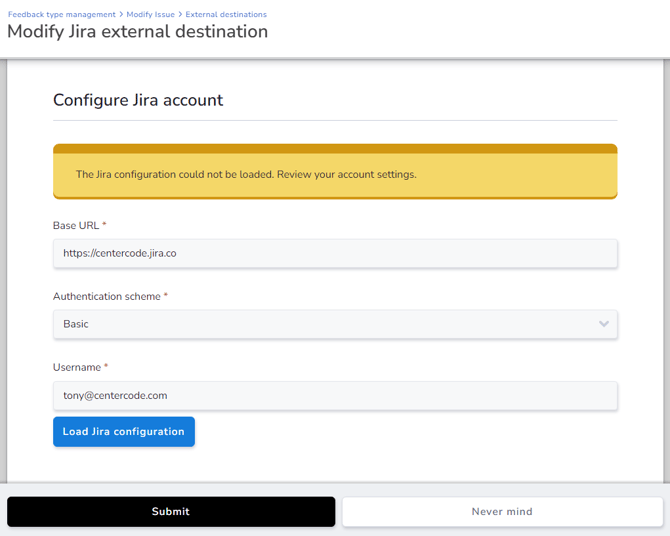
This error appears when one or more fields in the integration setup are invalid. Common causes include:
- Your Jira instance isn't externally accessible. Centercode must be able to reach it. Test by attempting to access your Jira without a VPN connection.
- An API token is missing. Most Jira instances require one. Follow the API token instructions in the Jira Integration Guide.
To view the specific error from your Jira instance (Chrome or Chromium-based browsers):
1. Right-click the page and select Inspect.
2. Click the Console tab.
3. Click Load Jira configuration.
4. Click the red POST line that appears, then the red line on the following page.
5. Click Response and look for errors such as "Forbidden: Access is denied" or "Unauthorized: Access is denied due to invalid credentials."
Watch a short video of this process.
Why Can't I Edit a Community Jira Connection?
Only community admins with the Managed Community role can add, edit, or remove community-level Jira connections. If your community isn't managed, or you don't hold that role, you can still select a shared connection when configuring a project's Jira destination, but you won't be able to view or change its credentials. If you need to make changes, such as adding or updating the JSON or rotating the connection's access token, ask your community admin.
What Happens if My Community Admin Removes a Shared Jira Connection?
Before removing a connection, Centercode shows a warning listing every project currently using it. Once it's removed, those projects need to be reconfigured with either a different community connection or a project-specific one.
If a project previously had its own project-specific connection before switching to the shared one, those original credentials are preserved behind the scenes. Switching back doesn't require re-entering them.
Jira Configuration Issues
Your Jira project isn't appearing in the Project drop-down. The service account used for the integration lacks sufficient permissions to view projects or create tickets with access to all fields. Use a different account or have your Jira admin upgrade the account's permissions.
Invalid JSON body or structure. This usually happens when the JSON was manually constructed or edited. Use the Insert into JSON data button instead of writing JSON by hand.
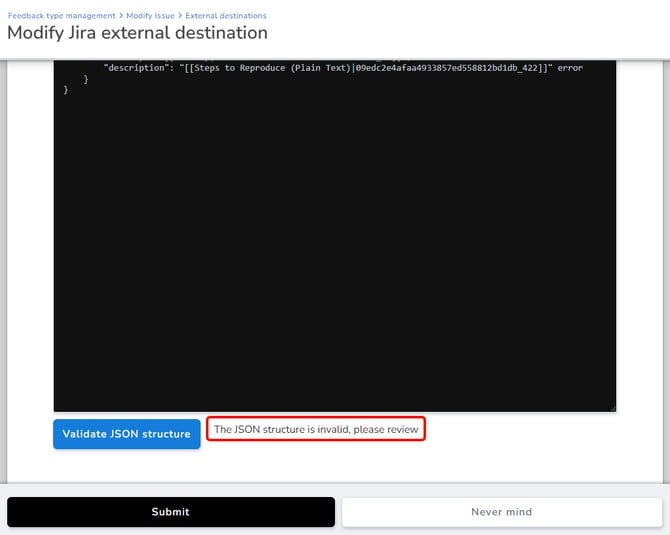
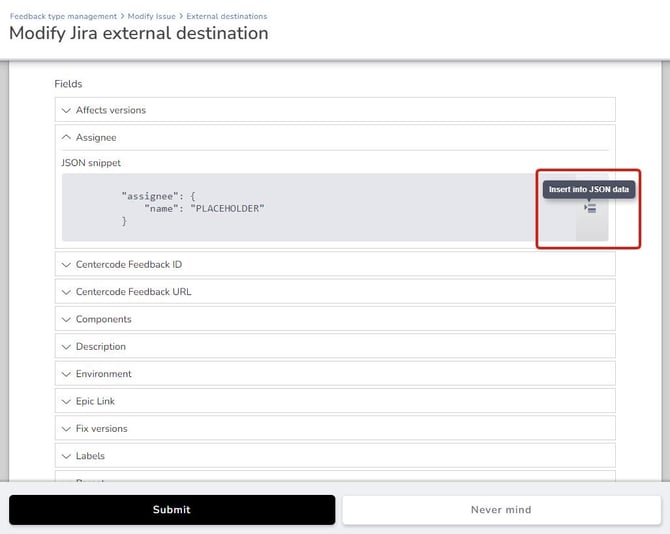
If advanced formatting is required, consult a JSON reference guide or a technical contact within your organization.
Common Errors When Sending Feedback to Jira
Errors when sending feedback to Jira typically come from your Jira instance, not Centercode. The most common causes are an invalid JSON body (missing comma, colon, or quotes) or a mismatch between the data Centercode sends and what your Jira expects.
A common example is a Centercode Severity drop-down with values like Trivial, Minor, Serious, Urgent, and Critical — while your Jira expects P1, P2, P3, P4, P5. This mismatch results in a "name is not valid" error or similar messages like "Could not find valid 'id' or 'name' in object."
How do I retry a push to Jira after fixing the cause of a failure?
There's no dedicated retry button. You trigger a fresh push by resubmitting the feedback ticket on the status that sends to Jira:
- Open the feedback ticket and change the Status dropdown to any other status. Don't submit the page.
- Change the Status dropdown back to the status that pushes to Jira.
- Submit the page.
The ticket ends on the same status it started on, so nothing about the ticket's workflow position changes. Moving the dropdown away and back is what arms the push to fire again on submit.
If the failed push was updating an existing Jira ticket
Check that Allow field updates is enabled in your Jira configuration first. When it's off, Centercode won't attempt a second push to a ticket that already exists in Jira, and the retry above will appear to do nothing.
Notes
- Fix the underlying cause before retrying. A permissions problem or a field mismatch will fail again in exactly the same way.
- Confirm the result in the feedback ticket's History tab, under the Jira external destination log. A failed attempt shows in red and you can click it for the response from your Jira instance.
- For what the common failures mean, see the "Common errors when sending feedback to Jira" entry in this article.
"Field Cannot Be Set. It Is Not on the Appropriate Screen, or Unknown."
This means the service account doesn't have sufficient access to modify or submit certain fields in your Jira form, or to create tickets in your Jira project.
Errors can be found in the feedback ticket's History tab, under the Jira external destination log section. Click any failed (red) status to see details.
Integration is sending blank fields. This happens when dynamic tags in your JSON were copied from another project. Dynamic tags are project-specific — you must replace them with newly generated tags from within your current project.
Files weren't sent to the Jira ticket. This is usually caused by Centercode's file limit being lower than the number of files being sent, or the files exceeding your Jira instance's size limit. Check with your Jira admins for their size constraints.
Errors with the Reporter field. This typically means the service account doesn't have sufficient Jira permissions to modify the Reporter field. Work with your Jira admin to resolve.
"Gh.epic.error.not.found"
This error relates to your Jira Epic configuration. Epics in your JSON body generally only work when the epic already exists in Jira and your JSON is sending the Jira ID (for example, SBX-1234) rather than the epic's name.
Can Jira Close Tickets Within Centercode?
Yes. See this article for instructions on updating Centercode feedback via external systems.
How Do I Designate Assignee and Reporter in My JSON Body?
Both Assignee and Reporter require an Account ID rather than a username or email. Use accountId as the key:
"assignee": { "accountId": "[accountId]" }
Find an Account ID by navigating to the user's Jira profile and copying the ID from the URL. For example: https://centercode.jira.com/jira/people/[accountID]
How Do I Find the Correct Field Name or Custom ID?
In most cases, clicking Load configuration will show all accessible projects and custom fields with buttons to insert the correctly formatted data into your JSON automatically.
If that's unavailable due to security settings or a technical issue, coordinate with your Jira administrators to retrieve field names manually. Jira documentation on finding custom field IDs:
My Jira Integration Is Sending HTML Code in Dynamic Tags
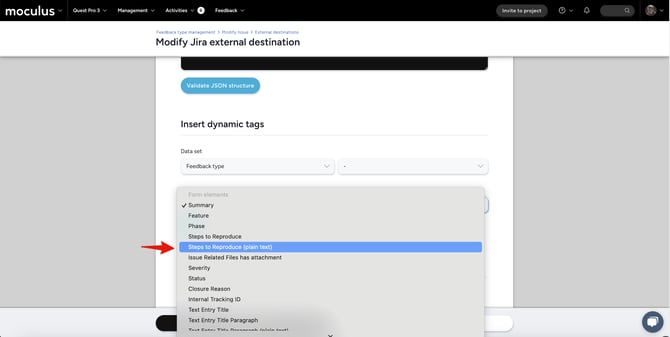
Text entry form elements (Steps to Reproduce, Description, Title, etc.) are HTML-enabled, so their content includes HTML formatting when sent to external systems like Jira. Since Jira fields don't render HTML, the raw code appears instead of formatted text.
To fix this, replace any dynamic tags in your JSON with their (Plain text) versions.
Why Can't My Participants See the Jira ID for Linked Tickets?
Only internal teams — Project Managers, Support, and Observers — can see Jira ticket IDs in the feedback list interface. There's no way to grant participant teams visibility of Jira ticket IDs.