![New_Centercode_Logo.png]](https://help.centercode.com/hs-fs/hubfs/New_Centercode_Logo.png?height=35&name=New_Centercode_Logo.png)
Phase schedules don't always survive contact with a real project. A phase ends a day too early. A typo locks in the wrong end date. A focused one-day event needs to show up cleanly on the timeline. The Test plan page supports three actions that handle each of these situations without forcing you to rebuild a phase from scratch or lose feedback already gathered.
This guide covers all three: reopening a closed phase, editing dates on a deactivated phase, and saving phases where the start and end dates match.
Common Use Cases
- A phase ended before participants finished submitting feedback, and you'd like to resume collection on that same phase rather than move features elsewhere
- A deactivated phase has the wrong start or end date and you'd like to correct the record without reactivating it
- A stakeholder timeline shifted after a phase closed and you need its dates to match what actually happened
Before You Start
- You'll need the same access required to create a phase. No additional role or permission is involved.
- Reopening a phase reactivates its surveys and activities. Check that they're still relevant before you reopen.
- For background on phase types and the broader test plan structure, see the Phases Overview and the Test Plan Management Overview.
Reopening a Closed Phase
Reopening a phase returns it to active status. All prior submissions, responses, and attachments stay in place, and the surveys and activities associated with the phase become available again for new feedback. This is the right choice when you want to keep building on the data already gathered in that phase.
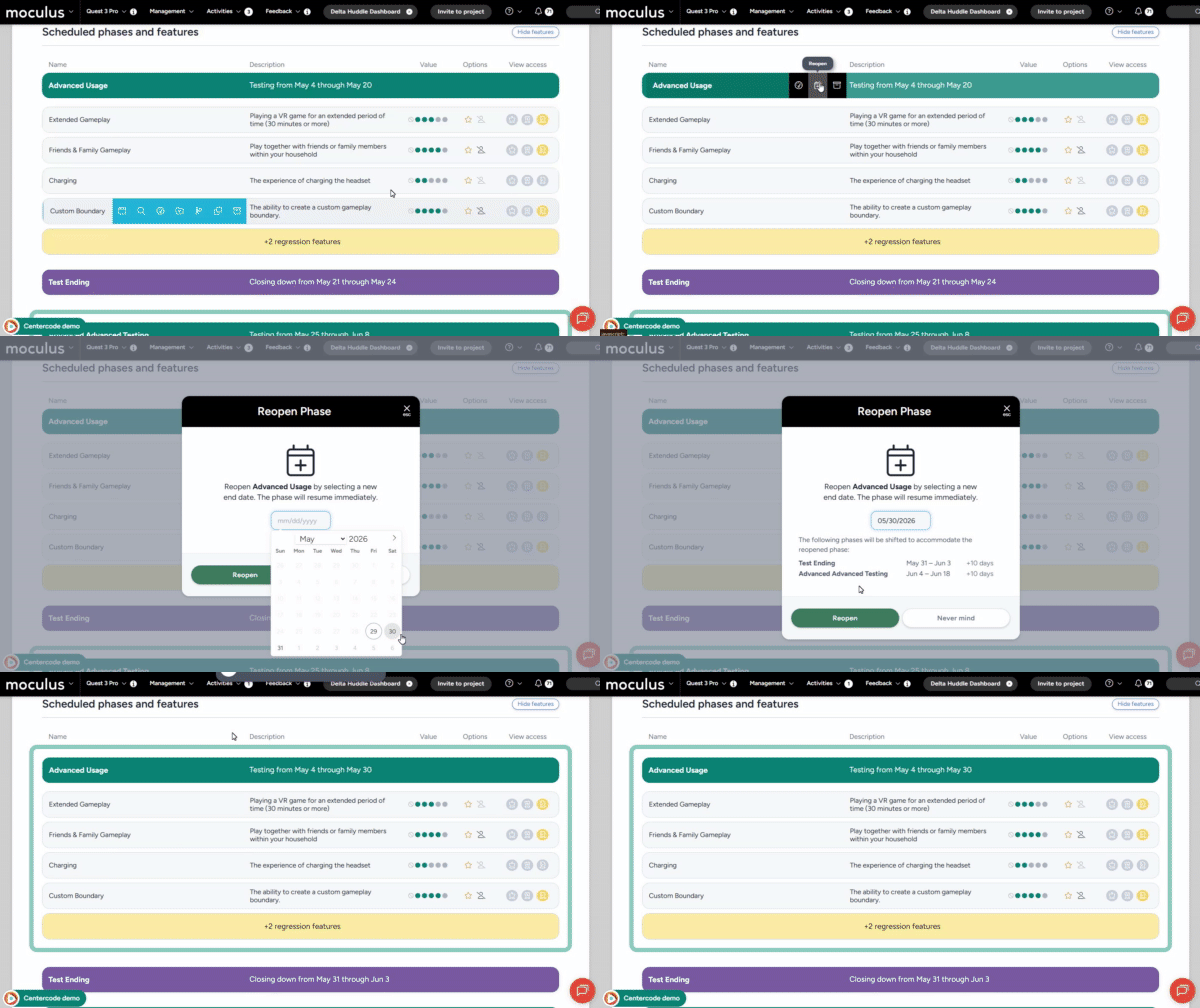
- From within your project, click the Management menu and select Test plan.
- Locate the closed phase you'd like to reopen on the timeline.
- Click the phase name to open its details.
- Click Reopen phase.
- Set a new end date for the reopened phase, then save.
Once saved, the phase returns to active status. Participants with access regain the ability to complete activities and submit satisfaction ratings against the phase's features, and Ted resumes its engagement-phase outreach if it's enabled.
Editing Dates on a Past Phase
Deactivated phases support the same date controls available on active and pending phases. Editing the dates does not reactivate the phase. Use this when you need the historical record to match what actually happened. Common reasons include fixing a typo or aligning the phase's dates with an external project timeline.
- From within your project, click the Management menu and select Test plan.
- Locate the deactivated phase on the timeline.
- Click the phase name to open its details.
- Adjust the Start date, End date, or both.
- Save your changes.
The phase stays deactivated. The timeline view updates to reflect the corrected dates, and any reports or exports referencing the phase's date range will use the updated values.
Best Practices
- Reopen instead of recreate. If you want to keep the feedback already collected against a phase's features, reopen the phase. Creating a new phase and moving features into it works, but it splits the data across two phases in reporting.
- Confirm the surveys are still valid before reopening. A reopened phase reactivates everything attached to it. If you've edited surveys or activities since the phase closed, review them so participants don't see a stale version.
- Edit past dates only to correct the record. Date editing on a deactivated phase is for fixing what actually happened, not for retroactively shifting where feedback lives. Moving Features between phases is still handled with the Move action on a feature.
Notes
- Phase schedules use the dashboard timezone set on the Project settings page. This applies to reopened phases and to date edits on past phases.
- Reopening a phase doesn't restore its original end date. You'll set a new end date as part of the reopen action.
- If you only need to extend a single feature rather than reopen the whole phase, you can still move that feature into a different active phase using the Move option.
- For broader context on phase types, configuration, and timeline behavior, see the Phases Overview and the Test Planning FAQ.