![New_Centercode_Logo.png]](https://help.centercode.com/hs-fs/hubfs/New_Centercode_Logo.png?height=35&name=New_Centercode_Logo.png)
This article applies to All editions.
The Project Home for any given user is a combination of automatically populated elements and content specifically set as homepage content. The automatically populated content includes items such as Feedback buttons, a list of the current phase's features and their completion status, and any pending survey or feedback drafts. Users can also see any content set as "Include on Project Home". This article covers what appears on Project Home. The sequence those sections appear in is a separate setting, covered in the guide linked below.
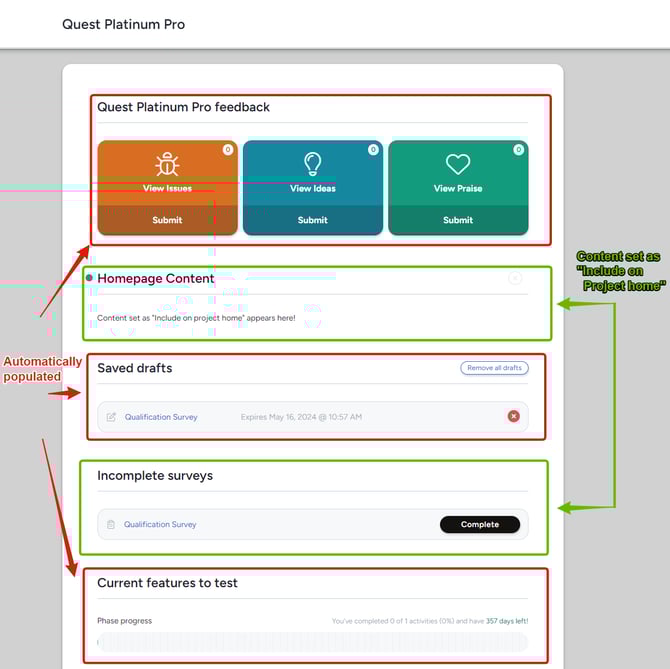
To choose specific content you would like to appear on the Home Page:
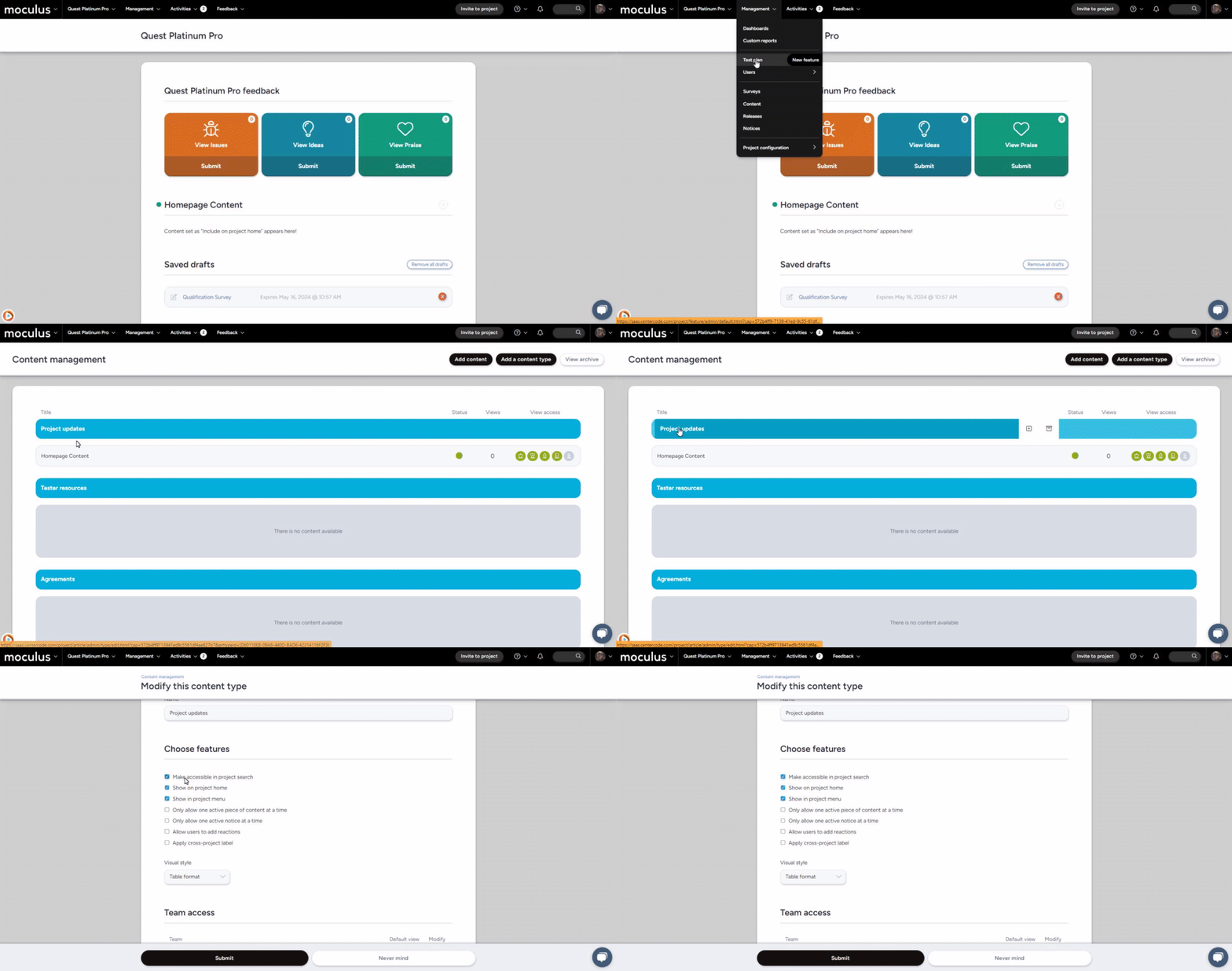
- In the upper navigation bar click Management and navigate to the content type you would like to display on the home page
- Click into the specific Content type/Release type/Survey you would like to display
- Click "Show on project home"
- Ensure that the teams you would like to see this content have view access
- Click the Submit button at the bottom of the page when satisfied with your changes.
You have successfully customized your Project Homepage.
Changing the order sections appear in
Content, Feedback, Drafts, Surveys, Activities, and Assigned Test Platforms can be arranged in whatever sequence suits your program, and that order applies to every participant in the project. Product Verification is pinned and stays where it is. For the walkthrough, see the Guide to setting your Project Home order.
Notes
- Custom messages can include Dynamic Tags, but each time the Homepage loads it must do extra work to load the Tags. Our recommendation is to use Tags sparingly in frequently visited places such as the Home Page to reduce the load on the site.