![New_Centercode_Logo.png]](https://help.centercode.com/hs-fs/hubfs/New_Centercode_Logo.png?height=35&name=New_Centercode_Logo.png)
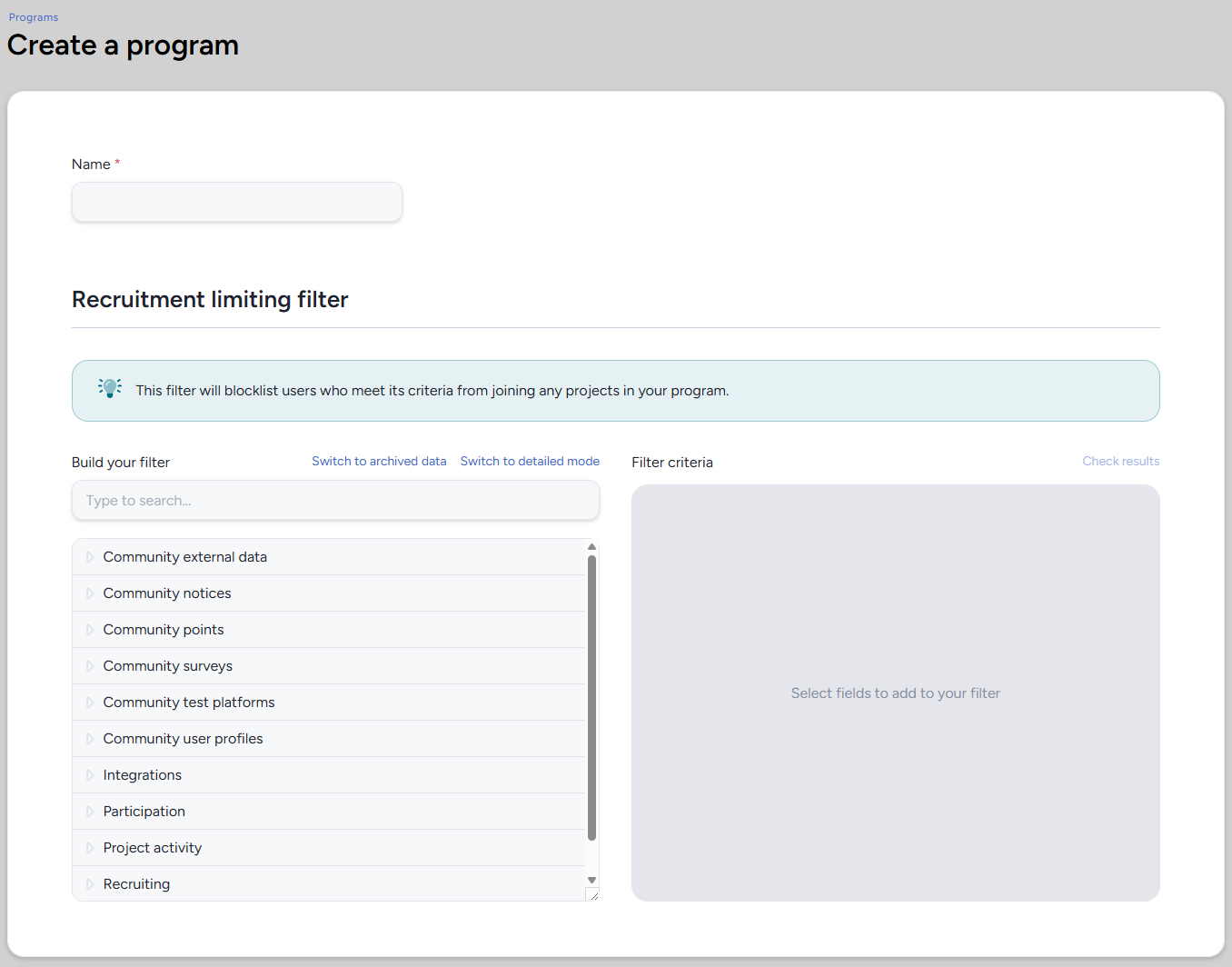
Basic Settings
Name (required): The name of the program as it will appear on the Programs page and throughout the community.
Recruitment Limiting Filter
The recruitment limiting filter blocklists users who meet its criteria from joining any project within this program. This filter is optional - leave it empty if you don't need to restrict access at the program level.
Build Your Filter: A searchable list of data categories you can use to define the filter criteria. Expand any category to browse its available fields, then select fields to add them to the filter. The filter uses the same interface as Centercode's standard filter builder. See Centercode Basics: Data, Filters, and Views for a full overview of how filters work.
Filter Criteria: Displays the fields and conditions that make up your current filter. Users who match all criteria will be blocklisted from joining projects in this program.
Check Results: Previews which users in your community currently match the filter criteria, so you can verify the filter is working as intended before saving.
💡 Ted Tip: I recommend using Check Results before saving any recruitment limiting filter. It's easy to build a filter that's broader than intended, and catching that before it goes live is much less disruptive than troubleshooting why users can't join a project after the fact.
Notes
- The recruitment limiting filter applies to all projects within this program. For more on how recruitment limiting filters work, see the Guide to Recruitment Limiting Filters.
- If no filter is configured, there are no program-level recruiting restrictions and access is controlled at the individual project level.