![New_Centercode_Logo.png]](https://help.centercode.com/hs-fs/hubfs/New_Centercode_Logo.png?height=35&name=New_Centercode_Logo.png)
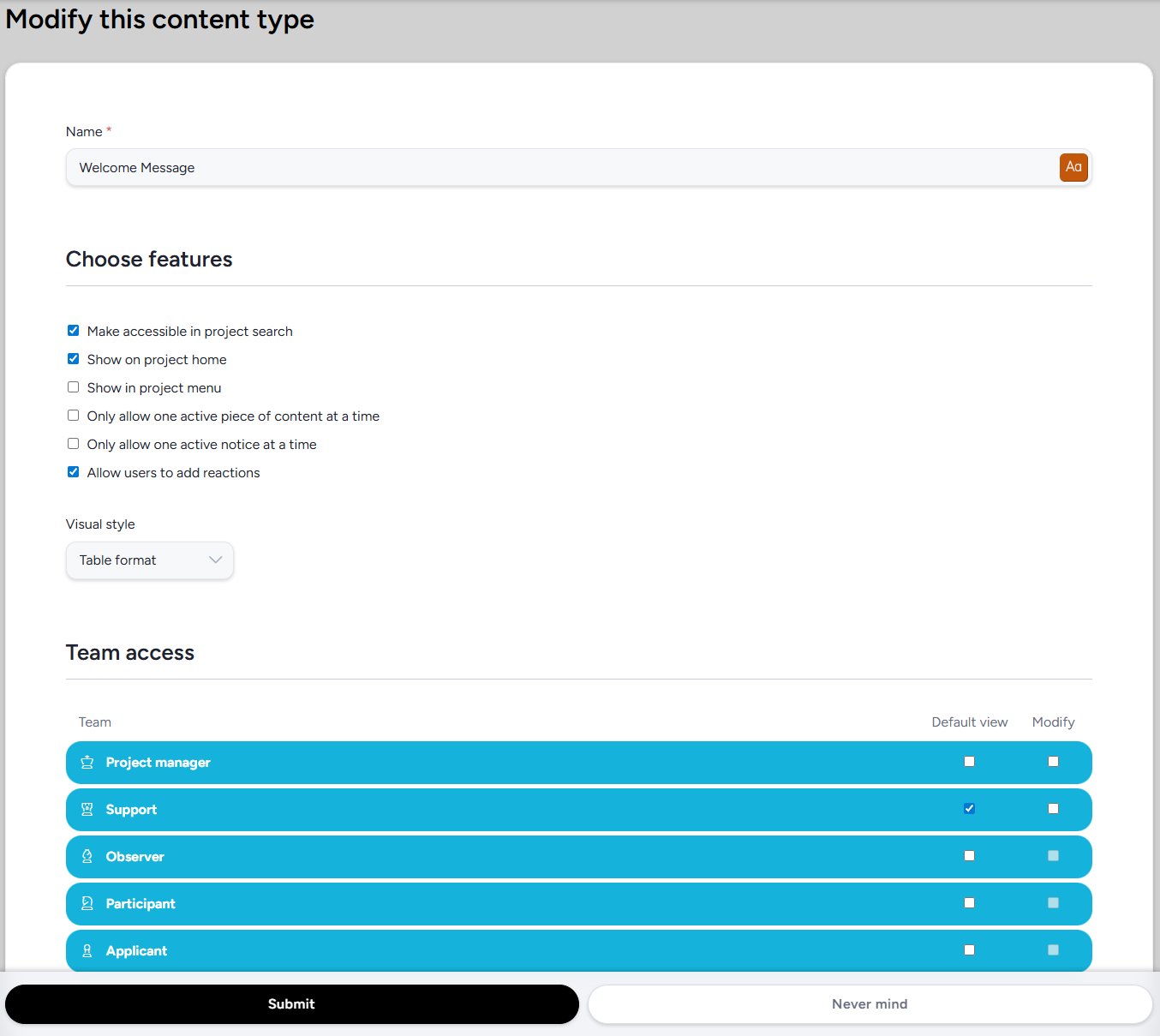
Basic Settings
Name (required): The name of the content type as it will appear throughout the project.
Features
Make Accessible in Project Search: When checked, content of this type appears in project search results for users who have view access to it and access to project search.
Show on Project Home: When checked, content of this type is displayed on the project homepage for any user with view access to it. Content appears on the project home in the order it is listed within the content type. Individual pieces of content can be reordered by clicking and dragging within the content type.
💡 Ted Tip: Enabling Show on Project Home or Show in Project Menuat the content type level doesn't mean every piece of content within it will be visible to every user. View access can still be controlled on individual pieces of content, so you can show some content prominently while keeping other pieces restricted to specific teams.
Show in Project Menu: When checked, this content type appears as a navigation item in the project menu.
Only Allow One Active Piece of Content at a Time: When checked, only one piece of content in this type can be published at any given time. Publishing a new piece will automatically unpublish the currently active one.
Only Allow One Active Notice at a Time: When checked, only one piece of content in this type can be set as an active notice at any given time.
Allow Users to Add Reactions: When checked, users can add reactions to content of this type in the form of text replies of up to 300 characters.
Display
Visual Style: Controls how content of this type is presented when viewed as a group - either when browsing the full content type or when displayed on the project or community home page. The available options are:
- Separated by date: Groups content chronologically by date.
- Table format: Displays content in a tabular layout.
- Single-page format: Presents all content on a single scrollable page.
- Numbered list: Displays content as a numbered list.
Team Access
Controls which teams can see and edit content of this type. Each row represents a team in the project.
Team: The name of the team.
Default View: Sets the initial view state for this team when a new piece of content is created under this type. This can be adjusted on individual pieces of content at any time after creation.
Modify: Controls whether this team can edit content of this type.
💡 Ted Tip: The team access settings here define the defaults for new content created under this type, but access can always be fine-tuned at the individual content level. If you need different teams to see different pieces of content within the same type, set broad defaults here and adjust access on each piece as needed.
Notes
- Content pieces within a type can be reordered by clicking and dragging. The order they appear in the content type is the order they display on the project home.
- For guidance on creating content within a content type, see Creating Resources in Centercode.
- For more on using content as a notice, see Centercode Basics: Notices.