![New_Centercode_Logo.png]](https://help.centercode.com/hs-fs/hubfs/New_Centercode_Logo.png?height=35&name=New_Centercode_Logo.png)
The Community/Project Users page is your central hub for finding, organizing, and acting on all users within your Centercode community or project. Using a combination of role filters, row filters, column views, and bulk actions, you can quickly surface any segment of your user base and take meaningful action.
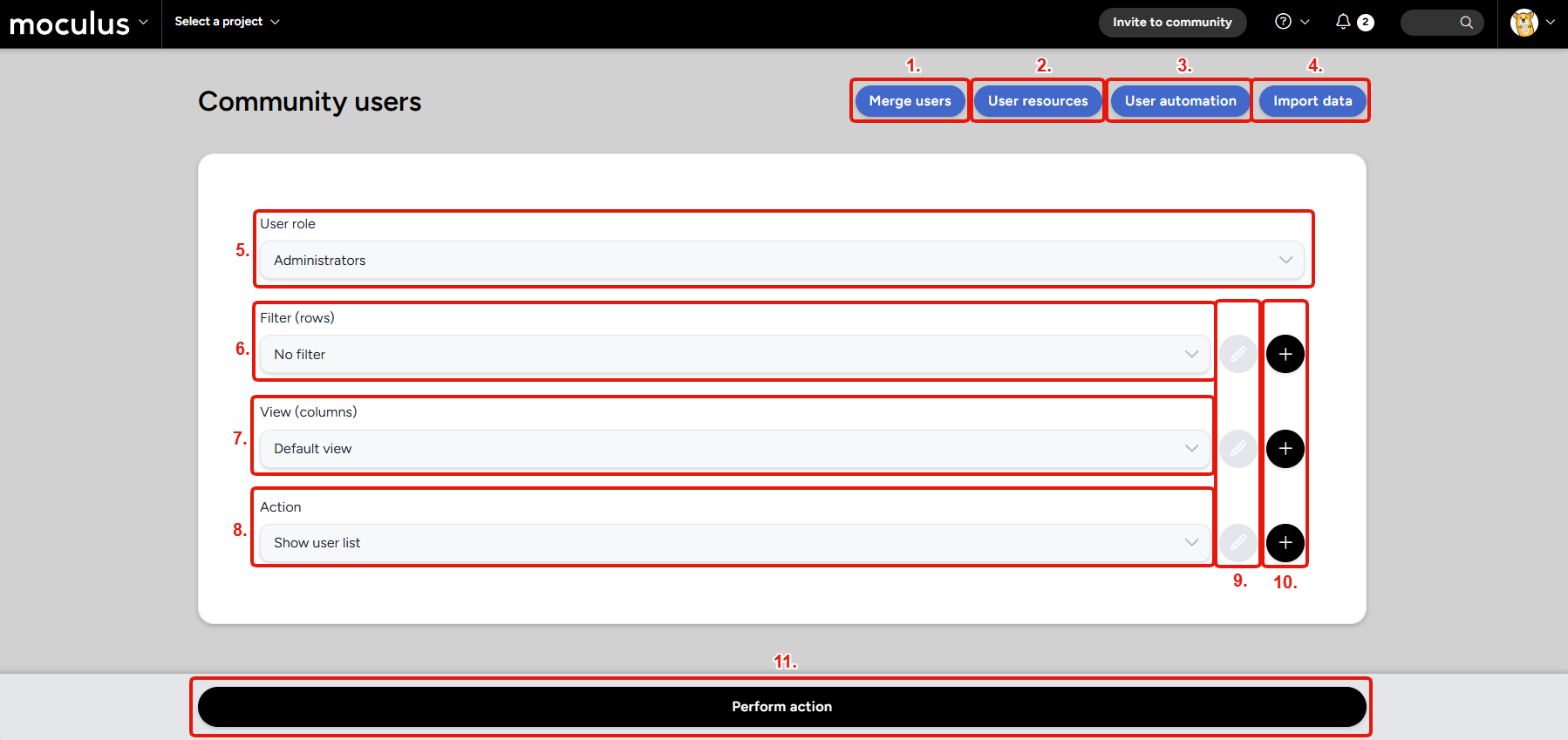
Page Controls
-
Merge users: Navigates to the merge users tool, which allows you to combine duplicate user accounts into a single record, consolidating their data and community history. -
User resources: Navigates to the community or project level user resources page, where you can create or view your saved user macros, filters, and views. -
User automation: Navigates to the community or project user automation management screen, where you can create or view existing automation configurations. -
Import data: Navigates to the Import Data tool, which lets you bulk import user records or profile data from an external source, such as a CSV file. -
User role: Narrows the scope of your query by user role type (e.g., Administrators, Participants). Select the role category you want to work within before applying additional filters.
Note: This is a superfilter on top of whatever other filter you might apply. -
Filter (rows): Applies a saved Filter to narrow down which users appear in your results. Filters are rule sets that evaluate user data to determine which records qualify. Use the + button to create a new filter or the pencil icon to edit an existing one. -
View (columns): Determines which data columns are displayed for users in your list. The Default view shows standard user fields, but you can create custom views to surface specific profile data or community metrics. Use the + button to create a new view or the pencil icon to edit an existing one. -
Action: Defines what happens when you click Perform action. The default action is Show user list, which generates a browsable list of the users matching your current role and filter settings. Additional actions let you perform bulk operations directly on your filtered results. Modify: Allows you to modify the selected filter, view, or action (if you are using a user generated macro).Add new: Allows you to add a new filter, view, or user macro.Perform action: Performs the selected action on the group of users defined by your filter.
💡 Ted Tip: I recommend starting with a well-defined Filter before selecting your Action. Running an action on an unfiltered list will apply it to your entire user base, which can have unintended consequences — especially for bulk email or team assignment actions.
Notes
- The Manage Users role is required to access and use the Community Users page.
- Filters and Views are reusable and can be saved for repeated use across your user management workflows. For a deeper look at how Filters and Views work, see the Centercode Data Engine Overview.
- Actions applied via Perform action will apply to either all filtered results or only the users you manually select from the resulting list, depending on the action type.