![New_Centercode_Logo.png]](https://help.centercode.com/hs-fs/hubfs/New_Centercode_Logo.png?height=35&name=New_Centercode_Logo.png)
How It Works
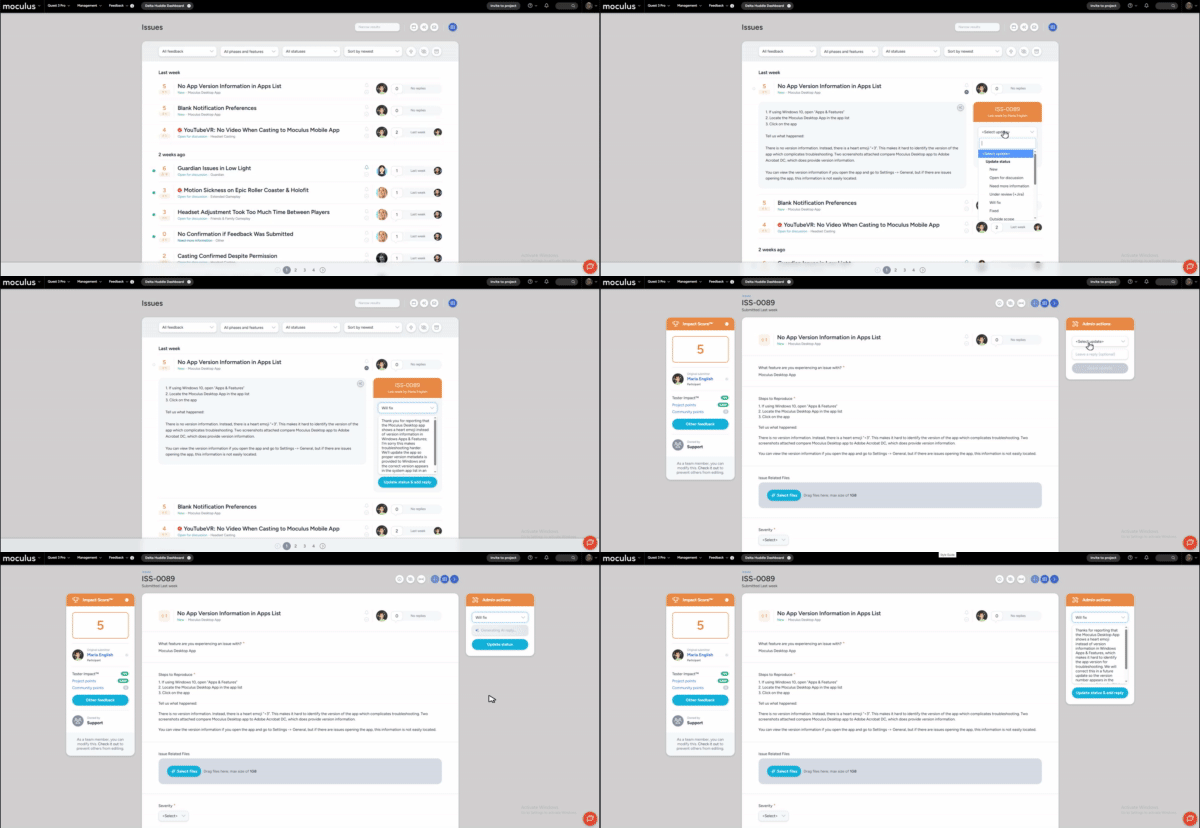
To generate an AI reply draft:
- Locate the feedback card - either at the top of a specific ticket page or expanding a card from the feedback list
- Select a new status from the status dropdown in the feedback card
- The reply box will display a Generating AI reply… shimmer while the draft is being created
- Once complete, the AI-generated draft appears in the reply field - review and edit as needed
- Click Update status to submit the status change and reply together
💡 Ted Tip: I recommend reviewing the draft before sending rather than submitting immediately - the AI reply is contextual, but a quick personal touch goes a long way toward making testers feel heard. Even a small edit helps the response feel less automated.
Enabling AI Smart Reply Drafts
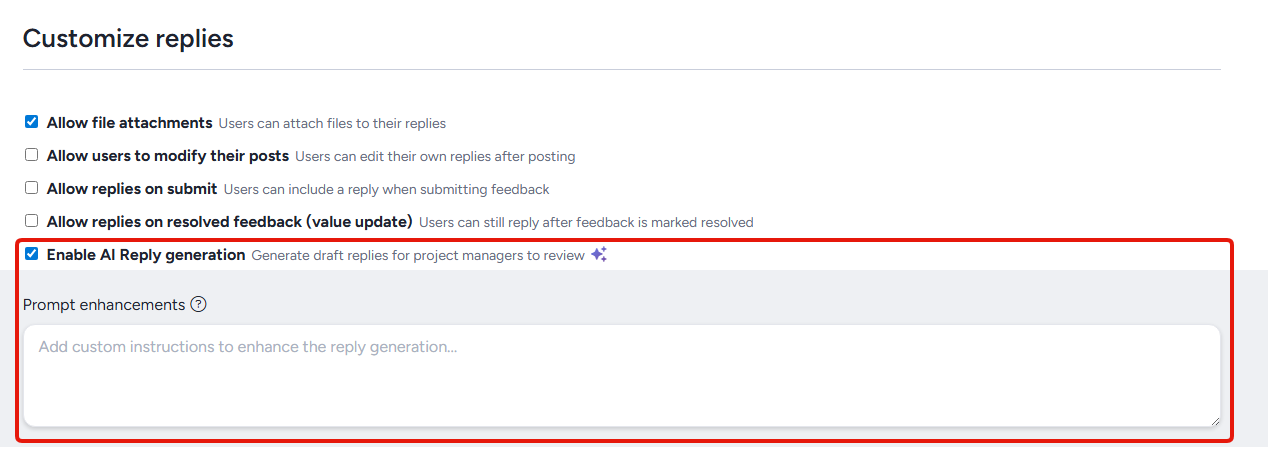
AI Smart Reply Drafts are enabled on a per feedback type basis, and can be enabled in the Feedback collection and collaboration menu when editing a feedback type.
To access the AI smart reply drafts feature go to Management>Project configuration>Feedback types>Modify>Feedback collection and collaboration
Note:
AI features enabled at the community level via the Centercode AI settings page
Custom Reply Instructions
Admins can configure per-feedback-type "Prompt Enhancements" to customize the tone and content of AI-generated replies. This is useful for teams that want replies to follow a specific voice. For example, a more formal tone for enterprise testers or a more casual tone for consumer programs.
Accessing Smart Reply Drafts
The feedback card interface that surfaces Smart Reply Drafts is available in two places:
Feedback list: Expand any feedback card in the list view to access the feedback card, then use the status dropdown to trigger a draft reply. This allows you to triage and respond to multiple tickets in quick succession without leaving the list.
Feedback detail view: When viewing an individual feedback ticket, the same feedback card interface is available on the right side of the page. Use the status dropdown there to trigger a draft reply in the same way.
Draft Behavior
Status-aware drafts: The AI generates the reply based on both the feedback content and the status you selected. A status change to "Need More Info" will produce a different draft than one to "Fixed" - the tone and content are tailored to match the intent of the update.
Editable before sending: The generated draft is always editable before submission. The reply field functions normally - you can modify, rewrite, or clear the draft entirely before clicking Update status.
Rapid status changes: If you change the status selection quickly, any in-progress draft generation is aborted and a new draft is generated based on the most recently selected status. Only the last selection produces a draft reply.
Optional reply: Sending a reply alongside the status update is optional. You can clear the reply field and submit a status update without a reply if preferred.
Requirements
- Moderate Feedback permission
- AI features enabled at the community level via the Centercode AI settings page
- AI Smart Reply Drafts enabled for the specific feedback type
Notes
- All draft replies are suggestions - admins always have final say before anything is sent to testers.
- Smart Reply Drafts are triggered by status changes only. Leaving a reply without changing status does not generate a draft.
- For more information on controlling which AI features are active for your community, see the Centercode AI Settings Overview.