![New_Centercode_Logo.png]](https://help.centercode.com/hs-fs/hubfs/New_Centercode_Logo.png?height=35&name=New_Centercode_Logo.png)
Element Enhancement lets you mark individual form fields as AI-generated. After a tester submits a form, Centercode's AI reads the submission and automatically populates those fields based on a prompt you write. The tester fills out less. The feedback arrives more structured. You spend less time reformatting and more time acting on what testers found.
Common Use Cases
- Polishing rough participant-written titles into consistent, scannable summaries before feedback hits the triage queue.
- Auto-generating a stakeholder-ready summary field from the participant's full description and the feature they selected.
- Filling internally valuable fields that participants don't need to see, like categorization tags or report groupings.
- Standardizing format across participant submissions so reports and exports don't need post-processing.
This article covers:
- Enabling element enhancement
- What the AI can do with a field
- Configuring an AI form element
- Writing prompts and using dynamic tags
- Reviewing AI-generated content
- How re-edits are handled
- Notifications and processing order
- Best practices of using element enhancement
Enabling Element Enhancement
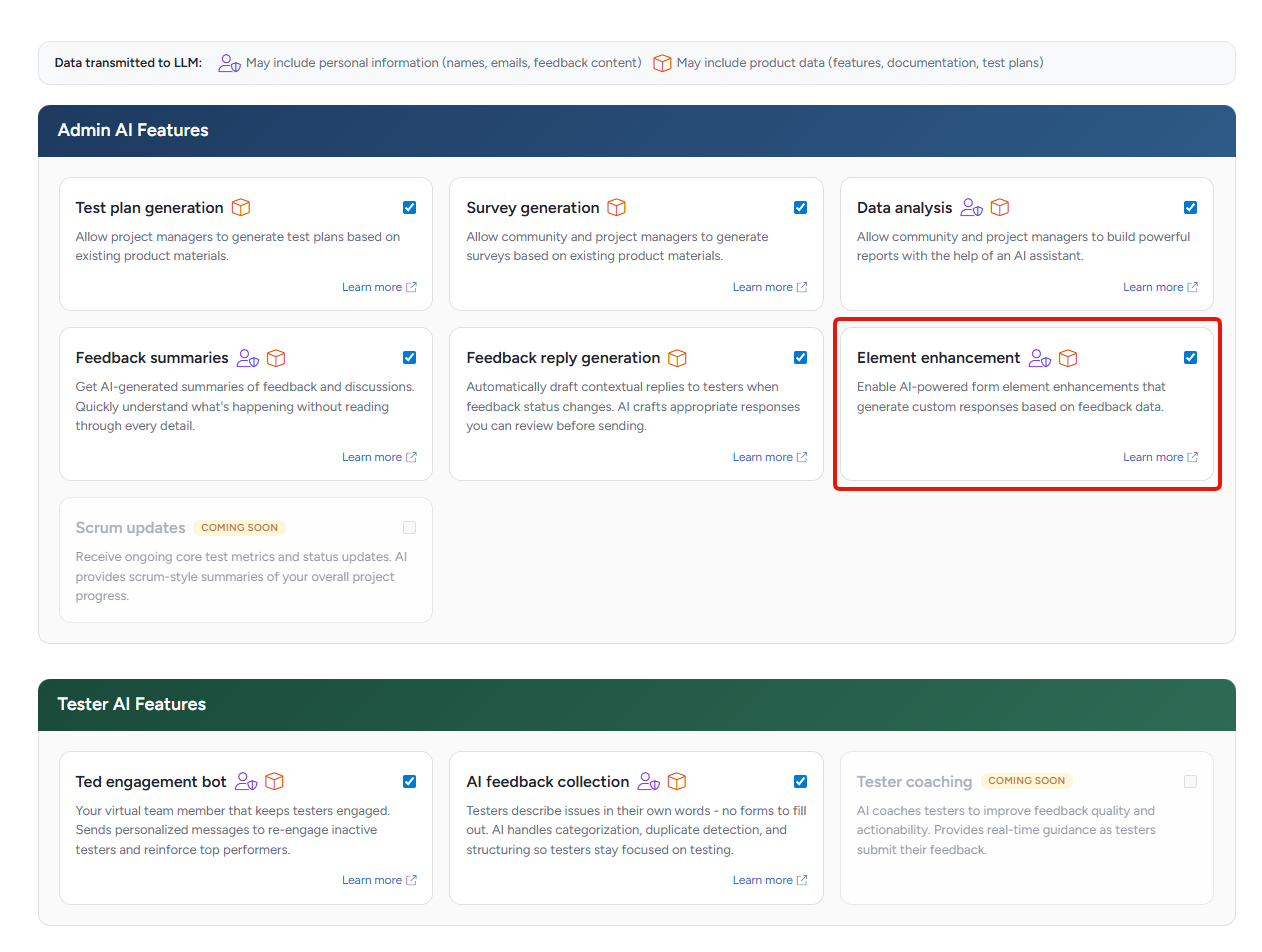
Element Enhancement must be enabled at the community level before it's available in any form configuration. To turn it on:
- Click the Community logo in the top-left navigation menu
- Select Community configuration
- Click Centercode AI
- Enable Element Enhancement
Once enabled at the community level, the option to add AI elements becomes available when editing individual form fields across all supported form types.
What the AI Can Do with a Field
When you enable AI on a form field using Generate AI response after submission, you have two options for how it works. The AI can either improve what the tester wrote, or generate the field's content entirely on its own. Which approach makes sense depends on whether you want testers filling that field out at all.
Enhance the tester's answer: The tester fills in the field as normal, and the AI produces an improved version after submission. For example, a tester writes a vague title like "search broken" and the AI rewrites it as "Search results fail to load when filter is applied." The tester's original answer is preserved alongside the AI version. To use this approach, check Include this answer in AI prompt when configuring the field.Generate the answer entirely: The tester doesn't fill in the field at all. The AI generates the content from a prompt, using other field values as context. For example, a "Summary" field might pull from the tester's description and steps to reproduce, producing a clean summary without the tester needing to write one. To use this approach, leave Include this answer in AI prompt unchecked. These fields display an "AI Enhanced" badge with no toggle to an original answer, since there isn't one.
Configuring an AI Form Element
AI elements are configured per field, per form. You can add AI generation to any supported field type on a feedback form, survey, test platform form, or user profile form.
Only text fields are supported for AI element generation.
Other field types on the form won't be populated by AI but remain available for manual editing by the tester.
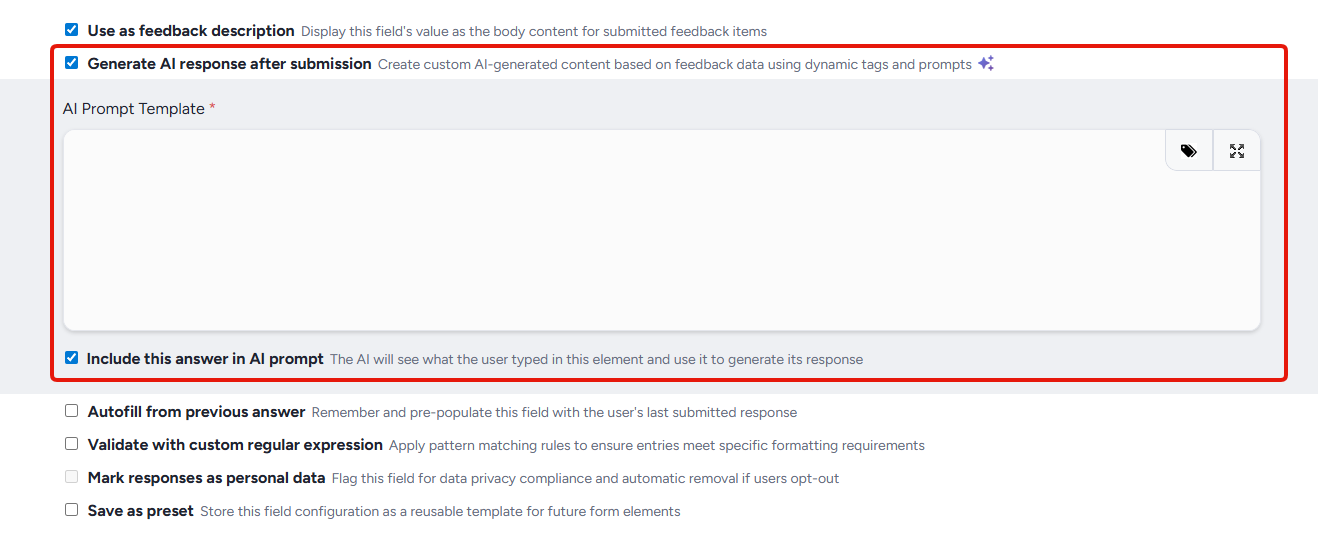
To configure a field as an AI element:
- Navigate to the form you want to configure and open the field editor for the relevant field
- Enable Generate AI response after submission for that field
- Choose how the AI uses the field: check Include this answer in AI prompt to have the AI enhance the tester's answer, or leave it unchecked to have the AI generate the answer entirely
- Select which other fields should feed into the AI prompt (see Writing prompts and using dynamic tags below)
- Write your prompt
- Save the field configuration
Writing Prompts and Using Dynamic Tags
The prompt you write controls what the AI generates for that field. Prompts support dynamic tags, which pull in values from other fields on the same form and give the AI the context it needs to produce accurate output.
Dynamic tags: Reference other form fields directly in your prompt using dynamic tags. For example, a prompt for a "Summary" field might reference the tester's Description and Steps to Reproduce fields as input. Dynamic tags resolve correctly for each form type, so a prompt on a survey references survey fields, a prompt on a user profile form references profile fields, and so on.
Keep prompts specific. The more clearly you describe what you want the AI to produce, the more consistent the output will be across submissions.
Reviewing AI-Generated Content
AI generation happens after the tester submits, not during. Testers never see loading states or AI indicators on the form itself. The generated content appears on the feedback item for you to review once processing is complete.
If the feedback item loads while generation is still in progress, a spinner appears and the page checks for updated results every few seconds until the content arrives.
How Re-edits Are Handled
When a tester edits feedback after it's been submitted, Centercode handles AI regeneration carefully to avoid overwriting corrections you've already made.
Edit preservation: If you've manually corrected an AI-generated value (for example, fixing a wrong product name in a generated title), the system notes that correction. When the feedback is re-edited and re-processed, the AI is instructed to preserve your intent rather than regenerating from scratch.Selective regeneration: Only fields whose source content actually changed get re-processed on a re-edit. If the tester only updated one field, AI jobs run only for the elements that depend on that field. This keeps re-edit processing fast.Version gating: If a tester edits feedback while an AI job from a previous version is still running, new jobs wait for the previous ones to finish before starting. This prevents a slower earlier run from overwriting newer output.
Notifications and Processing Order
Notifications triggered by feedback submission (Slack, email, webhooks, and macros) are held until all AI element processing for that submission is complete. Once every AI field has been populated, notifications fire in order. Recipients see the final AI-enhanced content rather than the raw submission.
This applies to all supported form types. A webhook triggered by a survey submission, for example, will include any AI-generated survey field values in its payload.
Best Practices
- Start with one field. Pick a single field where AI enhancement would have the highest payoff (ex: the title or a form summary) and configure it first. Review the output across a batch of real submissions before adding more AI-generated fields to the same form.
- Be explicit in the prompt. The AI follows the prompt literally. Specify the length, tone, format, and what to draw from. A prompt that says "summarize this" produces inconsistent results; a prompt that says "write a two-sentence summary in plain language" produces consistent ones.
- Use Generative Mode for internal-only fields. Fields like categorization tags or report groupings are good candidates for full generation because participants don't need to fill them in and the AI can derive the value from context.
- Use Enhancement Mode when participant voice matters. Quotes for marketing, journal entries, and feature praise lose value if rewritten too heavily. Enhancement Mode preserves what the participant said while cleaning up format.
- Check the side-by-side view after launch. The original vs. enhanced display surfaces prompt issues fast. If the AI consistently misses the mark, the prompt needs tightening or a missing dynamic tag added.
Notes
- AI generation is configured per field and per form. Enabling it on one feedback type doesn't affect other feedback types or other form types.
- Generated content works alongside the AI Field Toggle from AI Feedback Triage, so you can always compare the tester's original input against the AI version for fields that were enhanced rather than fully generated.
- AI-enhanced field values appear in views, filters, exports, and email notifications alongside traditional data.