![New_Centercode_Logo.png]](https://help.centercode.com/hs-fs/hubfs/New_Centercode_Logo.png?height=35&name=New_Centercode_Logo.png)
AI Feedback Submission gives testers a faster, lower-friction way to report what they find. Instead of picking a feedback type and filling out a structured form, testers describe their experience in plain language, and Centercode's AI takes it from there. It identifies the type of feedback, fills in the relevant fields, checks for duplicates, and presents everything for review before anything is officially submitted.
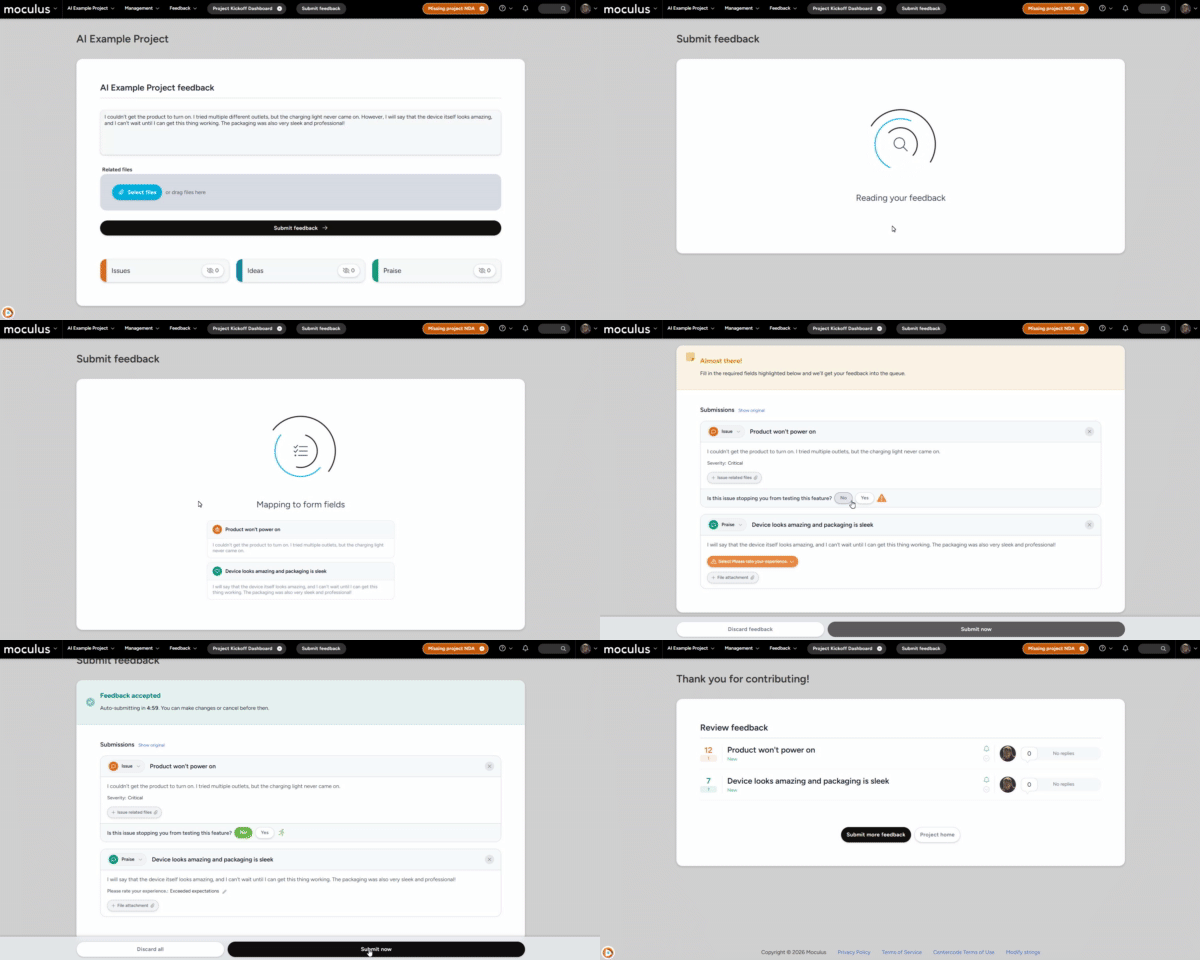
This article covers:
- Enabling AI Feedback Submission
- Writing and submitting feedback
- How AI analysis works
- Follow-up questions
- Similar feedback detection
- Reviewing and editing AI-generated submissions
- Attaching files
- The auto-finalize timer
Enabling AI Feedback Submission
AI Feedback Submission requires configuration at two levels before it appears for testers.
Step 1: Enable at the community level
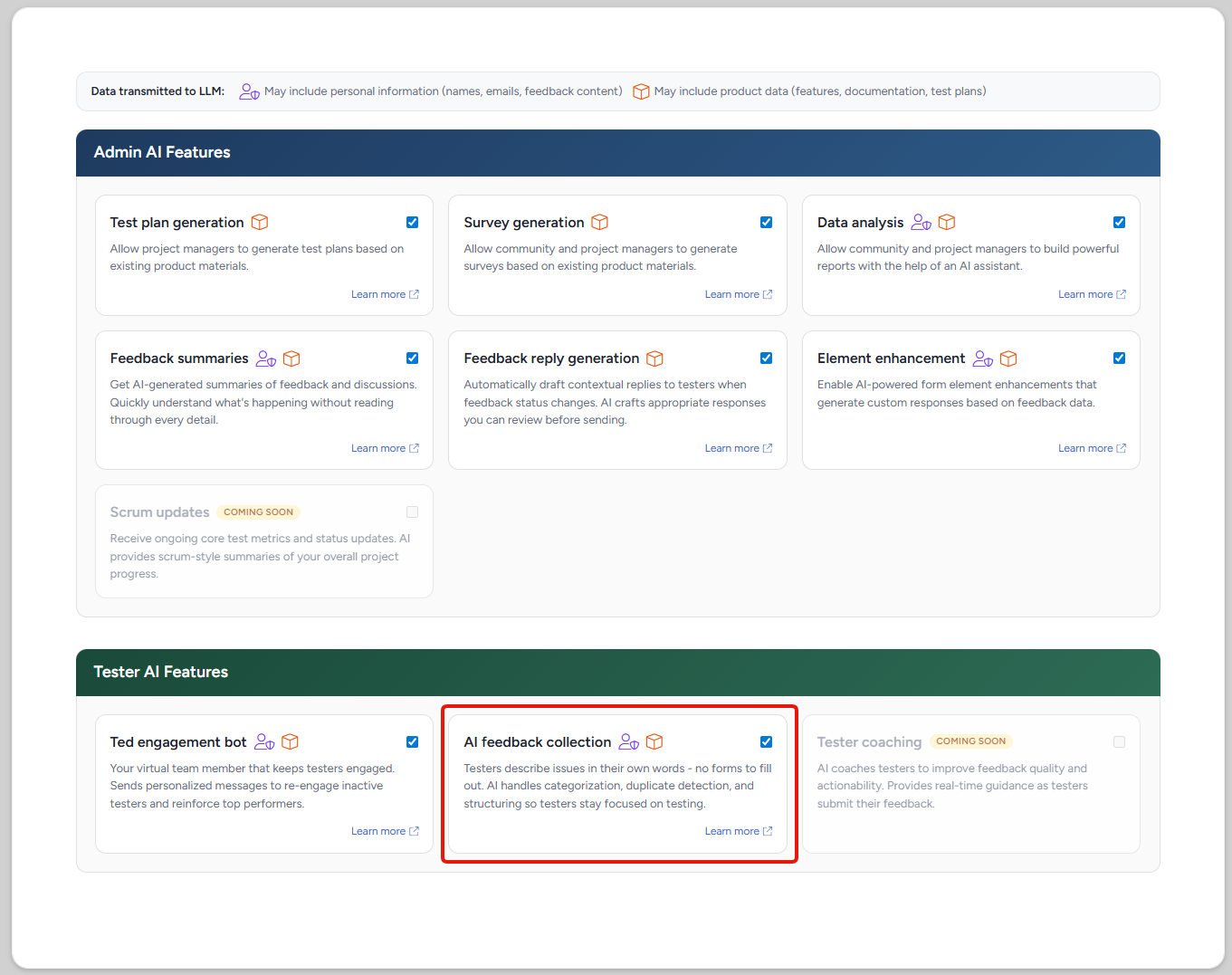
The feature must first be turned on in the community's Centercode AI settings. To access those settings:
- Click the Community logo in the top-left navigation menu
- Select Community configuration
- Click Centercode AI
- Enable AI Feedback Submission
Step 2: Enable at the project level
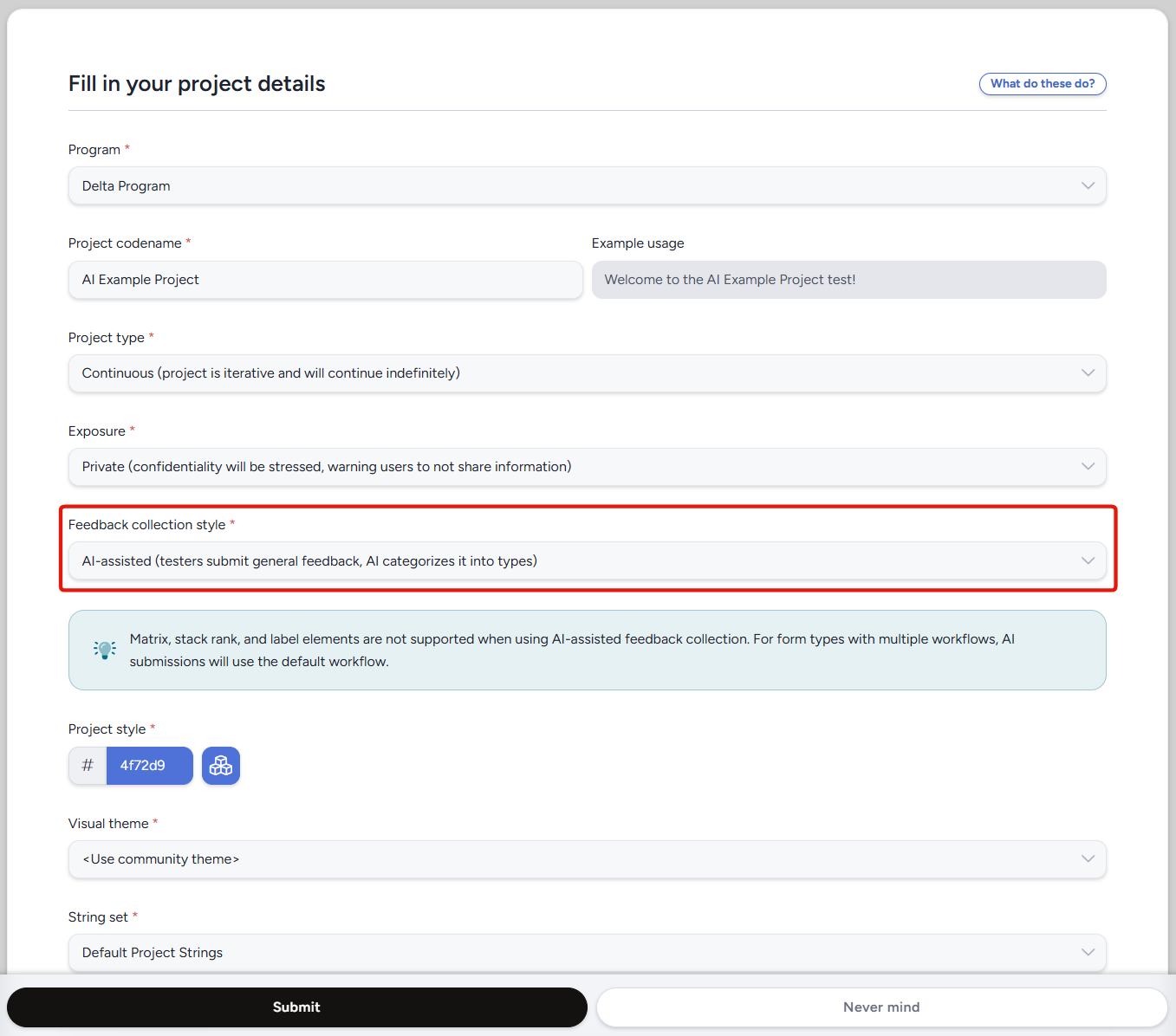
Once enabled at the community level, the feature must also be turned on for each individual project. To do that:
- Navigate to the project and go to Management > Project Configuration > Project Settings
- Locate the Feedback collection style dropdown
- Select the AI Feedback Submission option
- Save your changes
You can also set the Feedback collection style during project creation from the project's basic settings.
Writing and Submitting Feedback
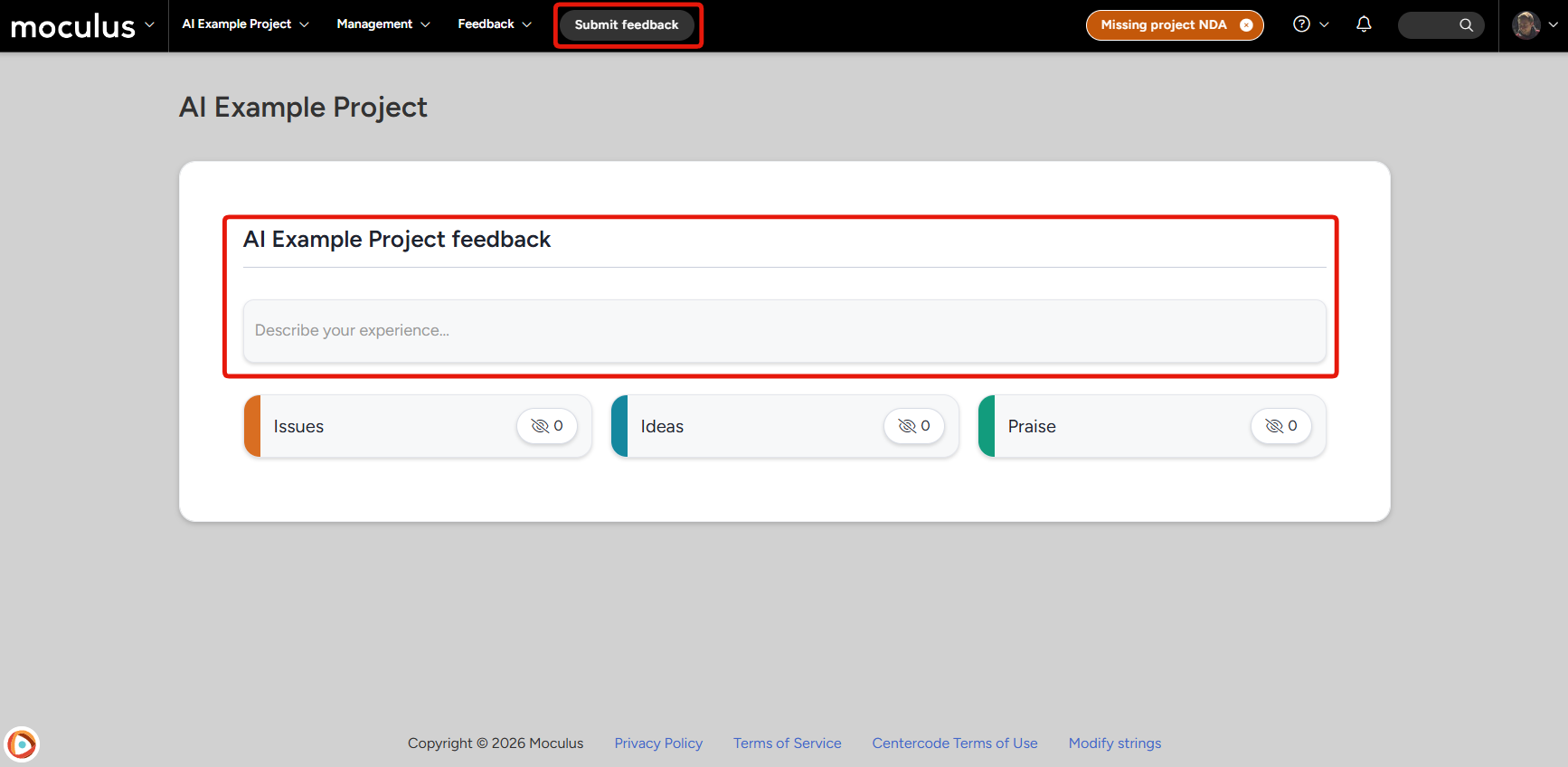
On the tester's home page, or when a tester clicks Submit Feedback in the project navigation bar, they land on a single-input screen. There's no form to fill out and no feedback type to choose. Testers write in a text area and describe their experience in their own words.
Text input: A free-form text area where testers describe their feedback. There's a 50-character minimum so the AI has enough to work with. Encourage testers to write naturally, as if explaining the situation to a colleague.File attachments: Testers can attach files (screenshots, documents, etc.) directly from this screen using a drag-and-drop area or a file picker. Individual files can be up to 10 MB.
After entering their description and any attachments, testers click Submit feedback to send the input to the AI for analysis.
AI Analysis
After submission, a brief processing screen appears while the AI reads the tester's input. This typically takes a few seconds.
During analysis, the AI:
- Breaks the input into one or more distinct pieces of feedback (for example, a single entry describing a bug and a feature request may produce two separate submissions)
- Categorizes each piece as an Issue, Idea, or Praise
- Fills in relevant fields (title, description, feature area, severity, steps to reproduce, expected behavior, and actual behavior) based on what it found in the text
After analysis, the tester is routed to one of three screens depending on the results: Follow-Up Questions (if the input was too vague), Similar Feedback (if duplicates were detected), or the Review Screen (the standard path).
Follow-Up Questions
If the AI determines the tester's input doesn't contain enough detail to produce a useful submission, it asks for more before proceeding. This screen only appears when clarification is needed.
The AI generates specific questions based on what was missing, for example "What steps led to this issue?" or "What did you expect to happen?" The tester answers in a text area, then clicks Continue. The AI re-analyzes the combined input and routes to the next appropriate screen.
Similar Feedback Detection
Before creating new feedback records, the system checks for existing submissions that look similar to what the tester described. This helps reduce duplicate feedback in the project.
Similar items panel: For each piece of feedback the AI identified, up to 5 similar existing items are shown side by side with the tester's description.Vote on existing feedback: If a shown item matches what the tester meant to report, they can select it to vote on it instead of creating a new submission. This adds their support to the existing feedback record.None of these are similar: If none of the matches apply, the tester selects this option and proceeds to create new feedback.
If the AI produced multiple feedback items, the tester resolves each one in sequence. A progress indicator shows where they are ("1 of 3", etc.). The Continue button activates only after every item has been resolved.
Reviewing and Editing Submissions
The review screen is where testers see what the AI produced and can make changes before anything is officially submitted.
Feedback cards: Each submission appears as a card with a color-coded type badge (red for Issue, blue for Idea, green for Praise), along with the title, description, and AI-populated fields.Inline editing: Testers can click any field on a card to edit it directly. A popover or inline editor opens for the selected field.Feedback type selector: A dropdown on each card lets the tester change the feedback type if the AI miscategorized it.Show all fields: A toggle expands the card to reveal all populated fields, including type-specific ones like severity, steps to reproduce, and expected and actual behavior.Show original: A link on each card opens a popover showing the tester's raw input text, making it easy to compare what they wrote with what the AI interpreted.Discard: Removes an individual submission from the list. An Undo option appears immediately after discarding in case of a change of heart.Submit now: Finalizes all remaining submissions immediately, without waiting for the timer.
Items the tester voted on during the Similar Feedback step also appear on this screen as non-editable "Voted On" cards, so the tester has a record of what happened.
Attaching Files
Files uploaded on the initial input screen carry forward to the review screen. How they're attached depends on how many submissions the AI produced.
Single submission: Files are automatically attached to the one feedback item. No manual assignment needed.Multiple submissions: A file allocation area appears on the review screen. Testers drag each file onto the appropriate feedback card to assign it. Files can be moved between submissions or returned to the unattached area.
Additional files can be added from the review screen using an Upload more files button. All files must be assigned before the submission can be finalized. The system will prompt the tester to allocate any that remain unattached.
Auto-Finalize Timer
When the review screen loads, a 5-minute countdown timer begins. If the timer reaches zero without the tester clicking Submit now, all remaining (non-discarded) submissions are automatically finalized and become feedback records in the project.
Timer reset: Any action (editing a field, attaching a file, discarding a submission) resets the timer back to 5 minutes.Timer pause: If the tester is actively focused on editing a field, the timer pauses to avoid submitting mid-edit.Pending submission reminder: If a tester navigates away before finalizing, a reminder badge appears in the project navigation bar. Clicking it returns to the in-progress review screen. A new AI submission cannot be started until the pending one is resolved.
Notes
- When the feature is enabled for a project, the individual Submit Issue, Submit Idea, and Submit Praise buttons are replaced by the single Submit Feedback button. Disabling the feature or changing the Feedback collection style restores the individual buttons.
- The AI can populate the following field types: Text, Multiline Text, Radio Buttons, Select/Dropdown, Checkbox, Feature selector, and File Upload. Other field types on the form won't be populated by AI but remain available for manual editing.
- Testers need standard feedback submission permissions. No new roles or permissions are required.
- Each tester can have only one pending AI submission at a time per project. They must finalize or discard it before starting a new one.
- Submitting feedback via AI counts toward the tester's activity progress in the project.
- AI feedback records are not cloned when cloning a project